





pvdamme
Members
-
Joined
-
Last visited
-
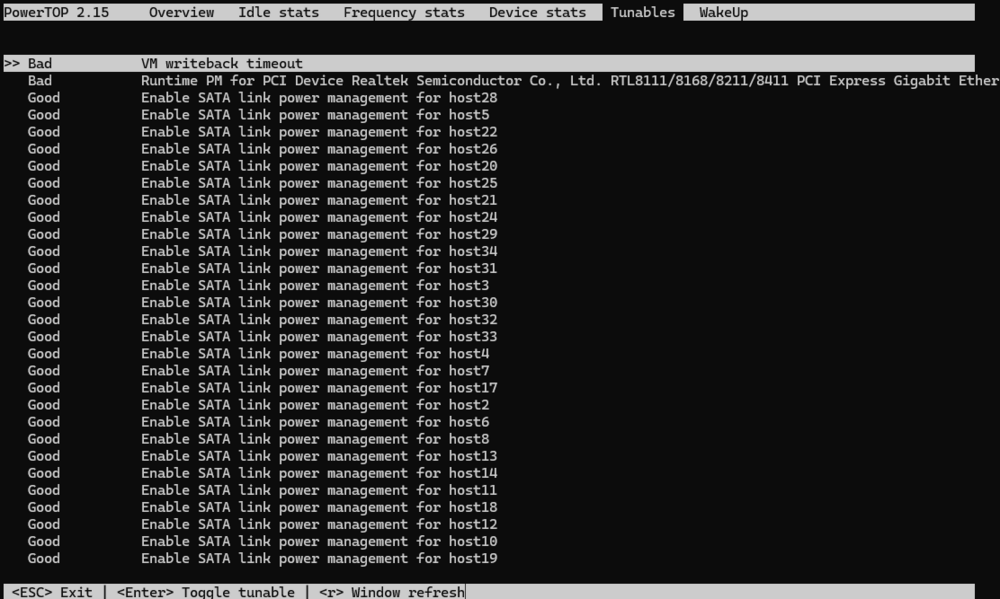
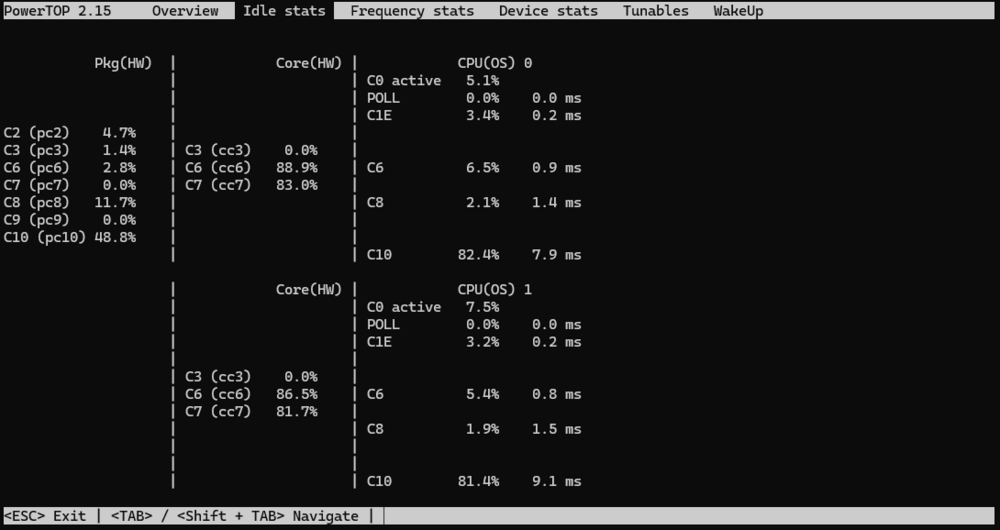
Alright, so far everything seems to be under control. I'll do a short recap and mark this post as the solution so it might help people who come across the same problem. The issue I restarted my router which lead to Unraid to become inaccessible over ethernet. Unraid could still be accessed by attaching a monitor and keyboard to the server. Running "ifconfig eth0 down && ifconfig eth0 up" restored network access All disks connected through my PCI-E SATA (ASM1166) adapter were listed as "missing" and the log displayed SATA Link errors A regular reboot did not restore the drives but a shutdown and restart did restored everything back to normal. The cause When the router reset, the network adapter on my motherboard (ASUS Prime N100I-D D4), a Realtek Gigabit Ethernet controller entered a power saving state couldn't wake up by what I can tell. Since, all drives attached to the SATA adapter were spun down, nothing kept all the PCI stuff from going to sleep as well. This appears to cause the SATA Link errors and I could not figure out how to recover from this state other that doing a full shutdown and restart (reboot doesn't work) The solution I was aware of issues with ASM1166 SATA adapters so I didn't use powertop auto tune, but instead used the script provided by @mgutt and adapted it. Everything appeared to work fine until I restarted my router, which I don't do often. (Pulling the ethernet cable will cause the same issue) So I went through the script, turned things on and off and discovered that by not setting the power management of the network adapter to auto, everything works fine and c states are still working alright. Quick way to find the device address of the network adapter is by going to the tunable section of powertop and tuning the device. The path, which includes the address, is listed at the top of the window, which in this case was "/sys/bus/pci/devices/0000\:03\:00.0/power/control" The simplest way to change everything to auto but this one device I could think of was to turn everything including it to auto and then removing it from this one device again and then setting it to "on" (There is probably a better way but this is simple and works): # Runtime PM for PCI devices echo auto | tee /sys/bus/pci/devices/????:??:??.?/power/control > /sys/bus/pci/devices/0000\:03\:00.0/power/control echo on | tee /sys/bus/pci/devices/0000\:03\:00.0/power/control Some notes So if you happen to have the same hardware as I do, the following version of the script might work for you as well: # ------------------------------------------------- # Set power-efficient CPU governor # ------------------------------------------------- /etc/rc.d/rc.cpufreq powersave # ------------------------------------------------- # Disable CPU Turbo # ------------------------------------------------- #[[ -f /sys/devices/system/cpu/intel_pstate/no_turbo ]] && echo "1" > /sys/devices/system/cpu/intel_pstate/no_turbo [[ -f /sys/devices/system/cpu/cpufreq/boost ]] && echo "0" > /sys/devices/system/cpu/cpufreq/boost # ------------------------------------------------- # Enable power-efficient ethernet # ------------------------------------------------- # enable IEEE 802.3az (Energy Efficient Ethernet): Could be incompatible to LACP bonds! for i in /sys/class/net/eth?; do dev=$(basename $i); [[ $(echo $(ethtool --show-eee $dev 2> /dev/null) | grep -c "Supported EEE link modes: 1") -eq 1 ]] && ethtool --set-eee $dev eee on; done # Disable wake on lan for i in /sys/class/net/eth?; do ethtool -s $(basename $i) wol d; done # ------------------------------------------------- # powertop tweaks # ------------------------------------------------- # Enable SATA link power management echo med_power_with_dipm | tee /sys/class/scsi_host/host*/link_power_management_policy # Runtime PM for I2C Adapter (i915 gmbus dpb) echo auto | tee /sys/bus/i2c/devices/i2c-*/device/power/control # Autosuspend for USB device echo auto | tee /sys/bus/usb/devices/*/power/control # Runtime PM for disk echo auto | tee /sys/block/sd*/device/power/control # Runtime PM for PCI devices echo auto | tee /sys/bus/pci/devices/????:??:??.?/power/control > /sys/bus/pci/devices/0000\:03\:00.0/power/control echo on | tee /sys/bus/pci/devices/0000\:03\:00.0/power/control # Runtime PM for ATA devices echo auto | tee /sys/bus/pci/devices/????:??:??.?/ata*/power/control # Activate ASPM for some devices setpci -s 03:00.0 0x80.B=0x42 setpci -s 00:1c.6 0x50.B=0x42 In powertop, it looks like this on the tunables: And like this for the c-states under idle stats (which I think is quite alright) I hope my struggle with this problem will help others.
-
OK, I have some updates. I don't have to restart my router. Pulling the ethernet cable from the NIC is enough. If I don't execute the script on boot at all, the problems appears to be gone. So no I'm commenting out some lines to find the culprit. Edit1: Alright, played around with the script and found that the ASM1166 isn't the issue by itself. It fails, so that's not optimal but the network card going to sleep is the problem. I commented the following line out # Runtime PM for PCI devices # echo auto | tee /sys/bus/pci/devices/????:??:??.?/power/control And then I went to powertop and changed the tunables one by one. When "Runtime PM for PCI Device Realtek Semiconductor Co., Ltd. RTL8111/8168/8211/8411 PCI Express Gigabit Ethernet Controller" is turned to GOOD, the problem happens moments after I plug the ethernet cable. I might have overlooked something but that's the current state of my investigation. I'm done for the day and will make some further tests tomorrow.
-
"ifconfig eth0 down && ifconfig eth0 up" solved the problem of the NIC but the hard drives remained missing. A clean shutdown and reboot made them accessible again. EDIT for clarification: The array was stopped. The array running, might have been the what caused the HDD issue, but I'm not sure about that. So I guess I will have to look into disabling all sleep stuff from the NIC and SATA adapter.
-
Alright, I played around in GUI mode and the problem appears to have something to do with sleeping devices. But it is really odd and my previous assumption was wrong. The restart didn't cause my hard drive to go missing. Restarting my router causes it. Apparently, as long as the NIC is active, everything is fine. But if it loses connection it can't wake up from sleep and takes my PCI-E Sata adapter with it. It's an ASM1166 and I used the script/commands by @mgutt from here: Reduce power consumption with powertop - User Customizations - Unraid It appeared to work fine so far, drives would spin down, wake up again. I usually don't restart my router so the problem didn't occur before. faust-diagnostics-20241117-1552.zip
-
Phase 1 - find and verify superblock... Phase 2 - using internal log - zero log... - scan filesystem freespace and inode maps... clearing needsrepair flag and regenerating metadata - found root inode chunk Phase 3 - for each AG... - scan and clear agi unlinked lists... - process known inodes and perform inode discovery... - agno = 0 - agno = 1 - agno = 2 - agno = 3 - agno = 4 - agno = 5 - agno = 6 - agno = 7 - agno = 8 - agno = 9 - agno = 10 - process newly discovered inodes... Phase 4 - check for duplicate blocks... - setting up duplicate extent list... - check for inodes claiming duplicate blocks... - agno = 0 - agno = 2 - agno = 1 - agno = 3 - agno = 4 - agno = 5 - agno = 6 - agno = 7 - agno = 8 - agno = 9 - agno = 10 Phase 5 - rebuild AG headers and trees... - reset superblock... Phase 6 - check inode connectivity... - resetting contents of realtime bitmap and summary inodes - traversing filesystem ... - traversal finished ... - moving disconnected inodes to lost+found ... Phase 7 - verify and correct link counts... Maximum metadata LSN (1:2295478) is ahead of log (1:2). Format log to cycle 4. done This is the output of the repair with the -L parameter. Which I think looks fine, since there is no alert.
-
The data rebuild finished without errors. Should I still run a repair? I'm unsure how to proceed with the networking issue. I can reproduce the issue every time I restart the router. Maybe the NIC goes to sleep when the router resets and doesn't wake up. So, my plan would be to start Unraid in GUI mode, keep the array stopped and then restart the router. This should be safe way to try a few things, right? The issue with my HDD was probably because I shut it down while it was running.
-
Yes, I do. Should I set a static ip in the Unraid settings instead?
-
Alright, I'll post any news. The rebuild should probably take another 20 hours. Next time, which I hope never happens, I will attempt to repair the filesystem first. Do you have any idea what might have happened with the network after I restarted the router?
-
I attached the diagnostics file I downloaded after the issue first appeared. I created another diagnostics file I created just now after the rebuilding started. faust-diagnostics-20241116-1236.zip faust-diagnostics-20241116-1529.zip
-
EDIT: I posted a solution to my problem. Hope it helps those people with the same or similar issues: ------------------------------------------------- Hello, I hope this is the correct place to post this. I had to restart my cable modem/router combo device provided by my ISP. Following this, Unraid became inaccessible. My router listed the device as offline. But I could see the lights on the NIC on the motherboard of my Unraid server blinking. I attached a monitor and keyboard and attempted to log in using root, which didn't work. I used the same password as the one used in the web ui. Maybe I mistyped multiple times in the heat of the moment. I decided to restart using ctrl+alt+del After the restart, the Unraid server showed up in my network devices again. I downloaded diagnostics. EDIT: At first no drive was found at all. I had to shutdown and restart for any drives to show up. Then I noticed that my data drive could not be mounted and was being emulated. I currently have 1 parity, 1 data and 1 unassigned drive I intended to use for cold backup. I rebooted to see if that would fix it and the device was apparently being mountable but still being emulated Then I unassigned the drive, started the array in maintenance mode to run a file system check and smart which showed no errors. I reassigned the drive and it is currently rebuilding. So that's the situation right now. I might have done something wrong in my panic. So I have the following questions: * Does someone have any idea about the problem of the server going "offline" after the router restarted? * What are my next steps with the now rebuilding drive? I can upload other files from diagnostics if needed. By what I can tell, the issue started in the syslog with the following line: Nov 16 12:01:47 FAUST kernel: r8169 0000:03:00.0 eth0: Link is Down syslog-previous.txt

