MrSteel
Members
-
Joined
-
Last visited
-
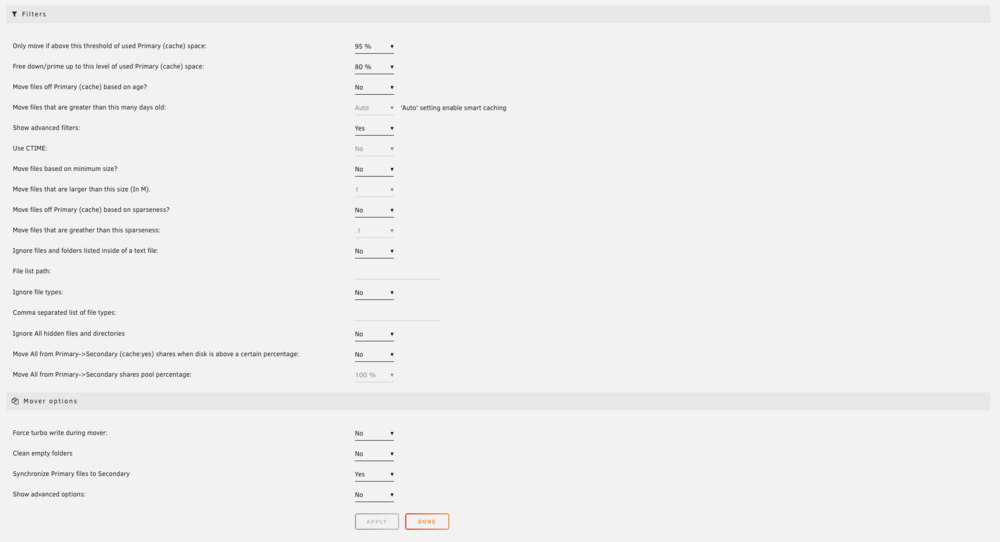
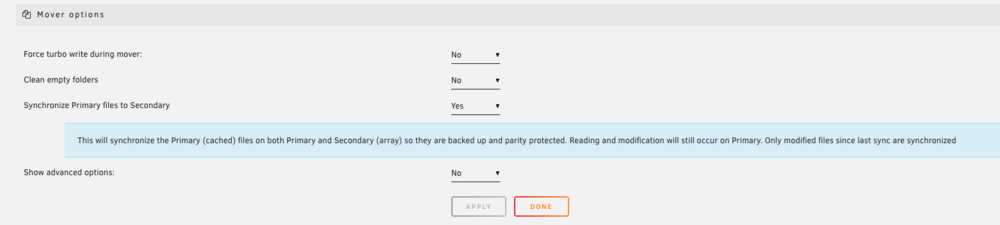
Thanks for your reply but for me the description of this functions is clear: Sync Primary files to Secondary for backup BUT use Primary for modifications. If this is not the case, please clarify. Thanks in advance.
-
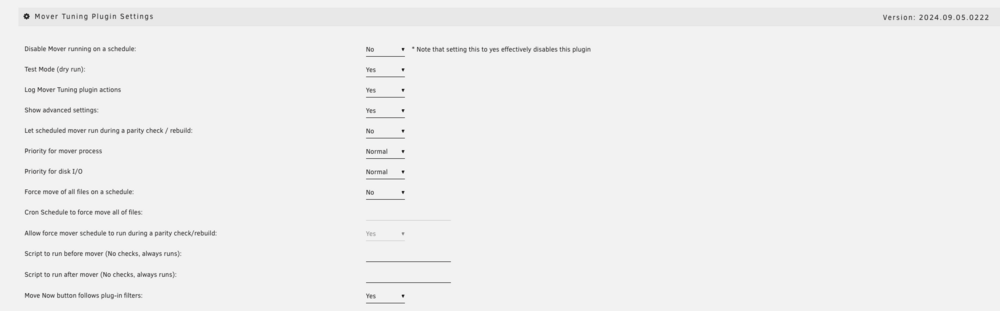
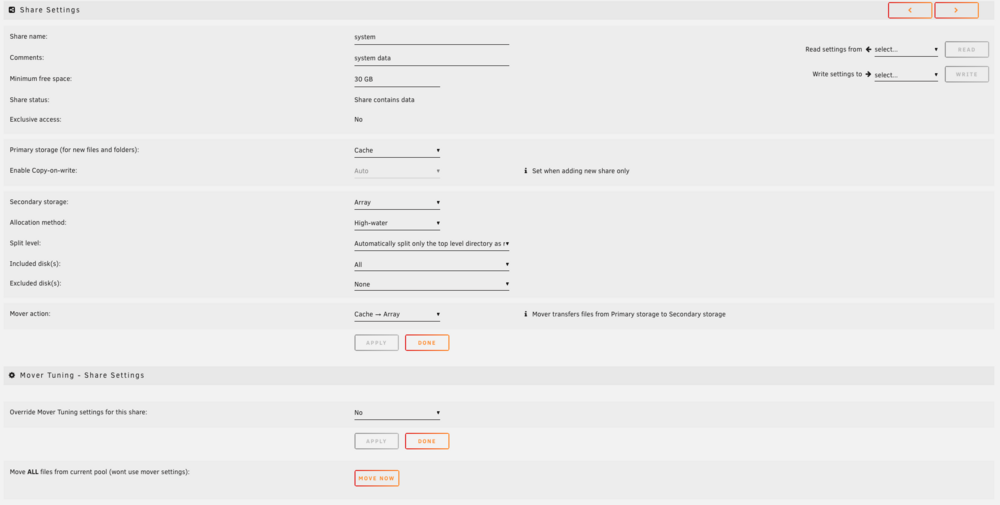
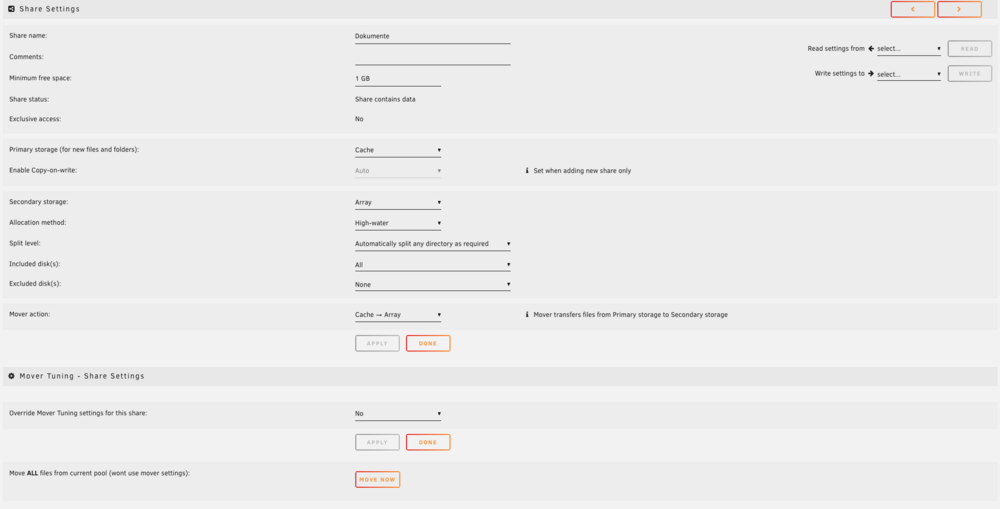
Hi to all, i'm new to the mover tuning plugin and i need some help / clarification about the behavior of the mover tuning plugin. Unraid Version: 6.12.13 Mover Tuning Version: 2024.09.05.0222 Issue: Mover not syncing My mover tuning default settings. All relevant shares use the default settings for the moment. Issue is, that every time i start the mover, independent if dry-run is on or off, files are not synced to secondary (Option: Syncronize Primary files to Secondary is YES). e.g.: 2 shares: documents and system both use the default mover tuning settings. Only minimum free space share setting differs. All files of both shares are on cache (done with unbalanced plugin). system Dokumente BUT: When i start the mover, the files of "Dokumente" share are not touched (not moved, not synced) and the files of system share are moved to secondary, no sync. My expectation is that both shares stay on primary (cache) and are only synced to secondary as backup. And if threshold of 95% of used space on cache is tripped then the mover will move/delete files from cache of both shares until used space on cache is below 80%. I also deleted and re-installed the mover tuning plugin but without luck. Hope you all can help or clarify my issue.