





va1entin
Members
-
Joined
-
Last visited
-
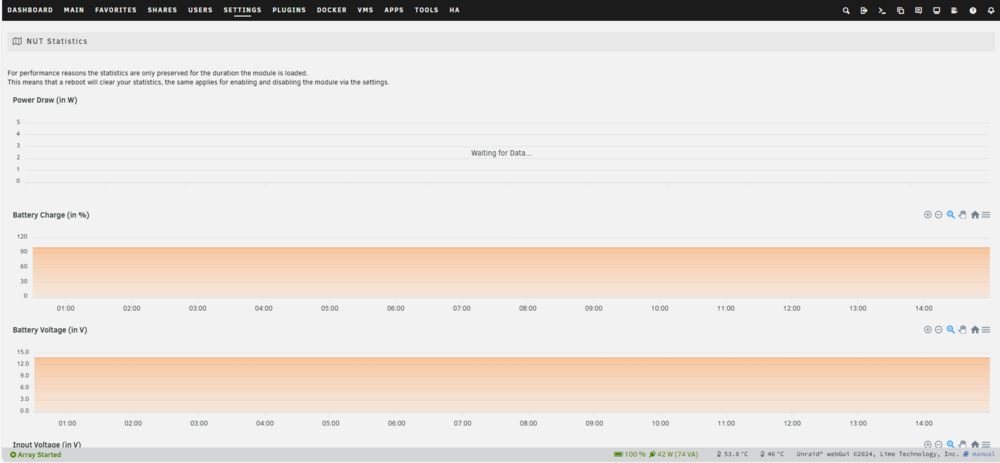
Hi and thanks again for this plugin and the support you provide for it. I have one more question. Is there anything I can do to get the Power Draw graph to be displayed? The power consumption is displayed correctly in the status bar and in the settings, but the history graph cannot be displayed no matter what I do. Is it possible? Thanks!
-
Of course you are right. I made a ridiculous mistake, the plugin works perfectly. Thanks! I would, however, need some advice. I need that when the plugin shutdowns the server, an mqtt command to be executed before. The solution I found so far was to copy the nut-notify script to /boot/config, modify it as I want, and every time the server is restarted, it is copied back to the /usr/sbin/ folder. Is there a more elegant solution to this problem? Thanks!
-
After the last update (2025.02.26) ups.load is displayed as 0, although it is not. Before it worked correctly
