ralphholzmann
Members
-
Joined
-
Last visited
-
Hey @bmartino1, thank you for your thoughtful and well written advice. Ultimately I couldn't get this to work because my router doesn't properly support subnets or vlans, despite having sections for them in the router settings. I found this out the hard way after ~3 days of attempts at trying to get this to work. Nevertheless, I really appreciate you spending the time to try and help me out, I sent a donation your way.
-
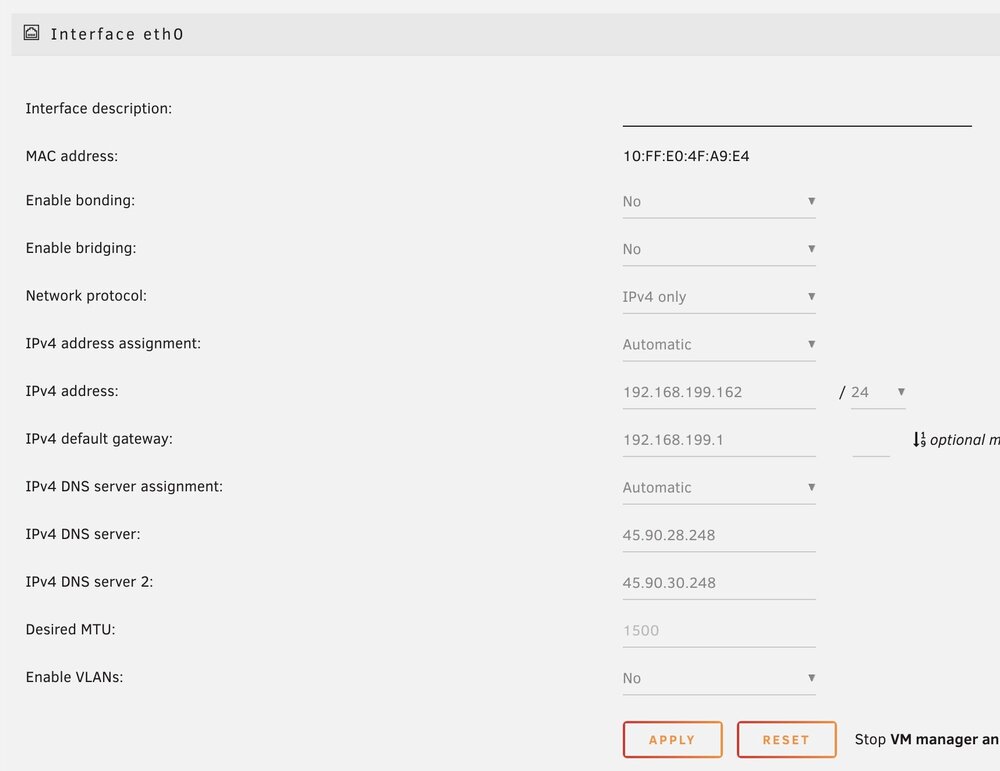
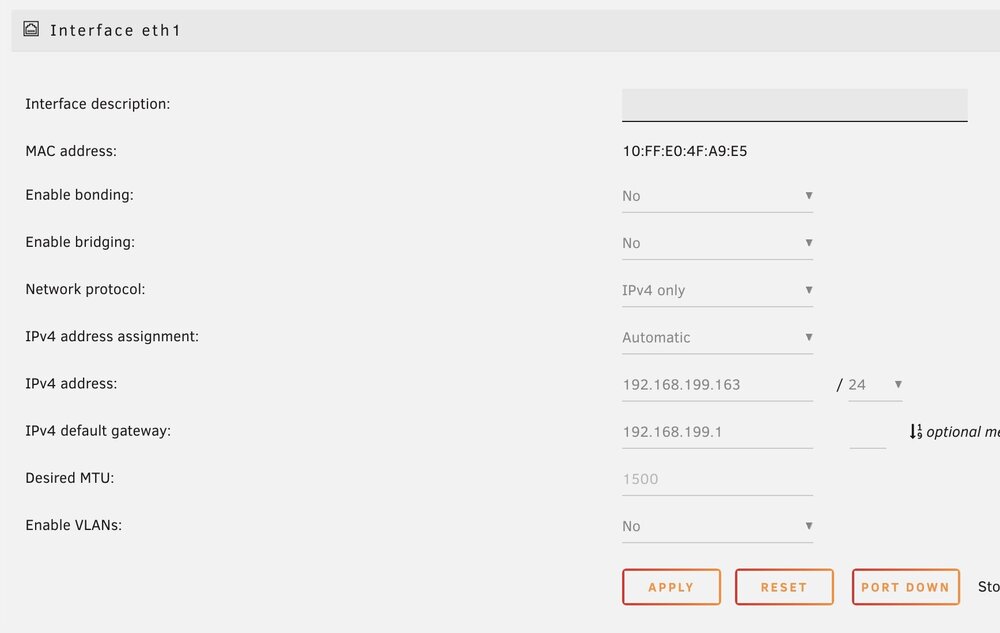
Thanks for the recommendation @bmartino1. What I'm trying to accomplish have some docker containers routed to the clear internet (eth0) and other containers routed through my VPN accelerator (eth1). On my router, I have 192.168.199.162 (eth0) routed to the clear internet and 192.168.199.163 (eth1) routed to my VPN accelerator. I was hoping it would be as easy as telling some containers to use one interface or the other, but that's not the case so far. If there's a better way to accomplish this, I'm open to it! Thanks again.
-
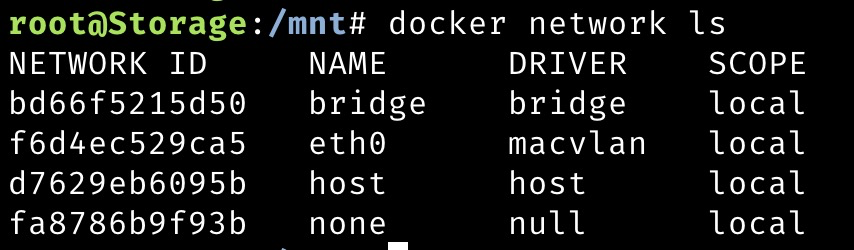
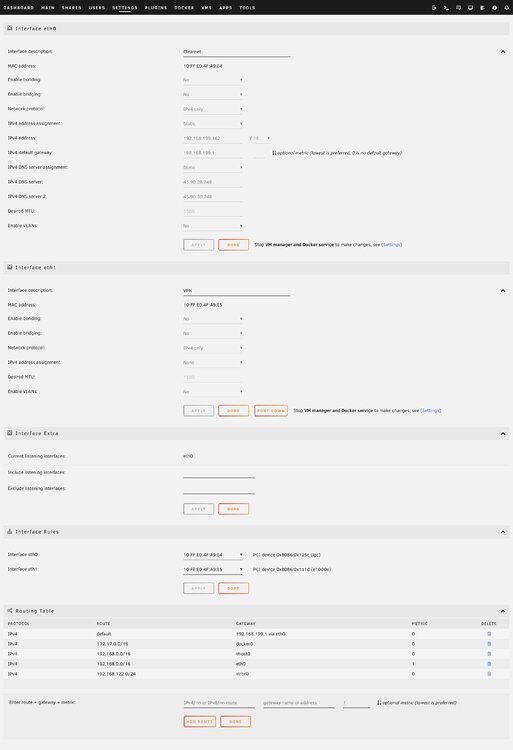
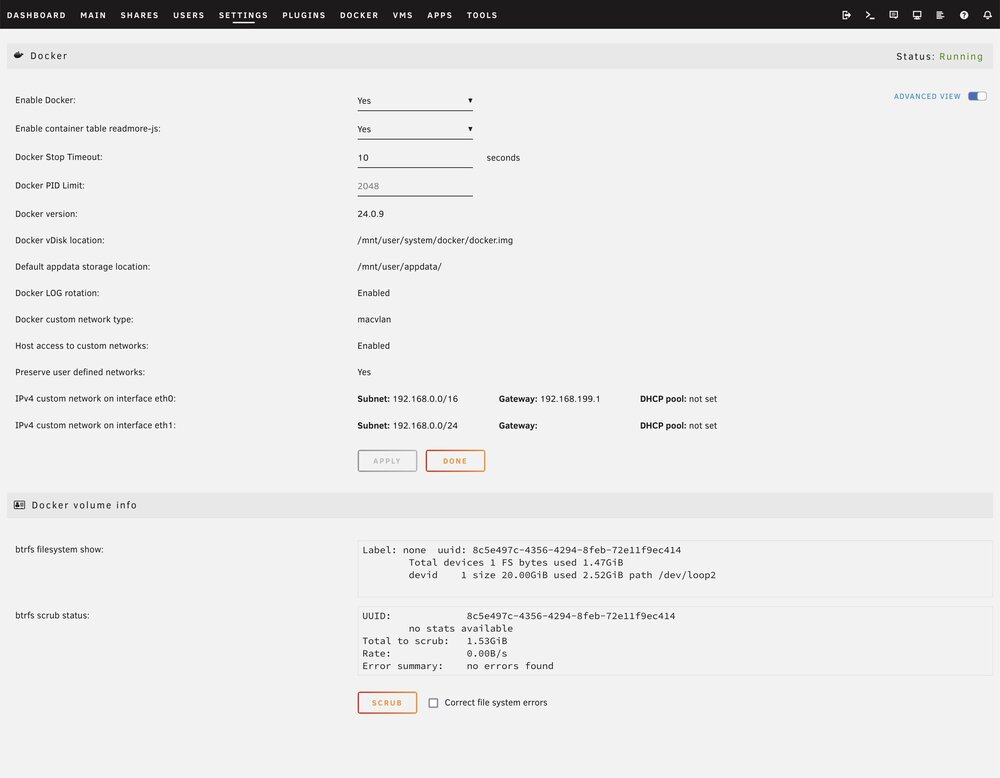
Thank you for the advice @JorgeB! I've removed the gateway from eth1, and here are my most recent networking and docker settings. I really appreciate the help.
-
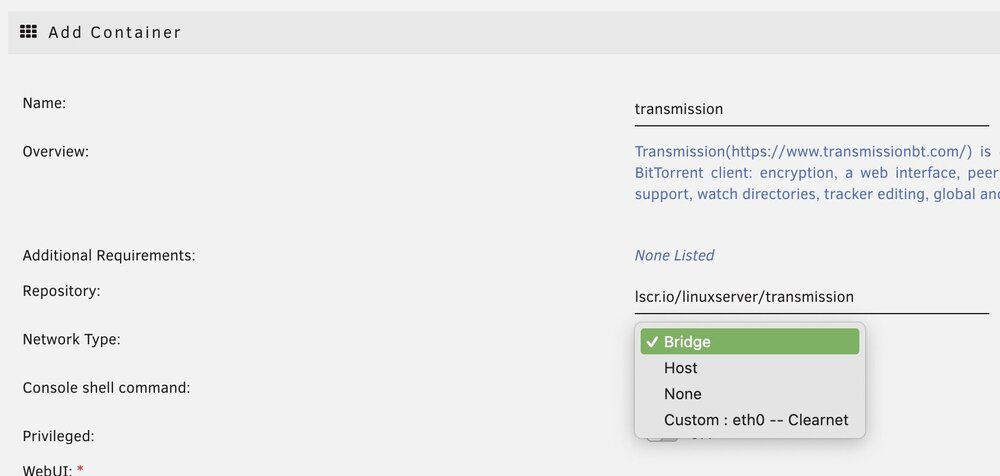
Topic title says it all. I have two ethernet ports on my mobo, which show up as eth0 and eth1 on unraid. I would like some docker containers to interface with only eth0, and others to interface only with eth1, however eth1 does not show up as an option when installing new docker container. Does anyone know how to get eth1 to be an option when creating a container? Screenshots attached, thank you.