luiginumberone
Members
-
Joined
-
Last visited
-
To anyone following this thread, the issue was resolved by creating a new VM config and pointing it to the original vdisk img file. Booting the VM using the new config correctly shows the GPU and USB controller in the client as you would expect. Booting with the old config does not - this is repeatable. I checked the new XML against the original and there were no significant differences so I'm not really sure what caused the new config to fix the issue. I've uploaded the two files if anyone cares to inspect. Things that changed: Name UUID NVRAM fd path Target port and slot for PCI index 4, 5, 6 I wouldn't expect the first 3 items in this list to be of any significance. I manually changed the original config to use the new Target port and slot for PCI index 4, 5, 6 and it did not resolve the issue, so this seems not to be the cause either. I'm stumped, but at least things are working now on the new config. I'm still left with an issue where my Windows 11 VM hangs at the shutdown screen when the USB controller is passed through, but that seems like a separate issue and I'll deal with it in a new thread if required. Windows 11 Fix.xml Windows 11.xml
-
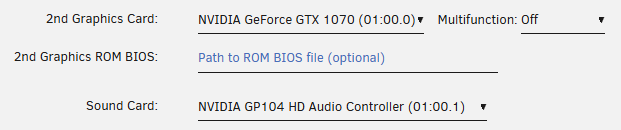
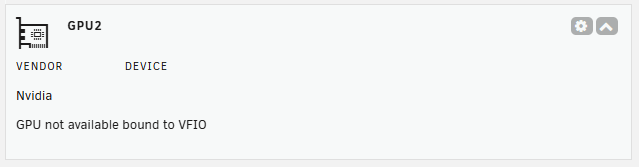
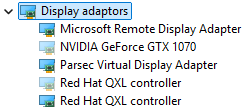
Update: It has also come to my attention that the GTX1070 GPU that I pass through to my VMs is also not being detected by the VMs. I don't bind this device to VFIO on boot, rather just let each individual VM bind as required. Here is the device: And the VM config: The GPU status on the dashboard shows the GPU unavailble while VM is active (as expected) VM device manager showing the GTX1070 display device greyed out where it used to be detect but now isn't. As before, I haven't updated this configuration at all since the v7.0.0 update. It would seem that my issue is a PCI passthrough one and is not specifically related to my USB controller or GPU.

-
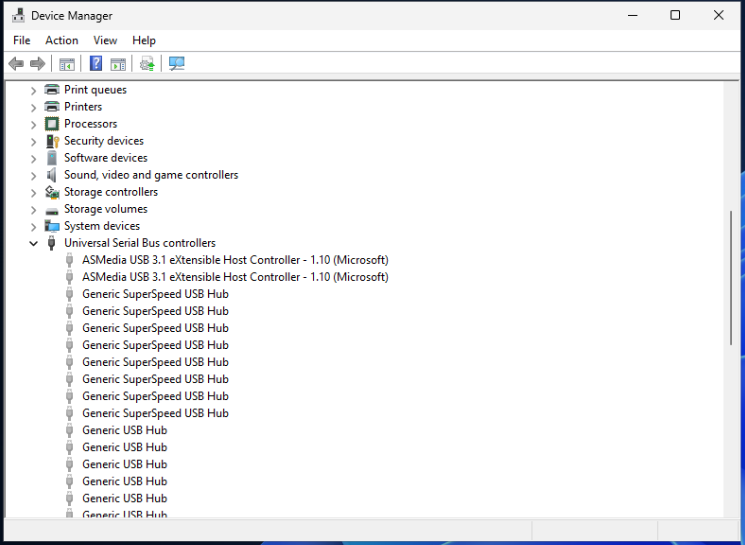
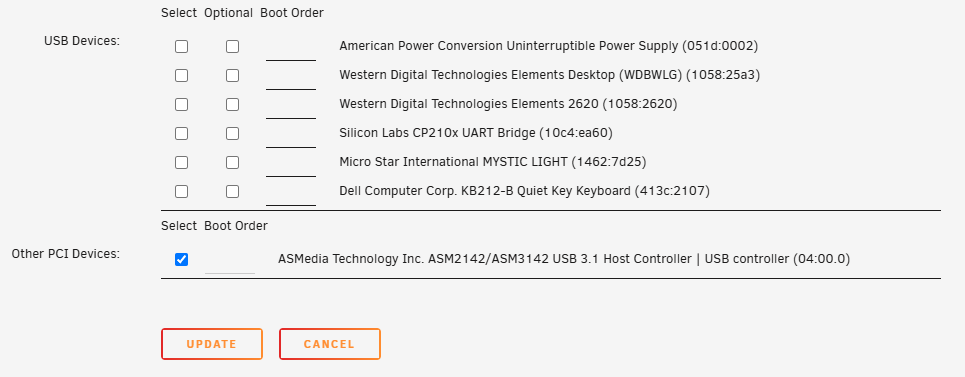
I was originally on v6.9.10 and updated to v7.0.0 via v6.9.12. My USB controller is an ASMedia Technology Inc. ASM2142/ASM3142 USB 3.1 Host Controller, set to bind to VFIO. The System Devices page reports that this was successful. Windows 11 VM settings have the controller checked under "Other PCI Devices". Booting into the Windows 11 VM, the controller can not be seen in device manager. I have included a screenshot of the greyed out USB controller where it used to be detected before the update. The VM logs seem to suggest the device is being passed through ok - I have attatched these logs, the VM xml and the diagnostics log. I have attempted to unbind, reboot, update virtio drivers, update machine type etc with no avail. It's worth noting that prior to the update I was passing the USB controller through to two separate Windows 11 VMs and a Ubuntu VM, all without issue (obviously the VMs did not run simultaneously). I have tested passing individual devices through to VMs (without the controller bound to VFIO) which works fine, so I don't think there is an issue with the controller itself. Does anyone have any ideas, or ways to further debug? Thanks in advance moose-diagnostics-20250119-1042.zip Windows 11.xml Windows 11.log