





dxb
Members
-
Joined
-
Last visited
-
I'm still having the issue as well.
-
Thanks @bmartino1 for the great information. I will review.
-
Thanks. I had a two-drive RAID enclosure with one USB-C cable connected to the server. I got a second USB-C enclosure, and now I have two enclosures connected to separate ports. The ZFS pool is working as expected. Thanks again!
-
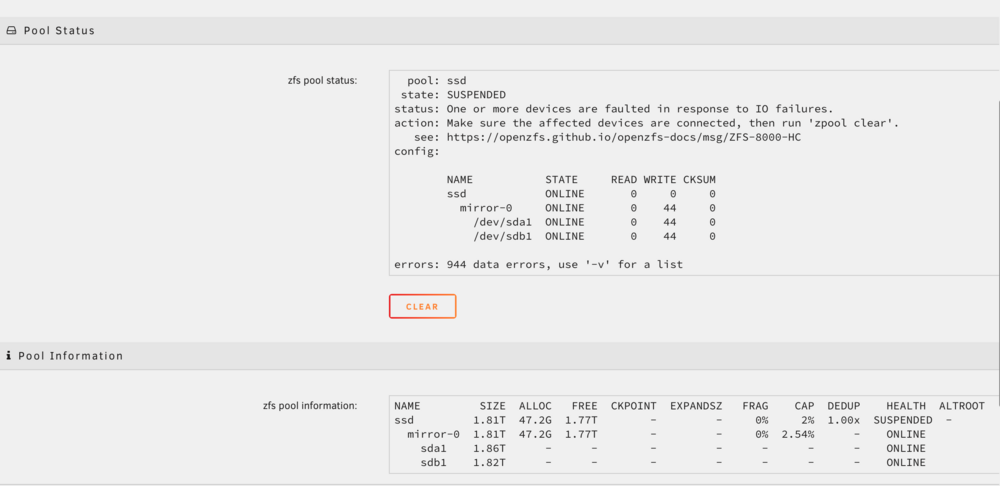
Here's a screenshot and the diagnostics as it's failing. Thanks! testtower-diagnostics-20250621-1509.zip
-
Hello, I have two Unraid servers and am seeking methods (scripts, applications, or established processes) for migrating Virtual Machines and Docker containers between them. My primary use cases for this functionality are disaster recovery and load balancing. Thanks!
-
Hello, I'm switching to ZFS and have been testing a setup on a mini PC with a USB enclosure. I created a two-drive ZFS mirror for my SMB shares. During testing, I removed one drive from the enclosure and found I could no longer access the ZFS pool or shares. I expected the mirrored pool to remain accessible in a degraded state until I replaced the drive. My concern is that if I'm away from the server and a drive fails, the entire system might lock up. While I know a USB enclosure isn't a supported configuration, my plan is to use two NVMe drives internally within the PC. I want to confirm that a mirrored ZFS pool will indeed remain operational if one of these internal drives fails. On a side note, if I replace the removed drive and reboot, the pool does rebuild itself successfully. Thanks
-
Thanks for sharing the instructions. Manually selecting that option worked on Windows 11. I'd hoped that setting would automatically hibernate (not sleep) after inactivity to bypass the sleep issue, but it's pausing the VM and locking up when I try to resume from the Unraid GUI.
-
Thanks. I've tried hibernate with Windows 11 and the machines tries to wake up and locks up again. Can you share the VM configuration settings you are using in Uraid? Also what's power options/settings are you using in Windows? Thanks.
-
Hello all, Any updates on your testing? I've tried many combinations of VMs on 3 different Unraid servers with the same results (can't resume VM from sleep). I did not have this problem on versions of Unraid before 6.12. Thanks
-
@JorgeB - Can you also select sleep in Windows 11 and wake the VM up from the Unraid console?
-
Setting to hibernate in Windows has the same result. The VM vCPUs goes to 100% and locks up.
-
Yes, Windows is set to sleep in 15mins..hibernation is turned off. I can try to set to hibernate.
-
Here's the diags. When I hibernate or pause from the console everything works as expected. When I select sleep inside Windows 11, and try to resume from the console, the VCPUs to to 100% and I can't remote (VNC or RDP) to the VM. The only fix is a Force Stop of the VM and reboot the VM. Thanks. testtower-diagnostics-20250610-1816.zip
-
dxb joined the community
-
Hello, I'm running 7.12 with Windows 11 VMs with virtio-win-0.1.271-1 tools installed. I have the VM power management set to sleep after 15mins if no activity. When is try to resume the VM from the console, the CPU go to 100% and the machine locks up. The only way to fix this is to "Force Stop" the VM. I'd like to have the VMs pause and resume so looking for any advice to resolve this issue. Thanks.

