





Lard
Members
-
Joined
-
Last visited
-
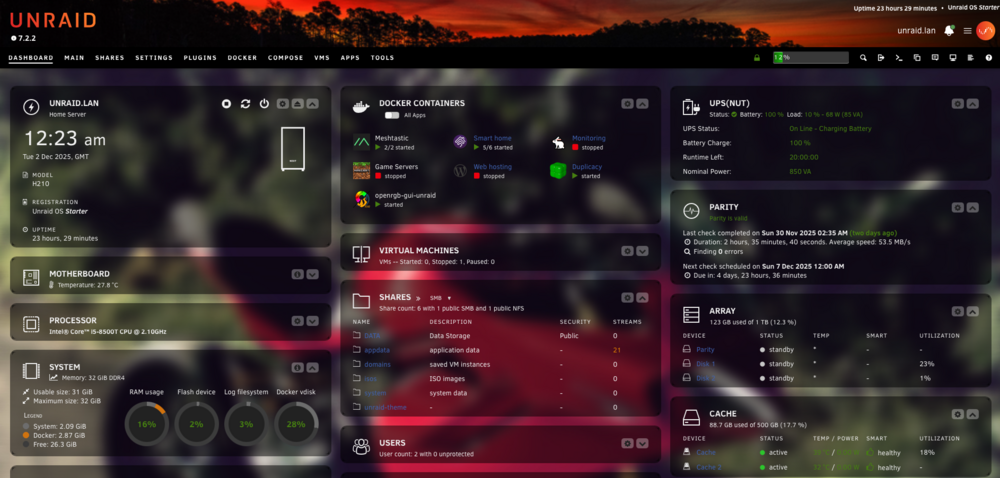
really appreciated - was missing my custom background! I'm a novice when it comes to CSS but managed to set back to familiar interface - thanks! For info - I chose the black theme in dynamic and put this in the "for black theme only" section: /* Additional CSS (Black Theme Only) */ :root { /* --background-color: #616180; */ background-image: url('/plugins/custom.css/assets/IMG_0890.jpg'); background-size: cover; --background-color: transparent; --custom-bg: rgba(0, 0, 0, 0.5); }
-
okay - got it now - I followed these instructions and just uploaded my own image to the folder it created and changed the theme.css https://github.com/XiaoNieGPT/unraid-theme
-
Seen the question asked a few times on how to get a custom image/photo as a background but no hints so far - assume it's a case of using your own css file and putting in the background-image setting?

