tmholland
Members
-
Joined
-
Last visited
-
Will do if i see any more issues, I did find that when I ran a parity check I had 1,000+ errors to be corrected and I also reran the appdata and docker permissions tool a 2nd time. At least for now that fixed the update problem I had. Thanks!
-
Attached tower-diagnostics-20251122-0935.zip
-
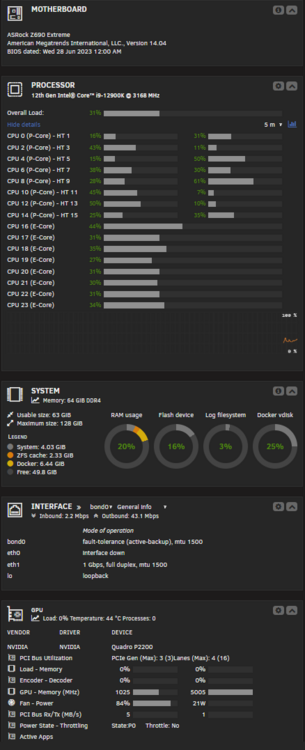
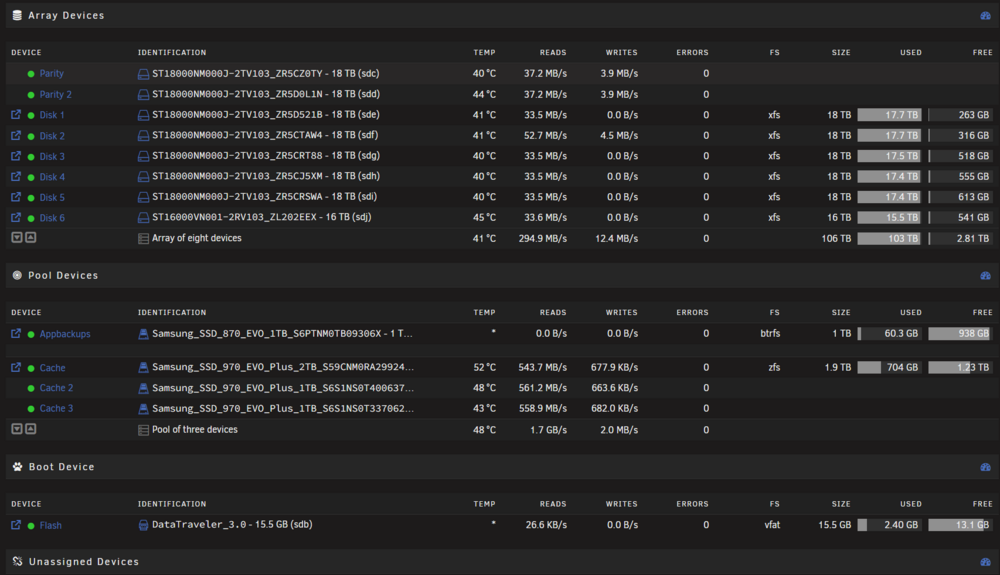
I have had a few issues in the last few weeks and they are as follows. Dockers go missing from the system, requiring them to be added back using the template previously Sometimes, during a re-add I get an error about the name already existing and the command failing updates that never seem to go away or take approx 15-30 minutes to run, then failing with the above error about name existing . dockers acting as if they are frozen and not responding for several minutes. I have ran Live Memory Tester and not come back with any errors, and attempted to get into the bios of the motherboard but can not get anything to display ( although I might just be an idiot and not able to get it to pass through my GPU) I have attached my system specs and am running 7.2.0. The log is after updating a docker that shows an update and the update still showing as not pulled. Edit- Also just saw this run across syslog Host: Tower Facility: kern Priority: err Tag: kernel Message: kvm_amd: CPU 11 isn't AMD or Hygon syslog.zip