murakume
Members
-
Joined
-
Last visited
Everything posted by murakume
-
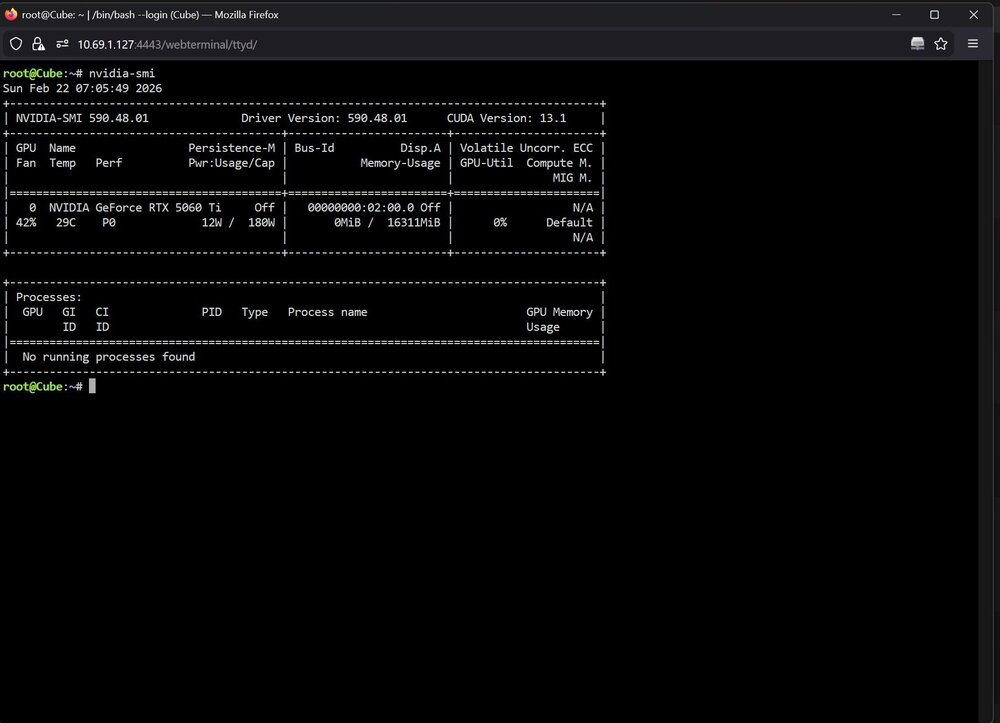
Might be bad etiquette to quote myself, however for closures sake: enabling persistence mode fixed fan and clock speeds jumping around with this plugin active. Noticed it was reporting P0, but when NVTOP was open at the same time it would flip to P8 and settle down until NVTOP was closed again. Honestly not sure if it was a me thing (misconfiguration or whatever else), probably was, but it is fixed now.
-
Yes, fans briefly spin up then go back to idle. This behavior is also present when first selecting the gpu in the options page, I just assumed it was initial polling to figure out values to create the UI with or something like that. Edit: just in case it makes a difference: after intitially selecting the gpu it only spins up once and thats it. It isn't until I'm on the dashboard and the UI is working that the fans and memory speed start oscillating.
-
Plugin seems to install fine, but when my gpu is selected it causes the fan to ramp up and down. When this is happening it also shows the reported memory speed going up and down, but it's hard to just get a screenshot of that. NVTOP doesn't cause the same behavior and behavior existed with or without NVTOP being installed. Running current open source drivers on a 5060ti. The card does have a zero RPM idle out of the box and I haven't tried messing with fan curves manually. Thanks for the help and lemme know if there's more information needed