





moltres93
Members
-
Joined
-
Last visited
-
Ok sorry for multiple posts but I have one last update before I go to bed. I updated my motherboard bios just to rule out anything there, unfortunately it did not solve my issue. I'm considering buying some new sata-pcie or maybe SAS cards but I'm hoping I can confirm that they're actually the problem before I do that. For the moment I've removed any drives that are connected through the sata cards because I'm a little worried they might corrupt data in drives connected to them. I also went ahead and grabbed my diagnostic data. tower-diagnostics-20260227-0153.zip
-
Ok, I think my suspicions are probably correct. I think the issue is actually not with my drives. I took all of the HDDs out and ran a new test where I would connect only one HDD at a time, and I tested each bay on my system. For all of my HDDs, I could boot without the error when the drive was inserted into a bay that is directly connected to my motherboard. Likewise, for all of my HDDs, when I inserted them into a bay that is wired to one of my two PCIE-sata cards, I got the error on boot. So I think that somehow the issue is my 2 sata cards. But it seems unlikely to me that both cards would fail at the same time? They're both 10Gtek brand, one is a 4 sata port card and the other is a 6 sata port card. Also, when I manually boot into unraid through the bios the cards still seem to work and I can access any drives plugged into them no problem. So I'm guessing there's some sort of configuration issue or something at play here.
-
Ok I ran a new test. I removed all of my drives and was able to boot to BIOS without error. So then I added them back in one at a time and rebooted each time to see if the error came back. I was able to determine that if EITHER of the two new drives I added a few days ago is connected then I get the error. Which would explain why only removing one at a time for my initial test didn't tell me anything because in all scenarios, at least one of these two drives was connected. I noticed that the only HDD that isn't producing the error is connected directly to the motherboard. I'm going to try swapping what bays the drives are connected to and see if that makes a difference. I'm wondering if maybe the issue isn't with the drives but rather my PCIE-sata cards. I'll report back on my findings there. I am glad to hear that the error probably isn't significant if I can ignore it. However I'd rather find some way to make it go away because currently it's preventing me from booting my server headless and it would be a pain to have to get out the keyboard and monitor every time I need to reboot.
-
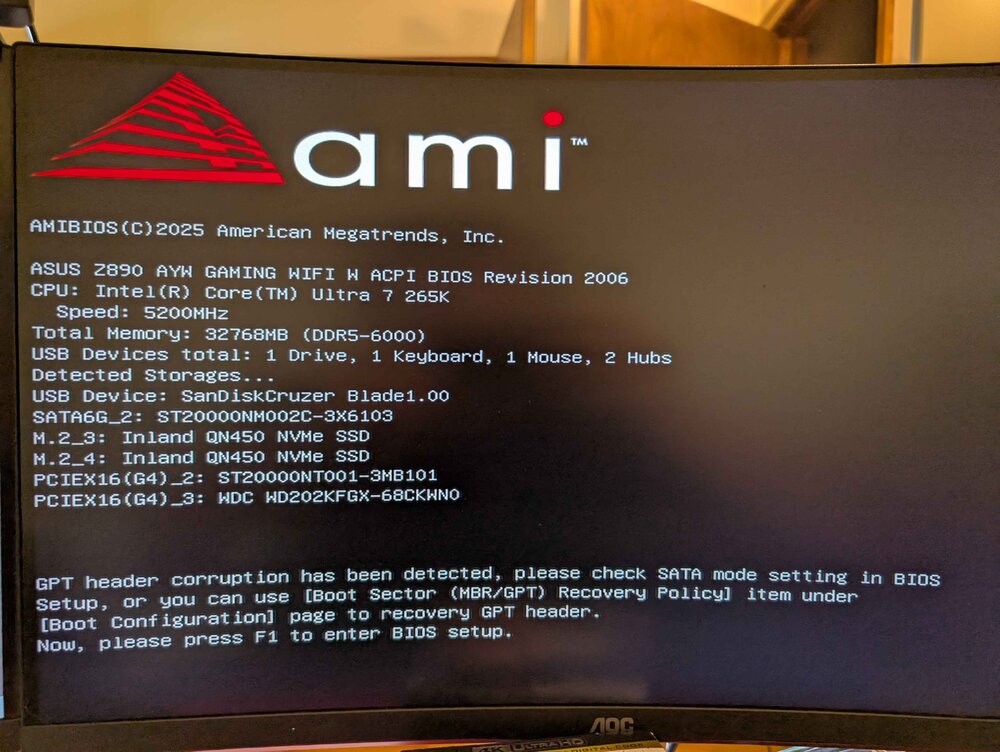
Yes sorry I wasn't super clear but that's not my screenshot, it's just one I found online that had the same error because I couldn't reboot my server at the time last night. Here's a screenshot from my system: I've got two PCIE cards that give me more sata ports. I built in a Jonsbo N5 which has 12 bays so I needed more sata ports to connect them all even though I'm not using all of them yet. I disconnected one at a time in an attempt to isolate which one might be the problem. However none of my drives, when removed individually, got rid of the error. Should I try removing all of them at once? Thanks!
-
Hi everyone! I appreciate anyone who took the time to read this and if anyone has any ideas I would greatly appreciate it. Issue Details: Tonight I updated my unraid server to 7.2.4. Rebooted my server for said update and it wouldn't come back on. Connected a keyboard and monitor and saw the error shown at the bottom of this post from my BIOS before even booting into unraid (Note this is not my screenshot, it's one I found online but this is the same error I'm getting) "GPT header corruption has been detected, please check SATA mode setting in BIOS Setup, or you can use [Boot Sector (MBR/GPT) Recovery Policy] item under [Boot Configuration] page to recovery GPT header." When I proceed into my BIOS and boot manually from there, unraid works and seems to have no noticeable issues. However I normally run my server headless so I would like to be able to automatically boot into unraid again so I can put this keyboard and monitor away :) What I've Tried: I found this thread from a few years ago of another user seeming to have essentially the same issue as me. https://forums.unraid.net/topic/129037-6110-gpt-header-corruption/ The solution that worked for them was to check each drive using fdisk and then use gdisk. I ran fdisk as instructed in that thread on all of my drives (3 20TB HDDs, 2 cache SSDs, even my usb boot drive) and it didn't report any issues for any of them. Next I thought I'd try powering down, removing one drive, booting up again and seeing if the issue goes away. Rinse and repeat for every drive in my system. Again, I tried this for all 3 HDDS, both SSDs, and even the usb drive. Each time I still got the same error. So I guess the error isn't even related to any of my drives maybe? I'm very confused because I didn't change anything in my BIOS recently at all. The only recent changes I've made were updating to 7.2.4 tonight, and a few days before that adding two new HDDs (One parity and one data. Both pass the SMART short test and otherwise seem to be working fine). Does anyone have any ideas of what might be wrong or other things to try to further diagnose the issue? I'm a bit nervous to make BIOS changes because I am not much of an expert in there. Thanks in advance!
