freggit
Members
-
Joined
-
Last visited
-
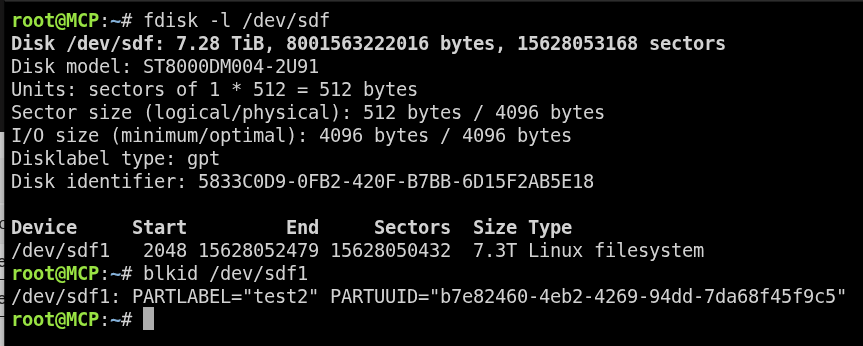
Used : wipefs -a /dev/sdX (changed dex to dev from your comment ) replacing X with correct identifier sgdisk -o -a 8 -n 1:32K:0 /dev/sdX replacing X with correct identifier I was able to complete the upgrade to the latest version 7.2.4. Thank you for your assistance!
-
attached
-
I guess what does that mean? The drive was never used in another device and unraid created the partition when it was added to the array.
-
mcp-diagnostics-20260316-0939(7.2.4).zip Here is the diagnostics after trying to upgrade.
-
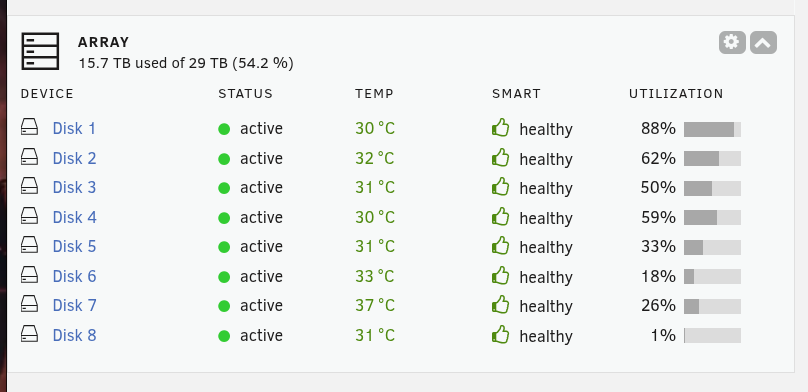
No my parity disk died and I will be getting a new one soon. Disk one is the only drive that does this. None of the other drives go into this "wrong" status.
-
This is from 7.0.1 where everything works. Is this what you are looking for? mcp-diagnostics-20260315-1136.zip
-
I have been at version 7.0.1 because my licence had ended. I recently updated that and was looking to also update my machine. The first time 7.2.4 showed as the available update so I ran that. However, after the reboot one of my drives showed as wrong/missing and the array would not start. Thinking that maybe there was too much of a gap in versions, I reverted back to 7.0.1, the drive in question came back and the array was working fine. I have tried versions 7.1.2. & 7.1.3 and I get the same problem. Is there something I need to do before I can update?