SuperKMK
Members
-
Joined
-
Last visited
-
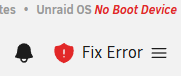
I just wanted to follow up. In my case, the issue apparantly was with my USB drive itself actually. I did have it connected but it was having issues in UnRaid/Linux. Seemingly works fine for windows. Good to know. So now, this is what I see, instead of an ugly error. I assume this is normal, and expected? Overall, positive feedback. This script seems to have accomplished its mandate successfully. Thanks again @SimonF


-
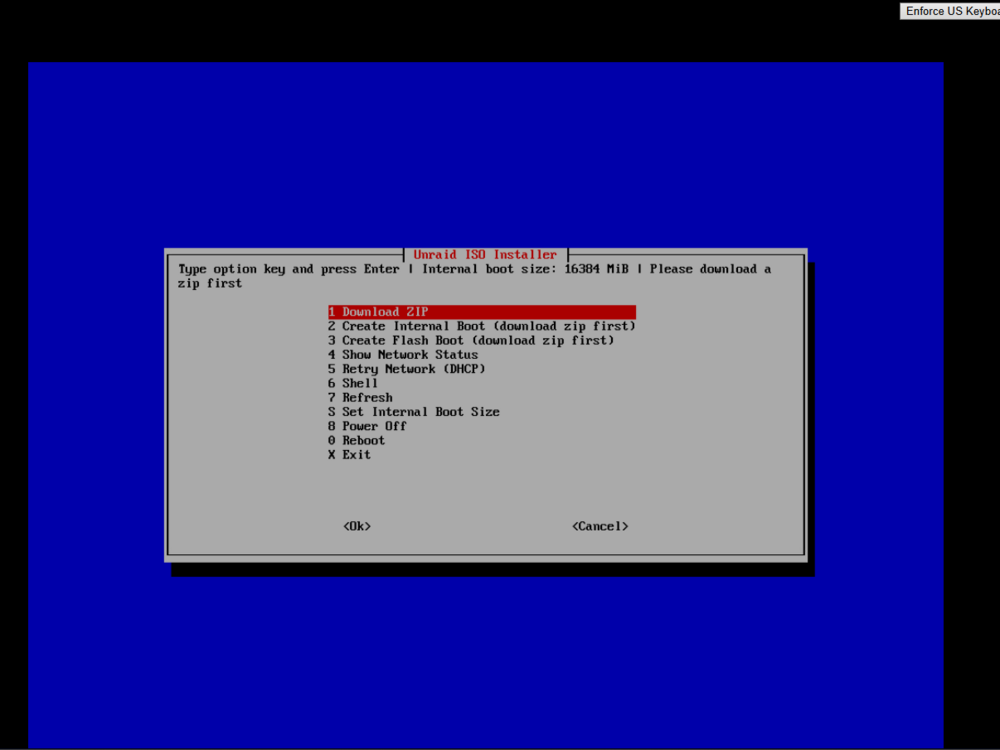
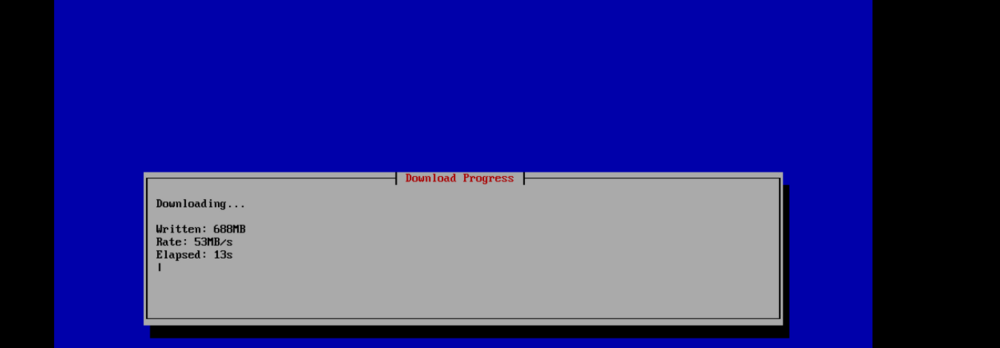
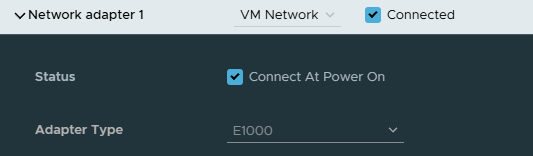
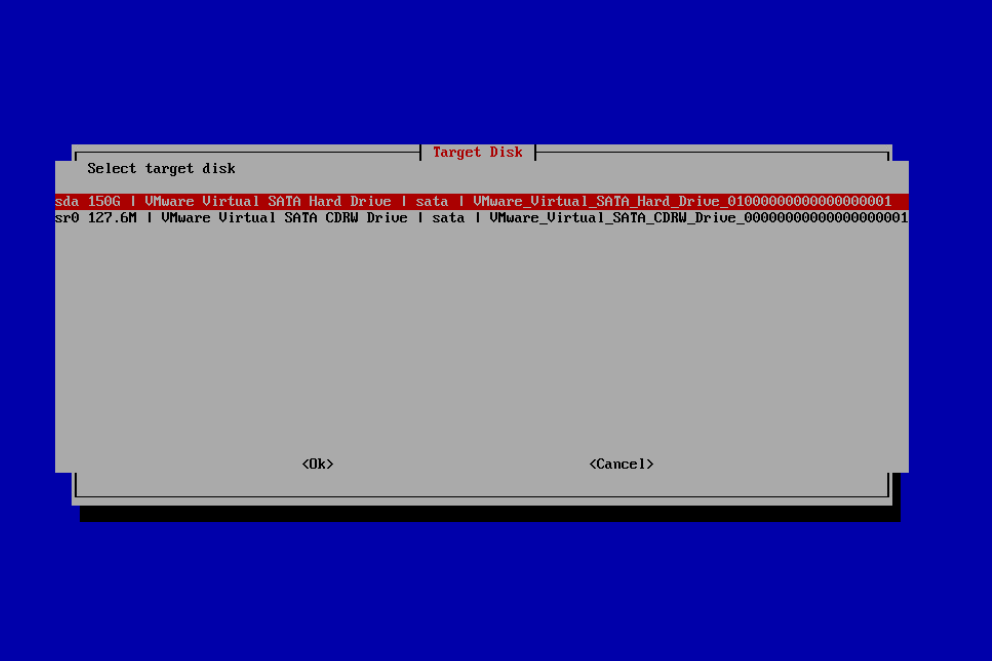
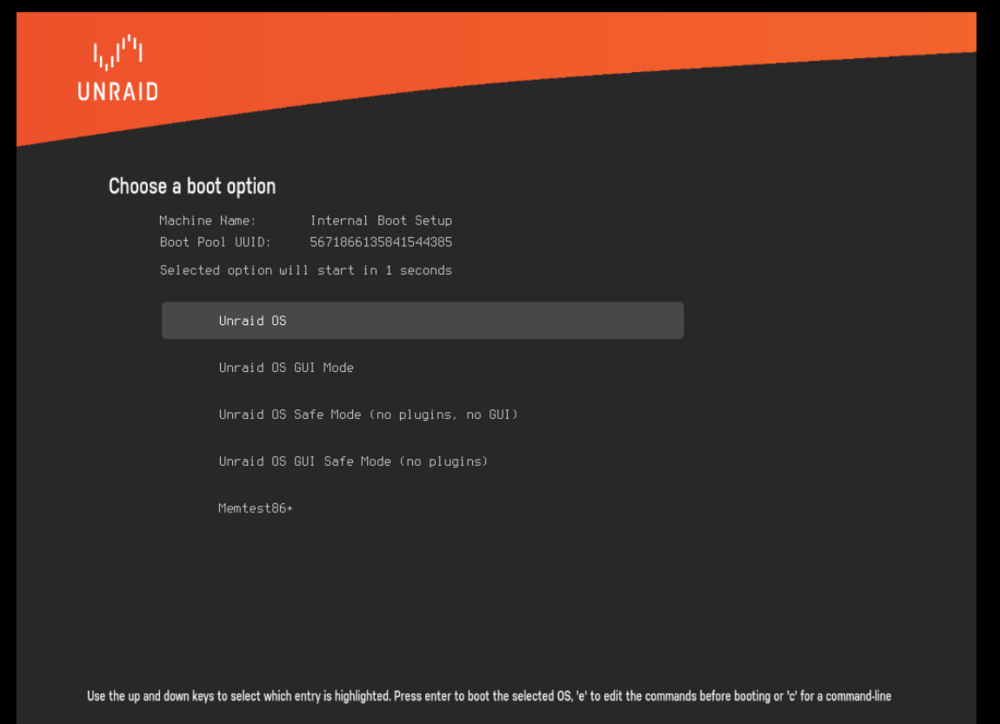
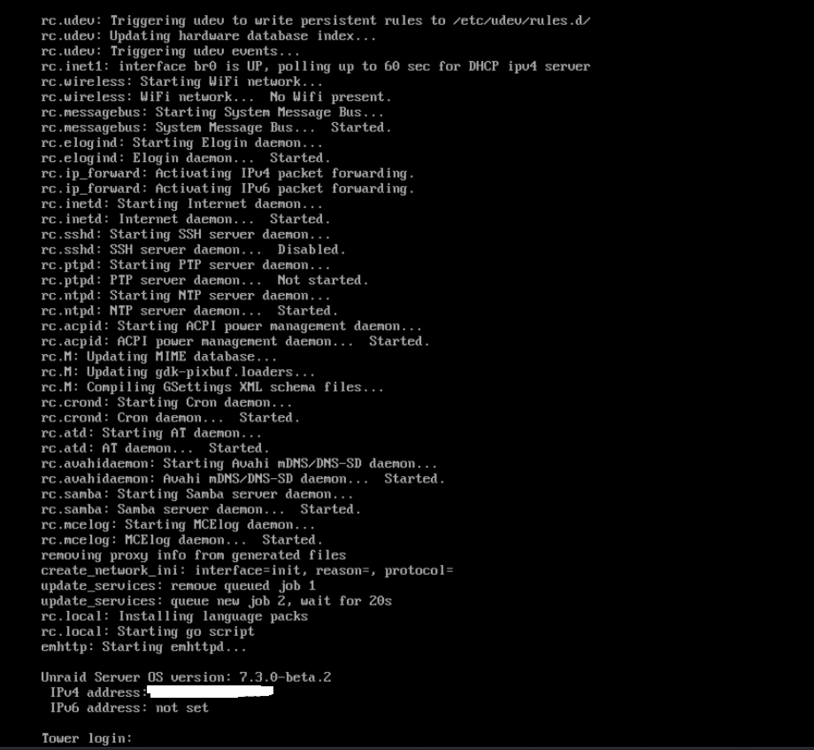
New to Unraid. This is my welcome post 😅 Giving this a shot. Before buying, going to virtualize in VMWare ESXi to see if I like it. I am really enjoying this installer. Thanks very much @SimonF for developing this. Here are a few snippets of my progress... It booted! However -- NO NETWORK ACCESS! A reconfigure of the VM Network Adapter to "E1000" allowed connectivity. Ensure your VM HDD is set to SATA. ESXi Defaults to SCSI, which is not detected. After. I got some progress messages, then a success message. I chose to power off, remove the 'cd' / ISO, then I got... which led to To confirm: The installation was remotely accessible. I am going to bed for the night, however this worked flawless, and this was my first Unraid install. Update: Didn't go to bed but am now. Reached a hard stop. Question -- Did I do something wrong, or is this a problem inherent to an install without a USB drive attached? Thanks!