





gonzlobo
Members
-
Joined
Everything posted by gonzlobo
-
@gigios which Ugreen are you using?
-
Looks nice. I may try it when DXP4800 Pro has fan mode working. I have UGREEN LED Control working perfectly now.
-
@ivolution I'll try those suggestions when I get home. thanks
-
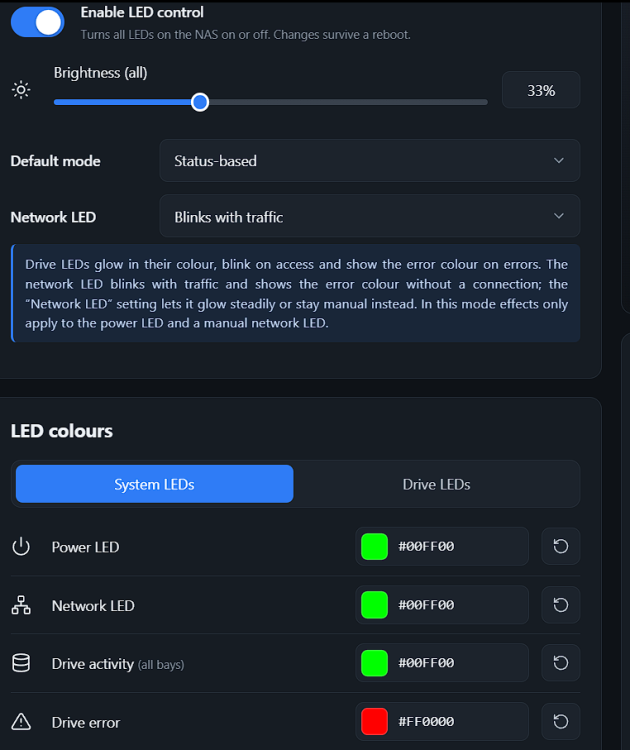
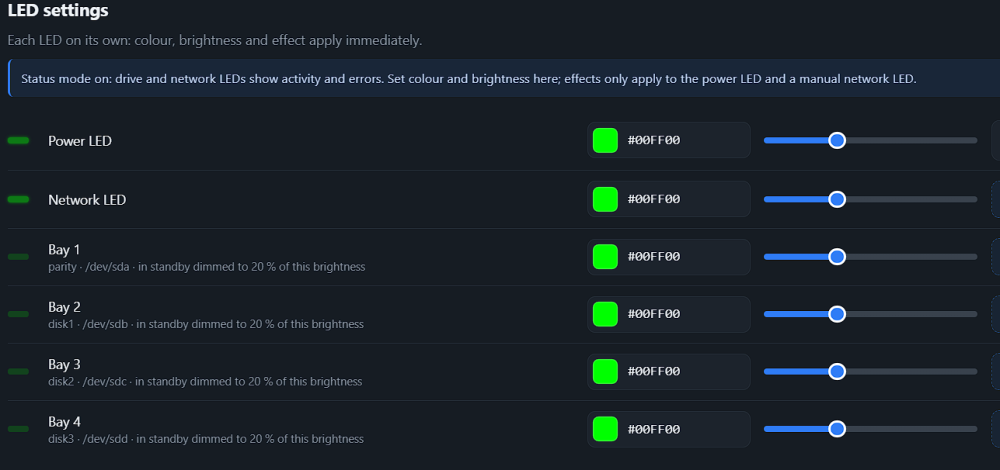
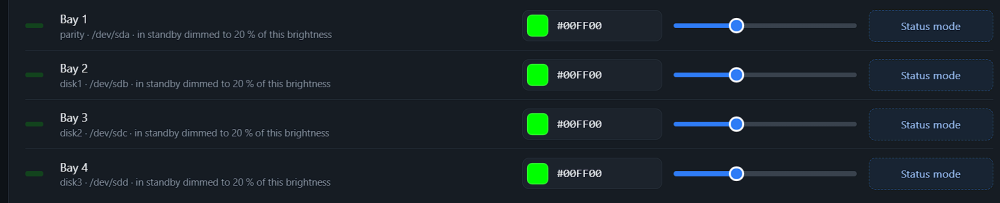
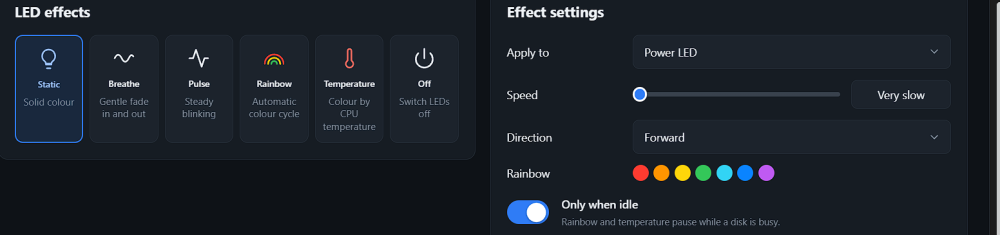
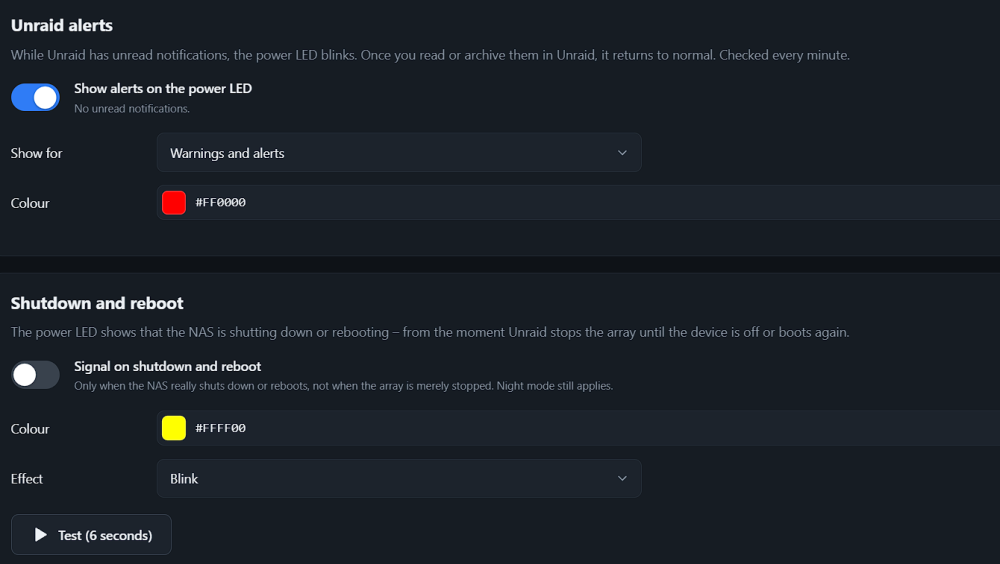
Yeah, my description wasn't good. I'd like my DXP4800Pro to have green LEDs across the board: Power LED = Green. No flashing. Network LED: Green = 2,5Gbit/s, Red = otherwise. Flash with activity. 4 green Drive LEDs either bright (33%) or dim (20%) based on power/standby. Nice to have red if a drive is above a temperature threshold. No flashing. Works as configured (see configuration below) when the 4 drives are inactive, but when any single drive is active, it goes blueish. My configuration:

-
The interface is a bit odd. I program drive LEDs for a specific function, but the colors are overridden with other colors. I'll figure it out.
-
Thanks, I need to reconfigure tailscale. When I originally installed it, it didn't cause issues.
-
Forgot something... When I get 'Unable to communicate with GitHub.com', I can still ping github.com, every DNS server and can download containers via the command line.
-
When I set automatic DNS, my logs fill with DNSMASQ messages (lots of ipv6 messages, perhaps I should disable it). When I configure static DNS, the Fix Common Problems app says 'Unable to communicate with GitHub.com'. My router has OpenDNS DNS ipv4 & ipv6 configured. Other than that, my NAS is working perfectly. Any help is appreciated. unraid-diagnostics-20260723-2120.zip


