vessosa
Members
-
Joined
-
Last visited
-
I am seeing a Docker update-check issue with a self-hosted Gitea OCI/container registry. Registry/image names: 192.168.0.55:3001/vessosa/my-api:latest 192.168.0.55:3001/vessosa/my-web:latest What works: docker login 192.168.0.55:3001 works docker pull 192.168.0.55:3001/vessosa/my-api:latest works docker pull 192.168.0.55:3001/vessosa/my-web:latest works containers run correctly after manual pull/recreate the registry is a self-hosted Gitea registry using standard Docker/OCI image support What does not work: Unraid Docker UI shows "not available" for the version/update status Unraid does not reliably detect whether the local container is up to date Force Update does not behave like a normal registry update check unless the image was already manually pulled from CLI Expected behavior: Unraid should support private OCI registries using host:port image references and compare the running container image digest/ID against the remote tag digest. It should show "up-to-date" or "update available" instead of "not available". Possible cause: The image reference contains two ":" characters: 192.168.0.55:3001/vessosa/my-api:latest The first ":" is the registry port. The final ":" is the image tag separator. It looks similar to this older report: https://forums.unraid.net/bug-reports/stable-releases/61210-cant-update-docker-container-with-port-in-url-r2585/ That report appears archived/locked, so I am opening a new one with a current reproduction using Gitea. diagnostics-20260710-1523.7z
-
That solved my problem!!! Thank you very much!
-
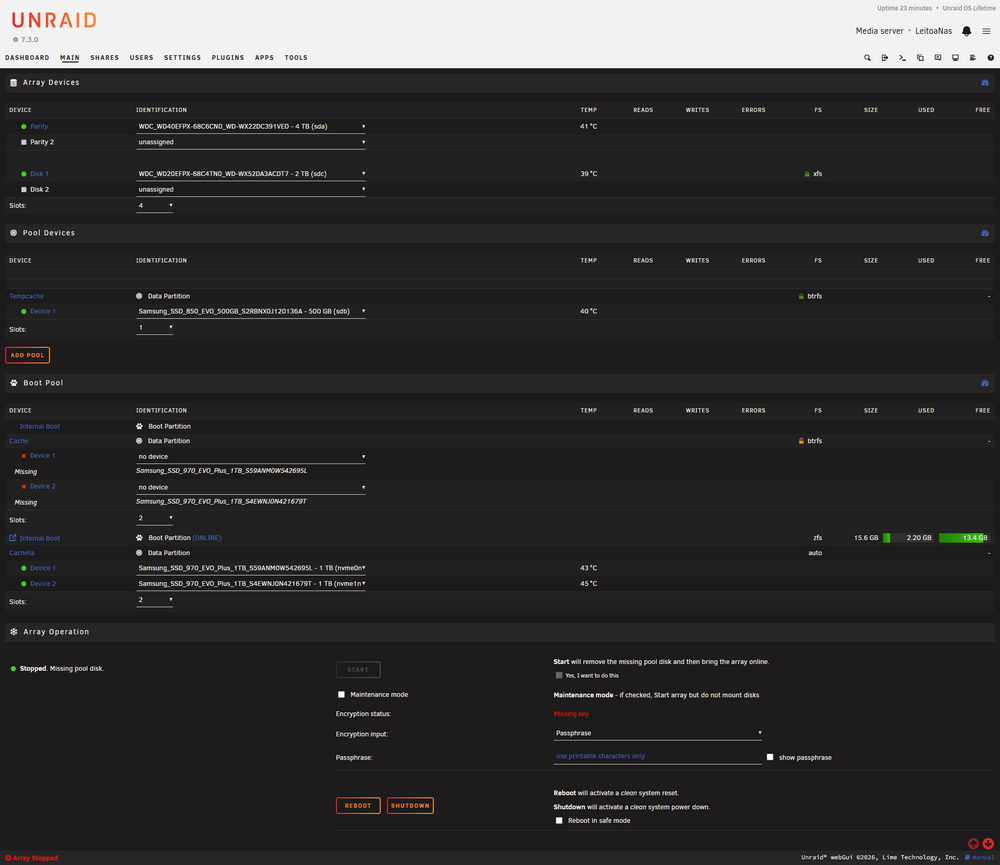
So, I've used 2 of my cache devices to be selected as boot + data partition. They where at "cache" pool, so set all devices from "cache" to unassigned (no device) and started the wizard. Choose 16GB, and it ask for a name for the data partition that I set "cacheta". After restart the boot partition works great, but I could not start the array as "cache - too many wrong or missing devices ". Tried to click on "cache", ERASE POOL, proceed, nothing happen, logs shows this red message: May 25 01:00:39 LeitoaNas kernel: read_file: error 2 opening /boot/config/super.dat Full log after pressing the ERASE POOL So, deleting the pool doesn't work, I can't start the pool also. Tried to unassign from "cacheta" to the old one also doesn't work as it looks that needs the previous one. Tried to delete /boot/config/pools/cache.cfg but it got recreated as soon as I ask to delete again (as it appears again at the Main). Tried to recreate a New config and selected "ALL" for "Preserve current assignments". The problematic "cache" partition was recreated. Tried to again to recreate a New Config, but now it says: "Array has been Reset (please configure)" So I'm in a catch-22 situation. I can't reconfigure as it asks for this reference of the old (non partitioned device). Can't create a New Config. Delete the new pool doesn't work. Set pool size to 0 doesn't work (it only shows 2). I'm adding a screenshot, please let me know if you have any suggestion as my array can't be started.