




-
Unraid kicked one of my drives out the array last night. I ran smart tests and everything looks fine, I even got an alert that the array was OK but the disk is still disabled. I took the opportunity to upgrade and reboot, still the disk is disabled. My file system is BTRFS and I see a log entry in the system log referencing the disabled disk but it doesn't say anything else. Is someone able to assist? Diagnostics attached. Thanks backuptower-diagnostics-20260605-0810.zip
-
I am changing my email address, however when I go into my account settings I am unable to do so, it says only one account change is permitted every 30 days and I haven't made any changes. How can I change my email address for my unraid account? My old email address won't be working soon and I dont want to lose access to my unraid account. Who should I reach out to about this?
-
I had a drive drop out of the array today and become disabled. There doesn't appear to be anything wrong with it from that I can tell. Stopped the array, restarted it, same. Stopped the array, pulled (hot plug) the drive out, reinserted it, restarted the array, same. Several reboots, same. Diagnostics attached. backuptower-diagnostics-20260124-2314.zip
-
Yes thanks, its working now. Thank you so much for your help with this!
-
Done, I entered the command, then deleted some files in the downloads share, it still is not visible in finder on my Mac backuptower-diagnostics-20260115-0809.zip
-
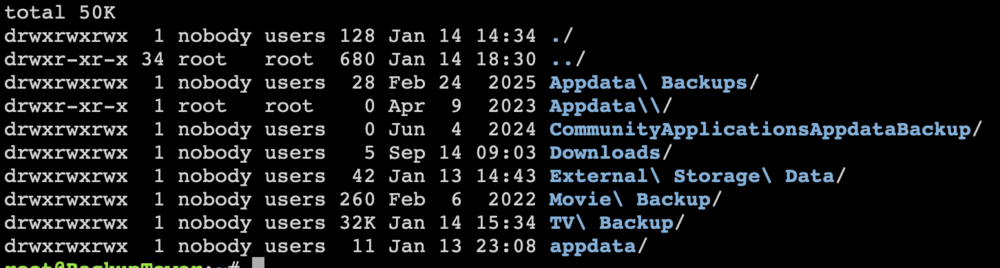
This is the output of that command

-
This is the output of that command
-
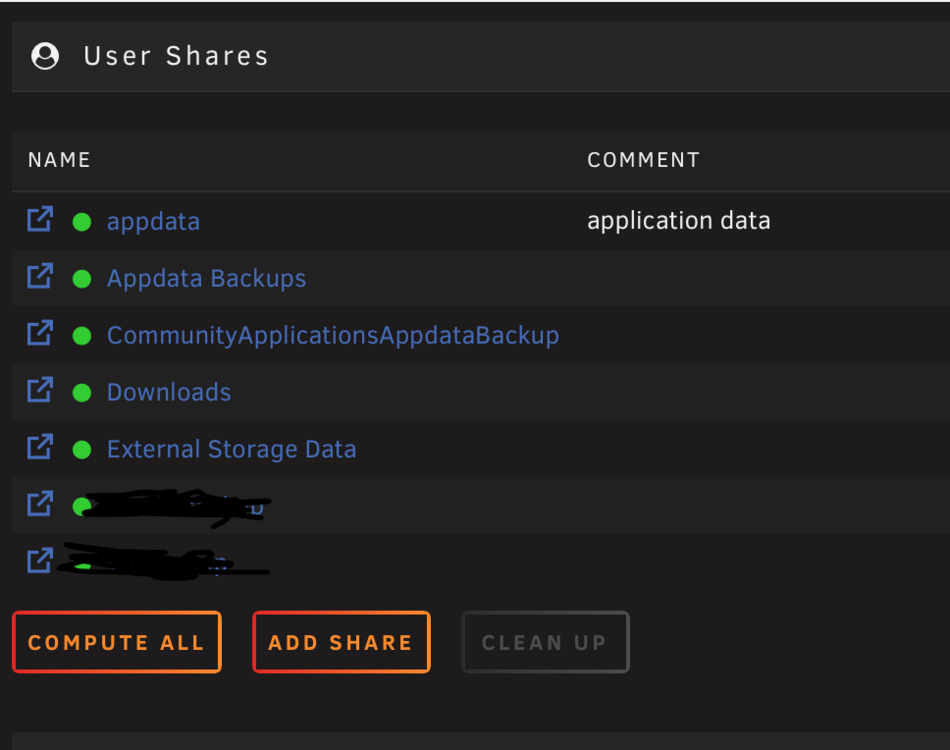
Yes if I go into the shares tab I can see it
-
Diagnostics attached, the share name is Downloads backuptower-diagnostics-20260114-1434.zip
-
I just upgraded to 7.2.3 last night and now a share on my cache is not showing up in finder on my Mac. When I go into shares I see it does not have an SMB setting. How can I setup access to this share like I had before?
-
When I went into the cfg directory on the flash drive and then into the pools directory, there was a spare.cfg file. I deleted that and then rebooted and now the spare is gone, am going to try and upgrade to 7.0 final now. Thanks for all your help. Upgrade worked perfectly, all is good.
-
I had already removed the spare from the pool, however now, following your instructions, when I click on the first device in the pool the option to remove pool is not available? I do see in the GUI an option to upgrade the pool, should I do that?
-
How can I remove a spare from my ZFS pool before upgrading? Is it as simple as doing it in the gui and removing the drive so the spare slot is empty? Or is there a command I have to run from terminal to do it?
-
Right now my Plex metadata resides on an SSD as an unassigned device, the SSD is 500GB I have a second empty 500GB SSD that I want to copy all the Plex data over to, so I can eventually have both SSD' in a RAID 1 cache pool for Plex. The SSD that currently contains the Plex metadate is formatted with the XFS file system, so I have to move everything off it to reformat it in BTRFS. What is the most efficient, in terms of speed, method of copying the Plex metadata from one drive to the next, there are thousands and thousands of files.
-
Ok thanks will do!

View in the app
A better way to browse. Learn more.


