neebski
Members
-
Joined
-
Last visited
Everything posted by neebski
-
@aptalca Most of your suggestions worked as intended, although I have a few issues when attempting to login to the WP install. Do you mind if I PM you about this?
-
Great, thank you!
-
Also interested. I'm stuck right now trying to get a site to work that is running through cloudflare > nginx > apache-php (docker) > wordpress install. If I could just axe having to run apache docker that would be great. Does nginx have builtin php support?
-
I wrongly assumed by changing the port to 81 on the config that would help. Thanks. Suggestions on alternatives?
-
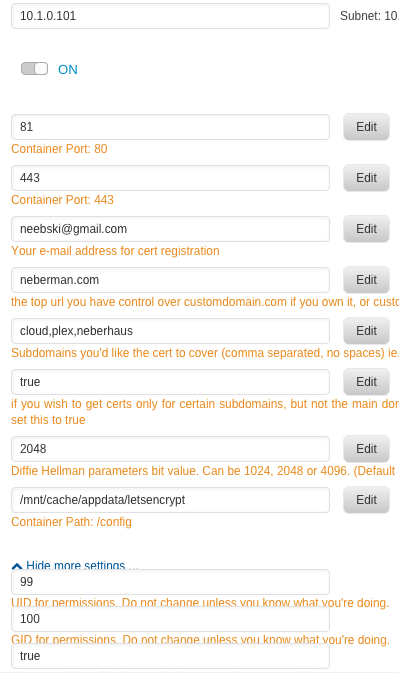
Loosing my mind here. I've read all the documentation but it doesn't seem like http val is working through port 81 (port 80 is blocked by my isp). Am I missing something obvious? GID/UID ------------------------------------- User uid: 99 User gid: 100 ------------------------------------- [cont-init.d] 10-adduser: exited 0. [cont-init.d] 20-config: executing... [cont-init.d] 20-config: exited 0. [cont-init.d] 30-keygen: executing... generating self-signed keys in /config/keys, you can replace these with your own keys if required Generating a 2048 bit RSA private key ...........................................+++ ...............................................................+++ writing new private key to '/config/keys/cert.key' ----- Subject Attribute /C has no known NID, skipped [cont-init.d] 30-keygen: exited 0. [cont-init.d] 50-config: executing... Creating DH parameters for additional security. This may take a very long time. There will be another message once this process is completed Generating DH parameters, 2048 bit long safe prime, generator 2 This is going to take a long time ..............................................................................................................................................................................................+.....................................................................+..................................................................................................................+...........................................................................................................................................................................................................+.............................................................+...............................................................................................................................................................................................................................+...................................+......................................................................................+..................................................................+......................................................................................+...............+.....................................+..........................+......................+.........+...............................................................+..................+.........................................+............................++*++* DH parameters successfully created - 2048 bits SUBDOMAINS entered, processing Only subdomains, no URL in cert Sub-domains processed are: -d cloud.mydomain.com -d plex.mydomain.com -d sub.mydomain.com E-mail address entered: [email protected] Generating new certificate Saving debug log to /var/log/letsencrypt/letsencrypt.log Plugins selected: Authenticator standalone, Installer None Obtaining a new certificate Performing the following challenges: http-01 challenge for cloud.mydomain.com http-01 challenge for plex.mydomain.com http-01 challenge for sub.mydomain.com Waiting for verification... Cleaning up challenges Failed authorization procedure. sub.mydomain.com (http-01): urn:acme:error:connection :: The server could not connect to the client to verify the domain :: Fetching http://sub.mydomain.com/.well-known/acme-challenge/MEvrkt3fJDynbKusl8MOWChxb2xwXOUIBS2VmP5F0-Y: Timeout, cloud.mydomain.com (http-01): urn:acme:error:connection :: The server could not connect to the client to verify the domain :: Fetching http://cloud.mydomain.com/.well-known/acme-challenge/0A9qgBNPVAiABn6234vnTQurk8uK5fnWsqy-L86wvTI: Timeout IMPORTANT NOTES: - The following errors were reported by the server: Domain: sub.mydomain.com Type: connection Detail: Fetching http://sub.mydomain.com/.well-known/acme-challenge/MEvrkt3fJDynbKusl8MOWChxb2xwXOUIBS2VmP5F0-Y: Timeout Domain: cloud.mydomain.com Type: connection Detail: Fetching http://cloud.mydomain.com/.well-known/acme-challenge/0A9qgBNPVAiABn6234vnTQurk8uK5fnWsqy-L86wvTI: Timeout To fix these errors, please make sure that your domain name was entered correctly and the DNS A/AAAA record(s) for that domain contain(s) the right IP address. Additionally, please check that your computer has a publicly routable IP address and that no firewalls are preventing the server from communicating with the client. If you're using the webroot plugin, you should also verify that you are serving files from the webroot path you provided. - Your account credentials have been saved in your Certbot configuration directory at /etc/letsencrypt. You should make a secure backup of this folder now. This configuration directory will also contain certificates and private keys obtained by Certbot so making regular backups of this folder is ideal. ERROR: Cert does not exist! Please see the validation error above. The issue may be due to incorrect dns or port forwarding settings. Please fix your settings and recreate the container