AtrumEquus
Members
-
Joined
-
Last visited
Everything posted by AtrumEquus
-
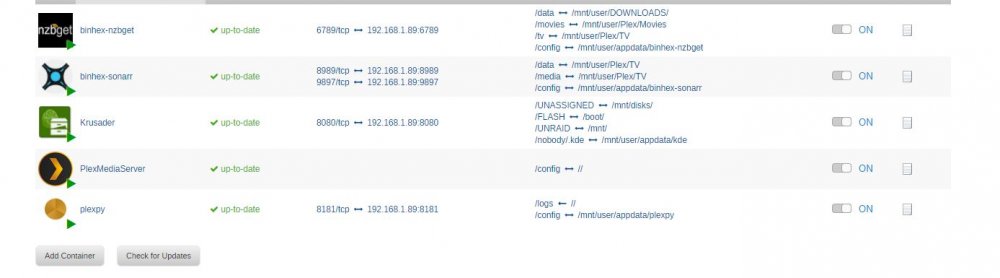
Thanks, I was able to get it working, but not quite sure how. I disabled nzbget's category movement and removed Series as a category on the downloaded option. I then put the ip address in for the server instead of the name of the server. That didn't work so I swapped the name back to "Tower" and it started working. Edit: I tried with another show and it didn't move/rename this one even though I did not change anything on the settings/path side since it worked before. I'll have to wait till after work before I can look more into this.
-
I believe this is a sonarr side of things issue, but I'm using sonarr with nzbget. I can get a show to download episodes and put them in the right folder however sonarr cannot import them to rename and place them in the right folder. Right now I have it setup so files will be put into the /tv directory since I use a Series category in nzbget that sonarr is set to use. What happens now is that each episode I download will have its own folder placed in /mnt/user/Plex/Tv and inside the folder will be a single mkv file with a nonsense name. Sonarr will say /tv/"folder name" has no files found are eligible for import. I'm sure it's a simple fix but I'm not having much luck with it.