Nhatch411
Members
-
Joined
-
Last visited
Everything posted by Nhatch411
-
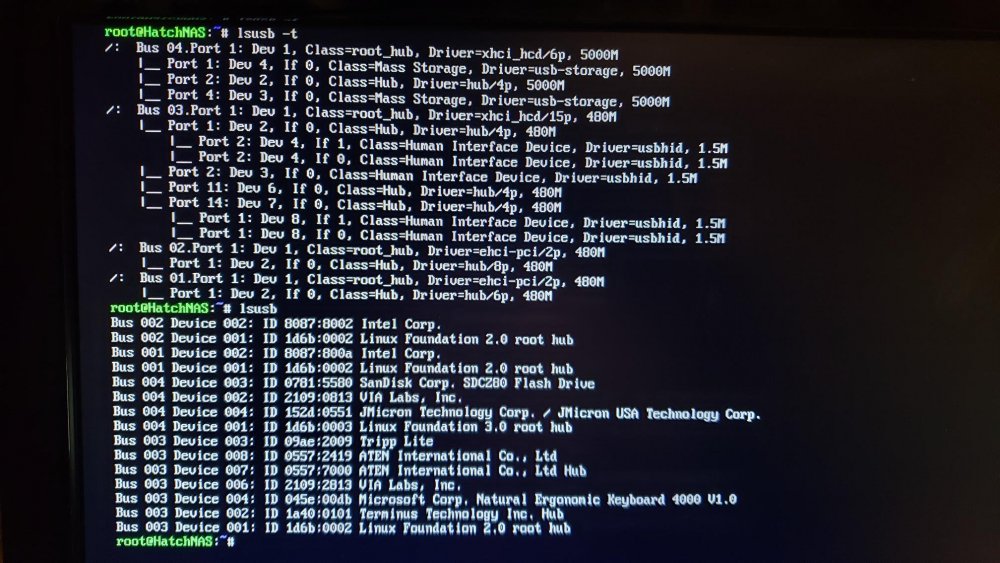
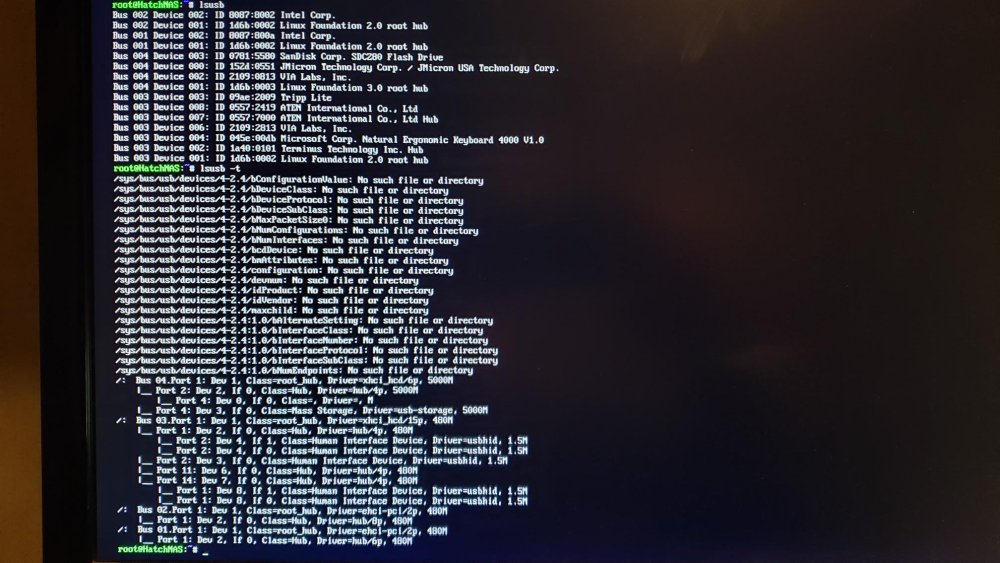
USB Hardware RAID Enclosure issues: I'm having issues trying to attach a large (30TB-R50) USB HW Raid Array (Sans Digital TR8UT, USB 3.0) to my 6.7.0 array. The array functions as intended on a Mac as well as my Windows laptop. My UD plugin is up to date, as well as my server's (SuperMicro's X10DRH-iT) firmware. When I initially plug in the unit, lsusb shows a JMicron Tech Corp device attached and lsusb -t lists it as Class=Mass Storage, Driver=usb-storage, 5000M. After a few moments, the array disappears from lsusb and unraid logs show: kernel: usb 4-1: device not accepting address 4, error -62. I've enabled and disabled EHCI Hand-Off in the BIOS with no visible effect. If I plug into a "legacy" USB 2.x port, the error is similar with error -71. I'm attaching some lsusb screen caps as well as my diagnostics zip. I know this HW RAID unit is not top of the line, however this is for a secondary copy of Plex media. We have limited cell service at the lake, so I'm setting up a Shield Pro with this unit as local storage for a secondary Plex Server. I've already vetted the overall solution with an old Drobo I have, however it limits my volumes to 16TB which would be a PITA to split and sync the media files. I was also considering the Mediasonic H8R2-SU3S2, if anyone has a better experience with those units. I have a hunch that either the JMicron chipset is missing something, there is a USB schema problem, or the 30TB volume size is an issue. Any ideas would be greatly appreciated! hatchnas-diagnostics-20190521-1651.zip