





rockytt
Members
-
Joined
-
Last visited
Everything posted by rockytt
-
Long story short - had been getting an intermittent error with one of my discs and it would show up as disabled. Swapped out a cable and everything was fine for a couple of months, but then the issue became persistent. Today (after red dot) I swapped out the drive (9) with a new one and started the data rebuild, which was going swimmingly until it threw an error and paused the process. Now it looks as if drive 13 has failed completely - any magic tricks to try? If not, I'll just cry and move on I did try and check filesystem status on 13 - but no love as it just errored out tower-syslog-20230110-1353.zip tower-diagnostics-20230110-0552.zip
-
Will give it a go - thanks!
-
That was fun Check Filesystem Status.txt
-
Gui - (and dang - fast response!) (and this is an old/old system - if new mb is needed I wouldn't be surprised in the slightest)
-
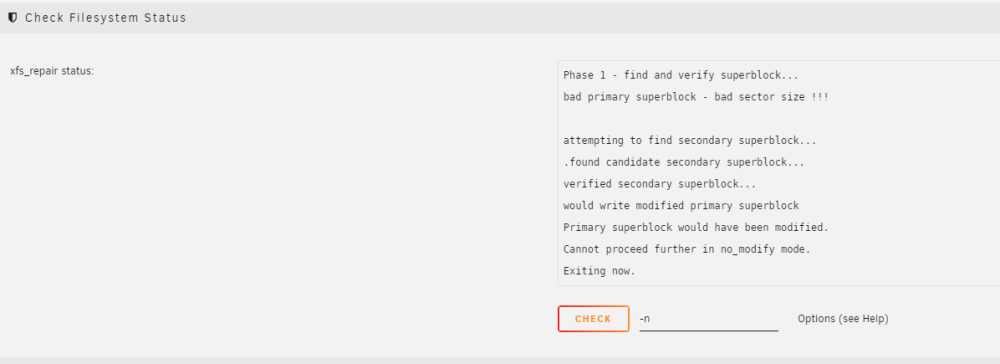
A bunch of errors thrown and when I try an "check file system status" , get the following error: Phase 1 - find and verify superblock... bad primary superblock - bad sector size !!! attempting to find secondary superblock... .found candidate secondary superblock... verified secondary superblock... would write modified primary superblock Primary superblock would have been modified. Cannot proceed further in no_modify mode. Exiting now. What's the best path forward? Just swap out the disk and rebuild parity? Read through several threads, but didn't see a solution for this exact issue - thanks! fastbird-syslog-20221011-1702.zip
