snowfitz
Members
-
Joined
-
Last visited
Never
-
Ok. I don't know what I did, but it is working now... 😊 If I find what was wrong, i'll post it here. Thanks anyway !
-
Done, but whatever the combo of ip address / port, I can't access the webui. Maybe I'm not trying the good ones.
-
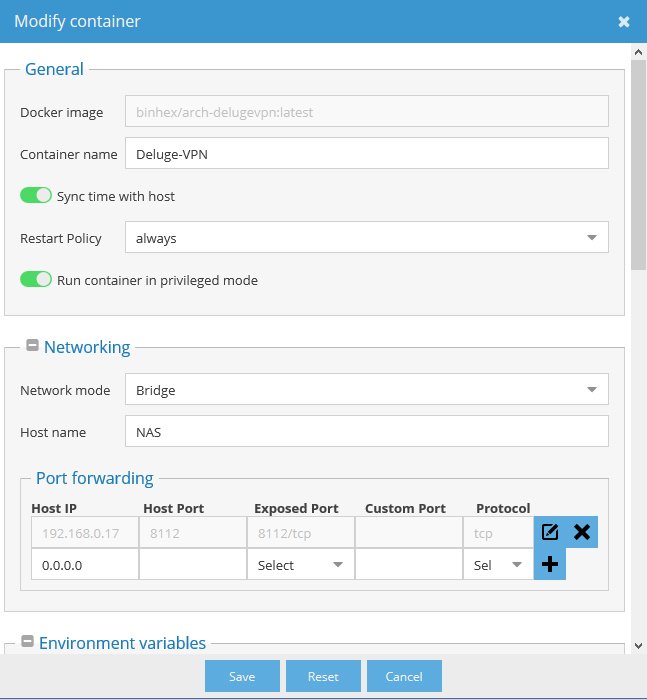
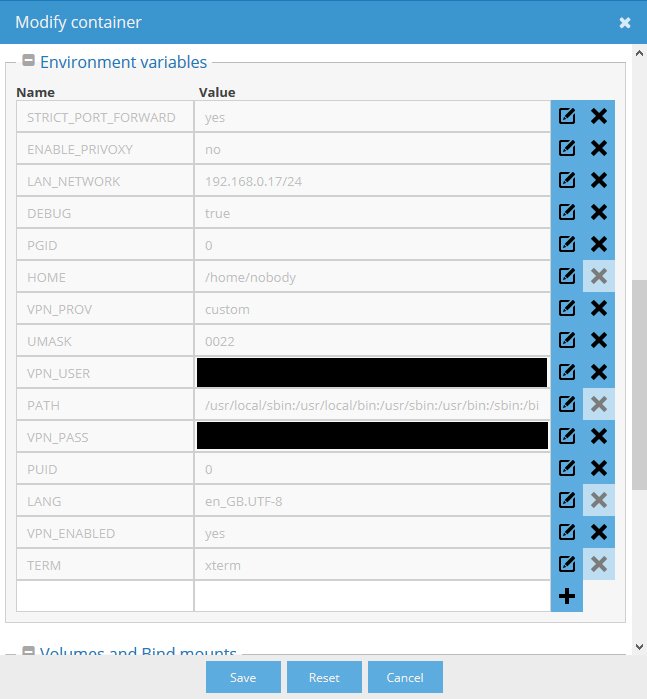
Hello there ! I'm trying to use your plugin in a docker with OMV, but I have some issues : - without the VPN, everything is OK. - with the VPN, I don't know how to see the webui anymore. Here are my settings : At the end of the "supervisord.log" file, I have this : [debug] VPN incoming port is [debug] VPN IP is xxxx [debug] Deluge incoming port is [debug] Deluge IP is xxxx There is nothing after "incomming port is". "xxxx" replace my real ip address. I did setup the port forwarding with my VPN, but when I try to connect to the ip address with this port, it's not working. Did I missed something ?