





gooner_47
Members
-
Joined
-
Last visited
-
Same capacity as the current one presumably - 4TB? What is the process for replacement once the new drive is here?
-
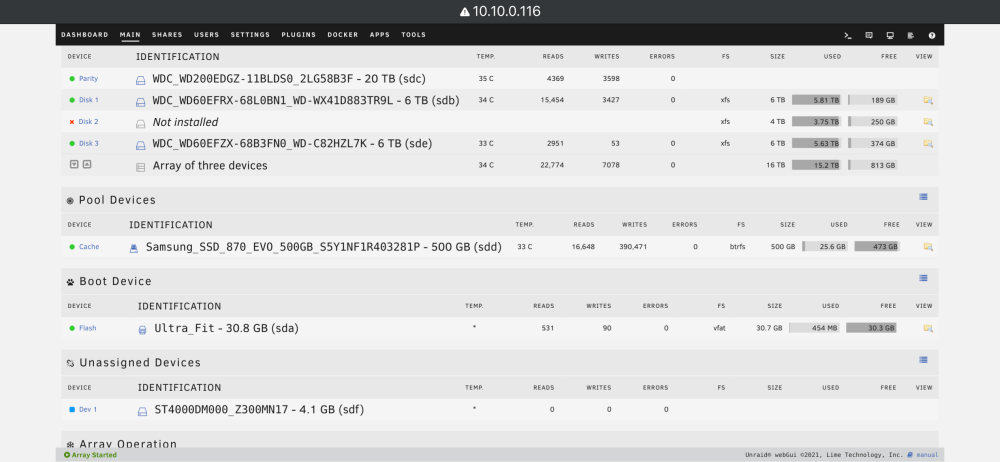
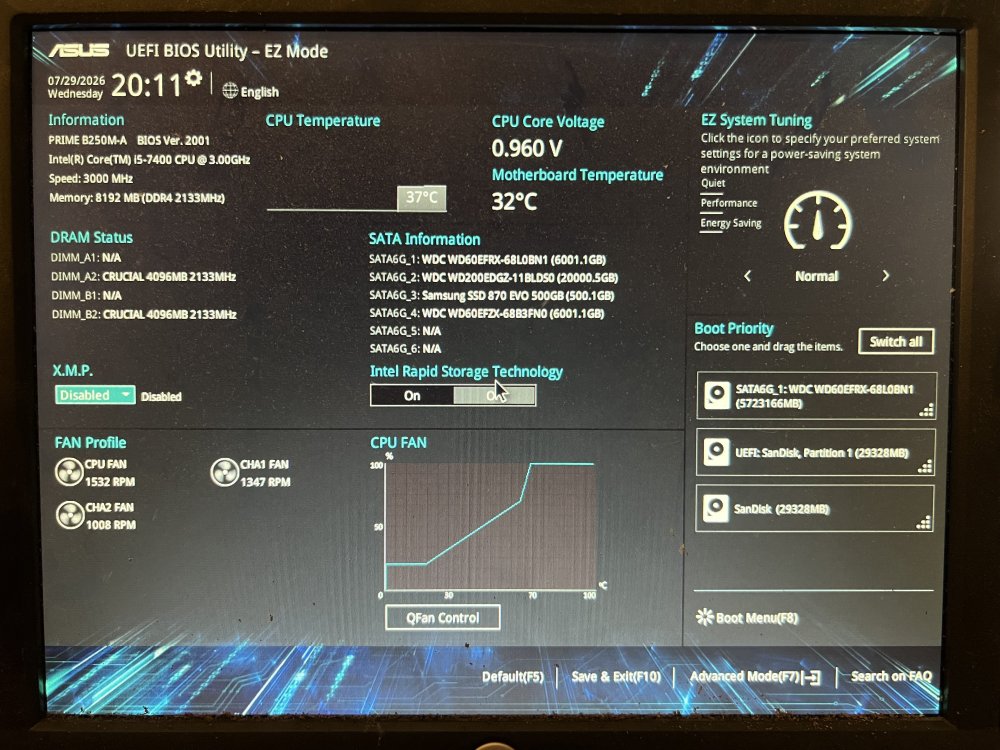
Completed steps 1-5 - without the new nvme flash drive for now, as that’s yet to arrive. I can successfully boot into unraid, but the Seagate drive is unassigned, and shows as 4GB rather than 4TB. I am also unable to see it in the BIOS. I am also unable to see the Unraid UI on desktop for some reason, although it works fine on my phone.
-
Thanks, I have purchased a motherboard/CPU/memory bundle to replace my existing one. The new one has an m.2 nvme slot for the cache drive, so that will also be replacing my existing Samsung SSD 870 EVO. Does the following process sound correct to get the system back up and running as it was? Restore the original Sandisk USB boot stick from backup image (brings back the array/cache assignments, Docker/VM configs and licence key) Build board/CPU/RAM/PSU into the case Connect for first boot: restored USB stick + all 4 array HDDs + the old Samsung 870 EVO cache SSD. Fit the new m.2 NVMe but leave it unassigned for now. BIOS: enable the iGPU/IGD (so /dev/dri appears for QuickSync); VT-d optional (Advanced → System Agent). Boot Unraid. Array + SATA cache should map by serial to their existing slots — do NOT do a New Config or start a rebuild. Expect an unclean-shutdown parity check — let it run (read-only, non-destructive). Once healthy with appdata working, migrate cache to the NVMe: stop Docker/VM → Mover (cache→array) → set Micron as cache → Mover back → retire the 870 EVO.
-
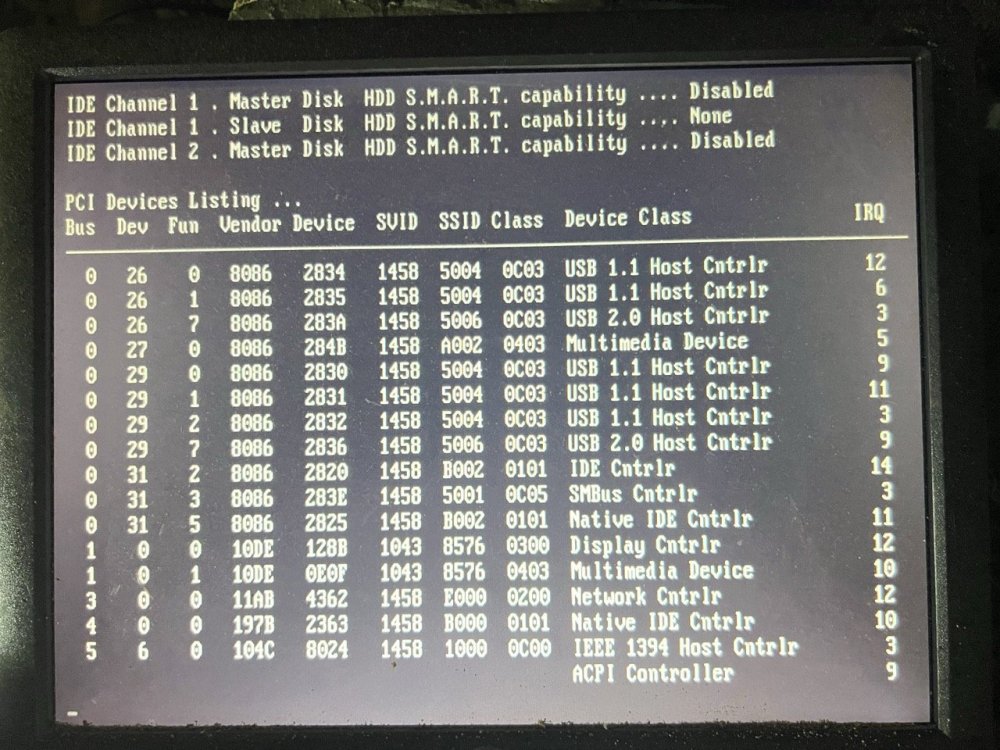
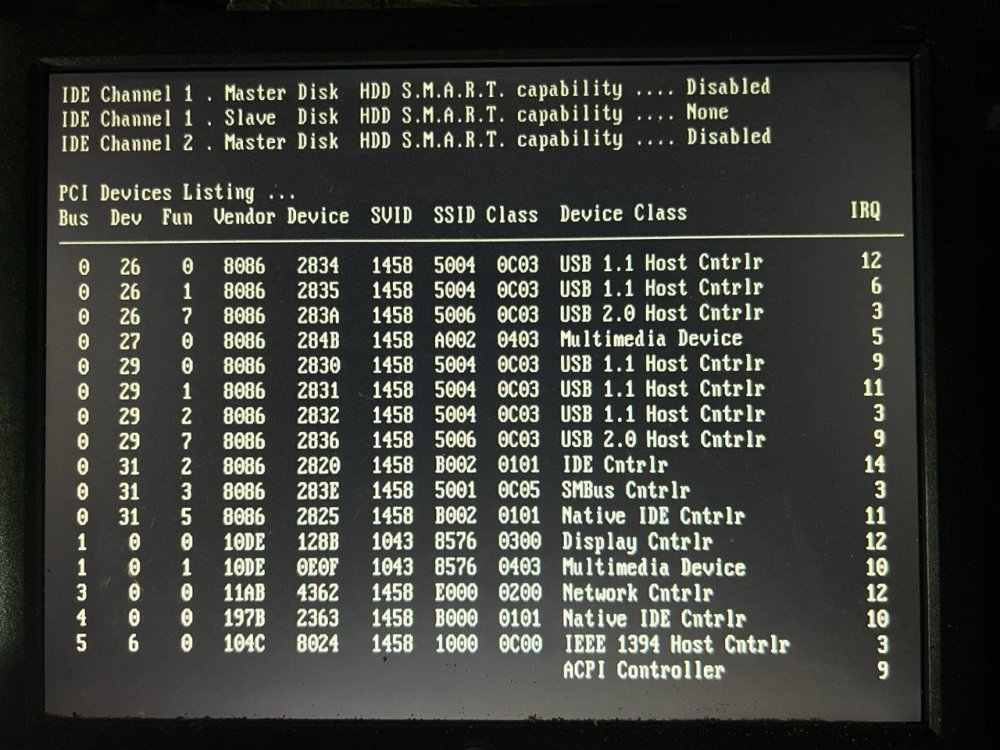
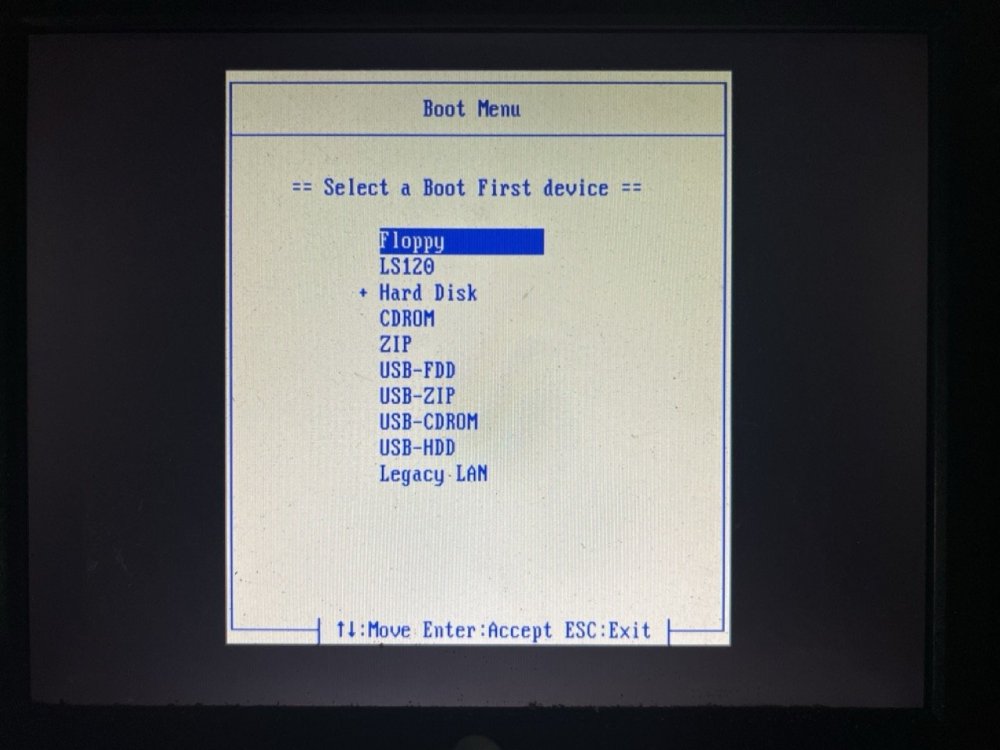
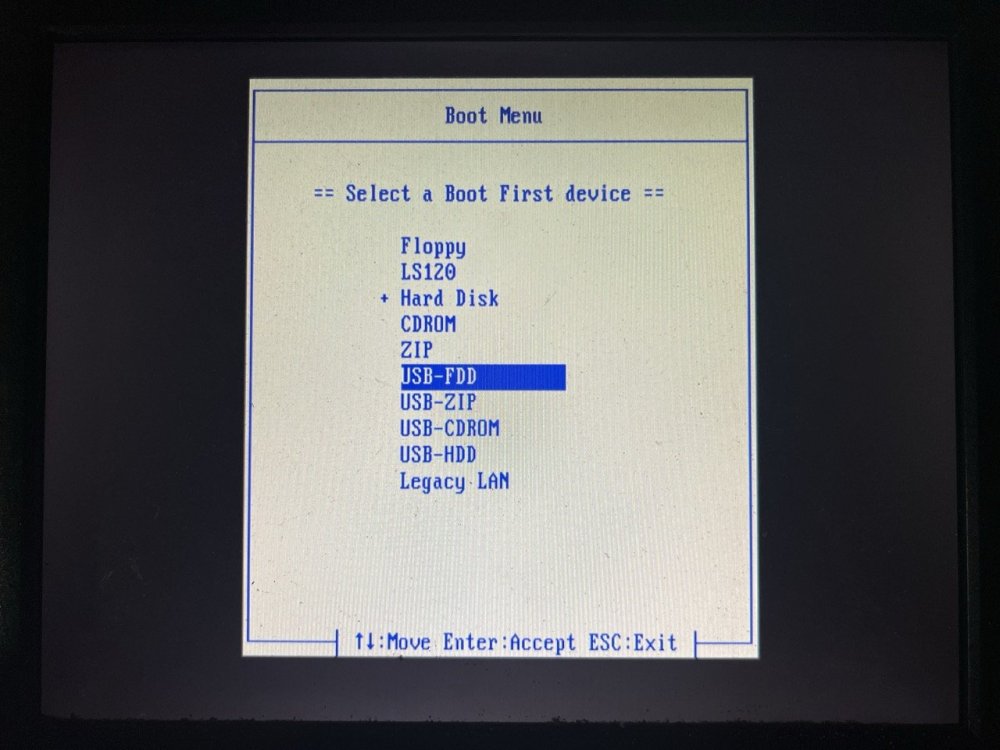
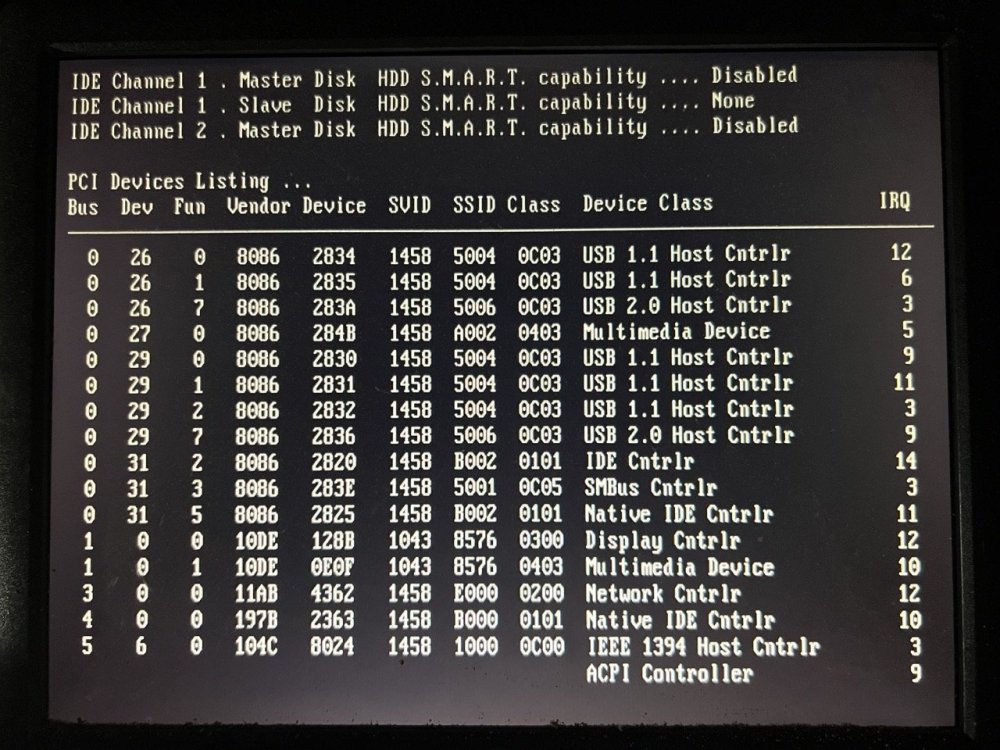
It looks as though the board may be borked. I used the original flash drive in another machine and was able to boot from it and get to the Unraid installation screen. I also borrowed another, new USB drive to try in the server and no matter how much I tried I could not get it to boot from it. Tried: using the tool to make the flash drive using the tool to make the flash drive then running make_bootable_mac manually creating the flash drive by formatting as FAT32 then unzipping the unraid OS contents manually creating the flash drive by formatting as FAT32 then unzipping the unraid OS contents, then running make_bootable_mac Closest I could get to the server doing something was actually seeing the new Lexar flash drive in the boot priority list, but selecting it then did not boot from it, just went to the PCI Devices Listing screen above. I think the combination of those things does seem to point to a server problem. With that in mind, what are my options here to get this up and running? Ideally as cheaply as possible.
-
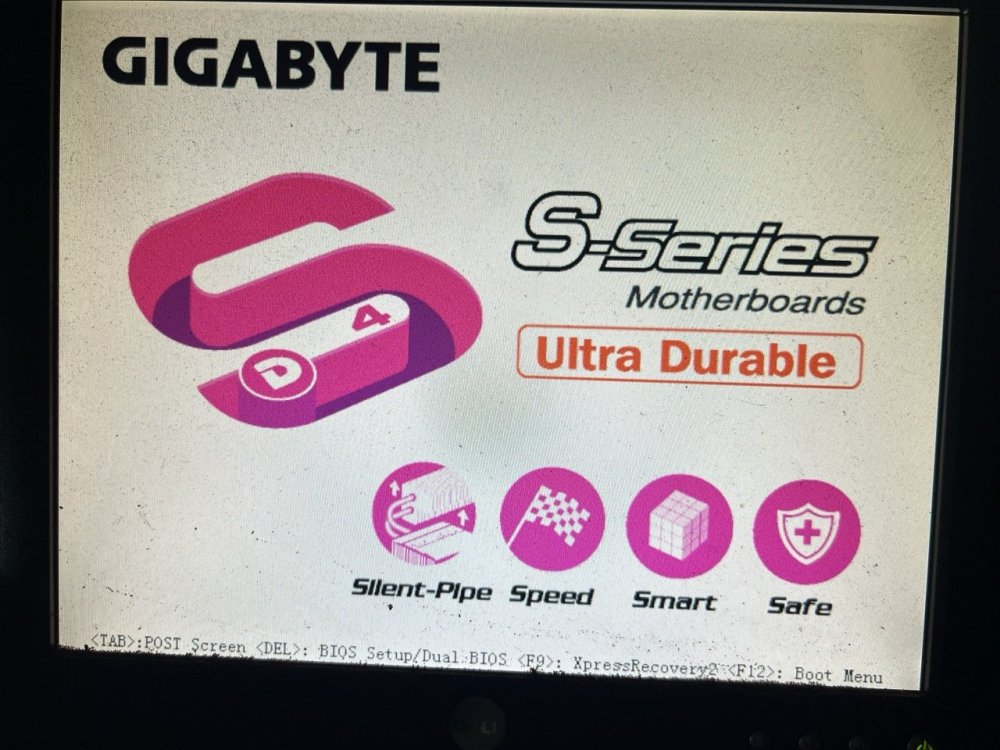
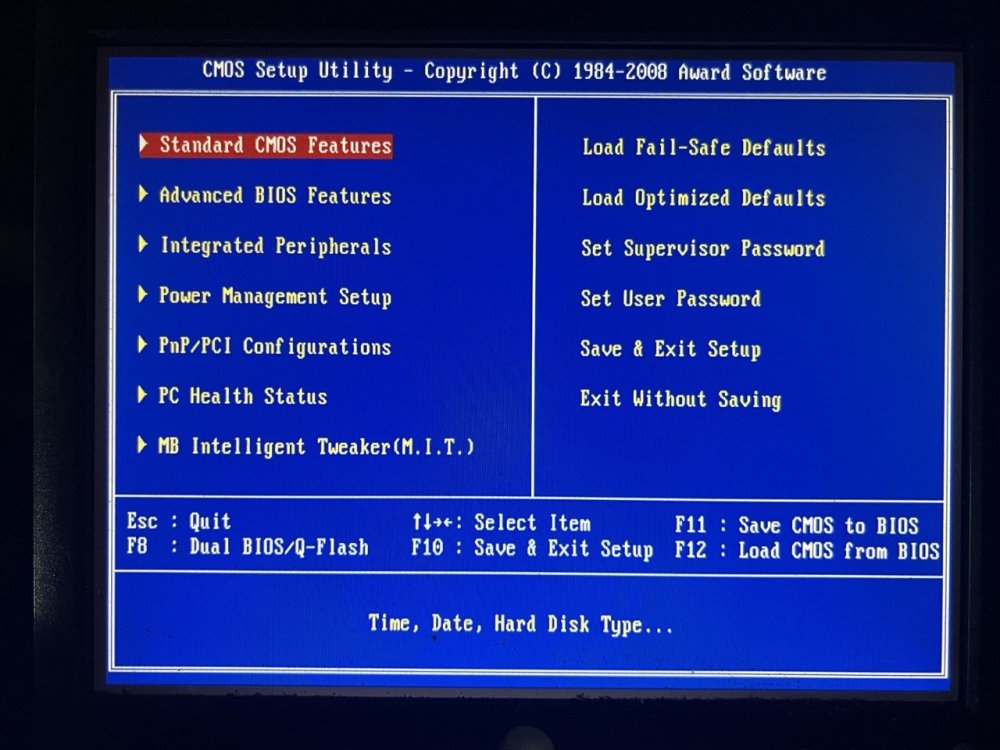
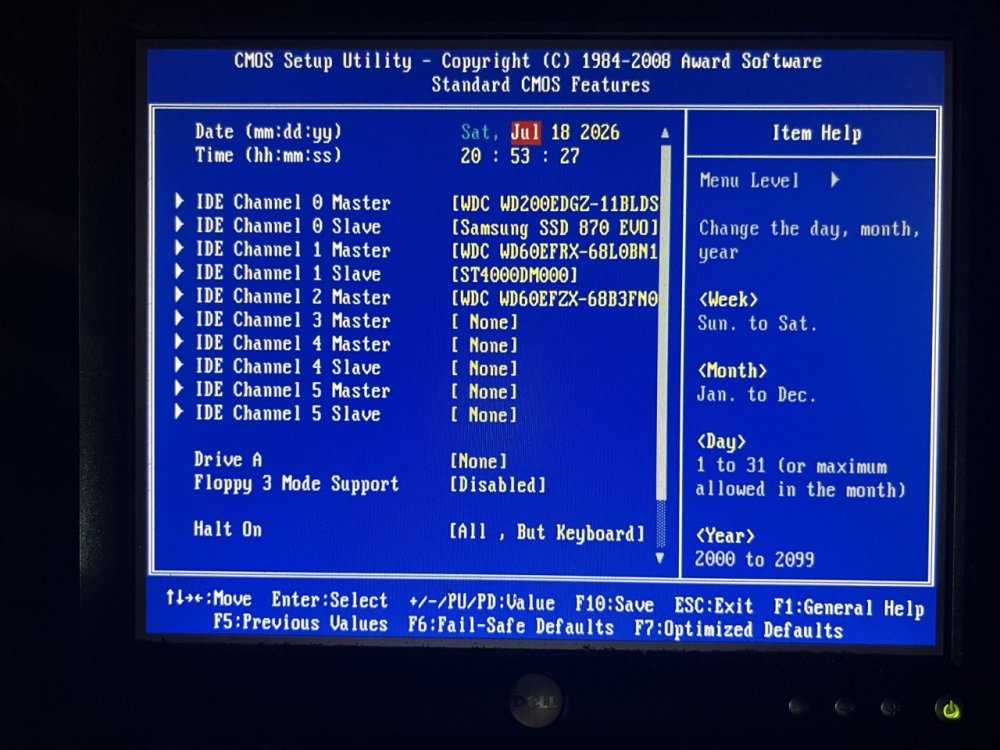
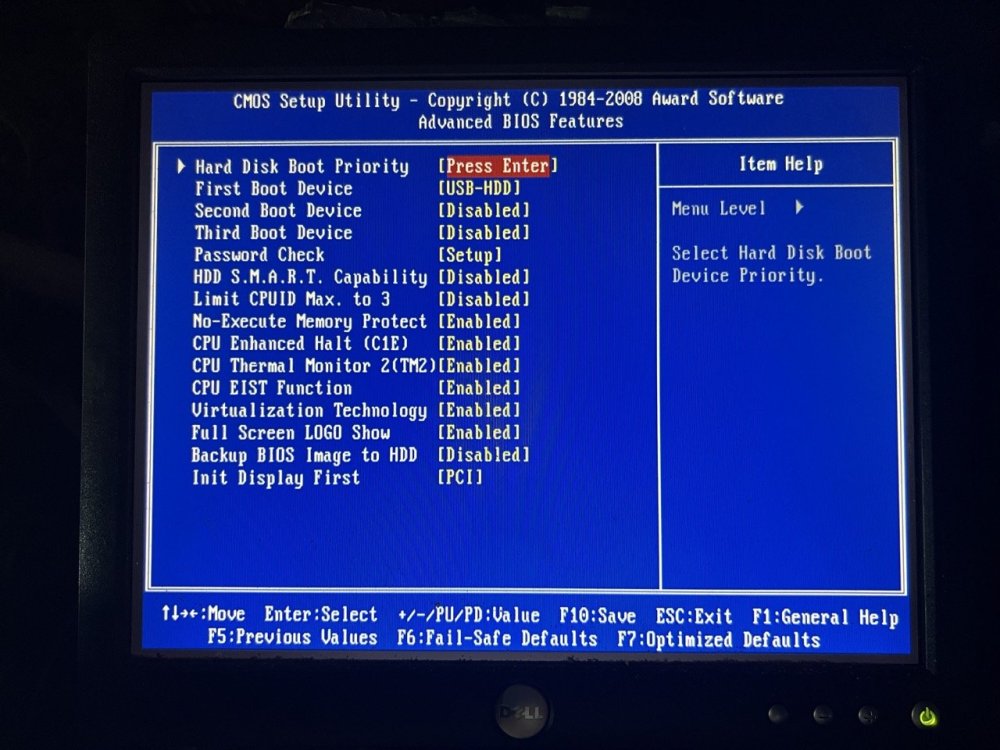
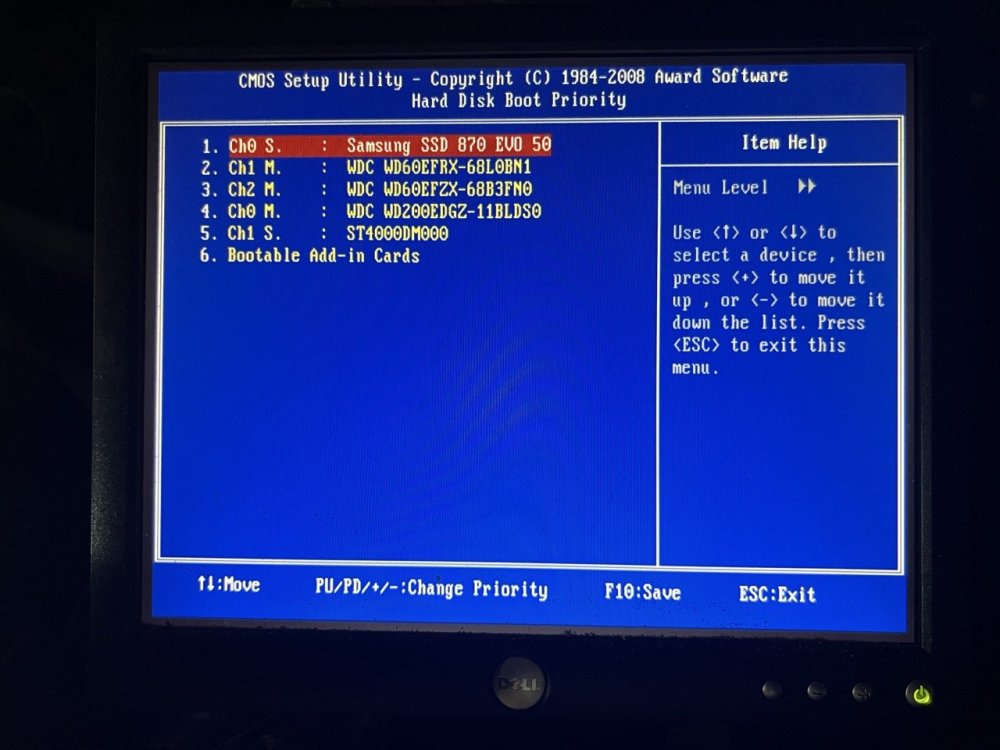
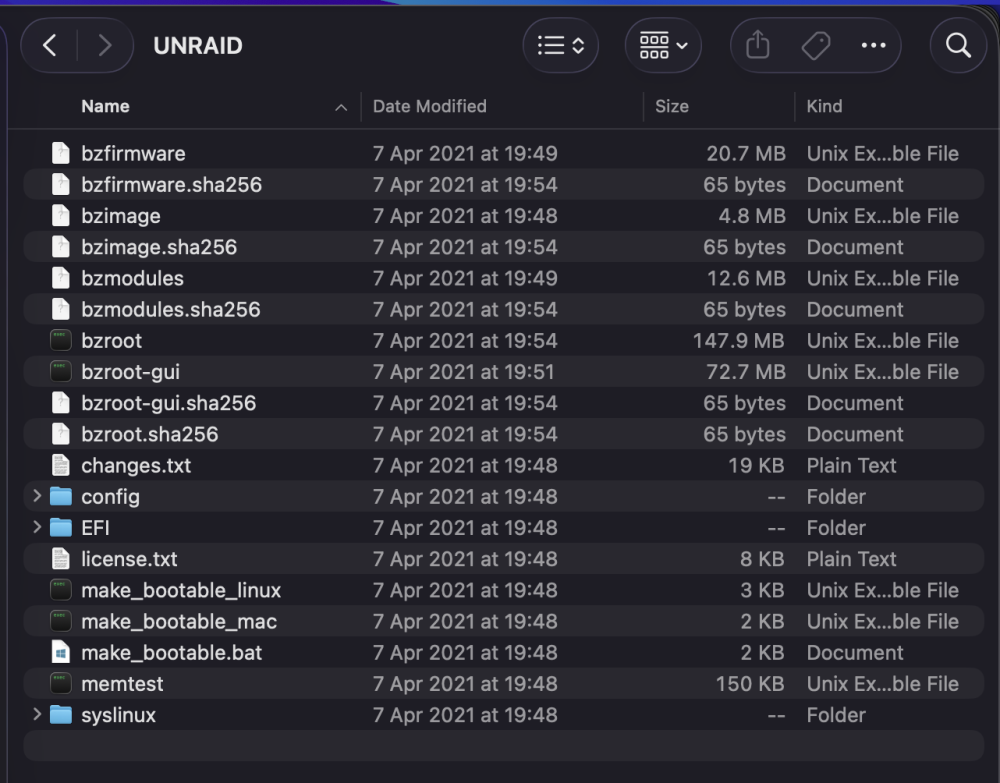
Ok so I created a new flash drive with v6.9.2. Ran make bootable mac again. Inserted it into the server and booted up, and I got stuck on the same screen. First boot: F10 then select USB-HDD ends up going back to the same screen: All BIOS pages in case there's anything in there: Flash drive contents:
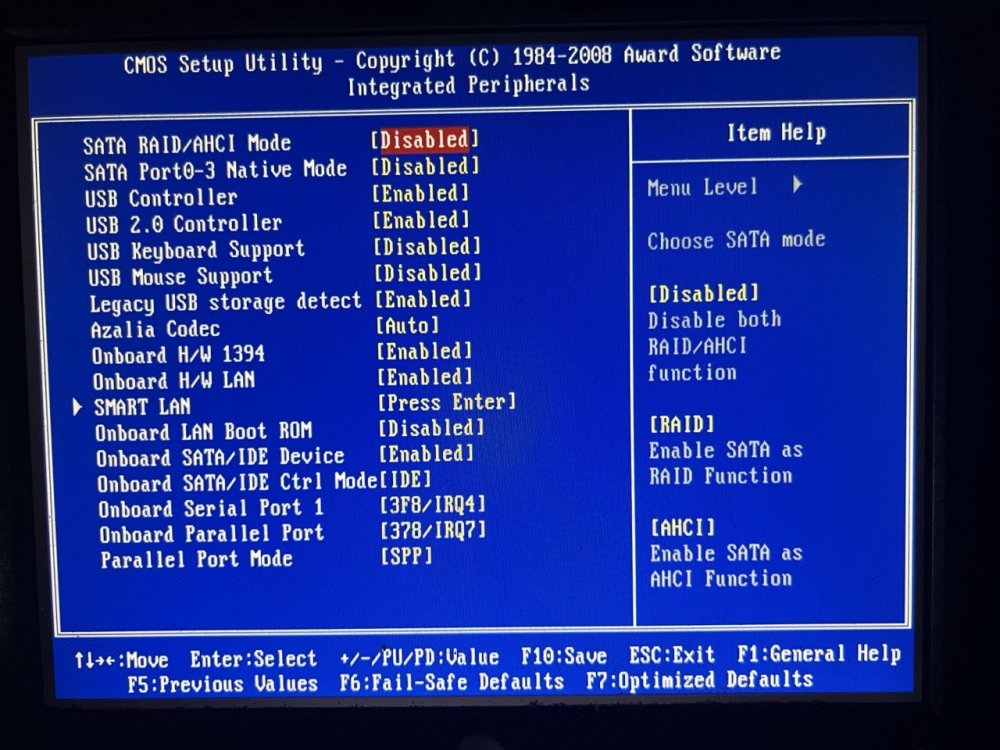
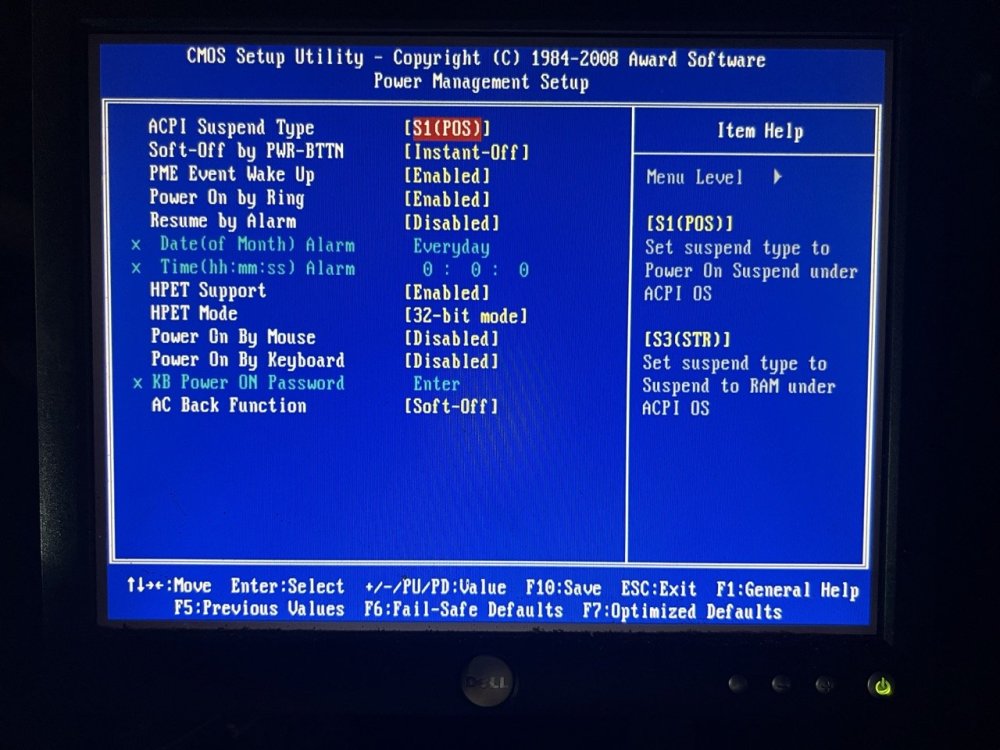
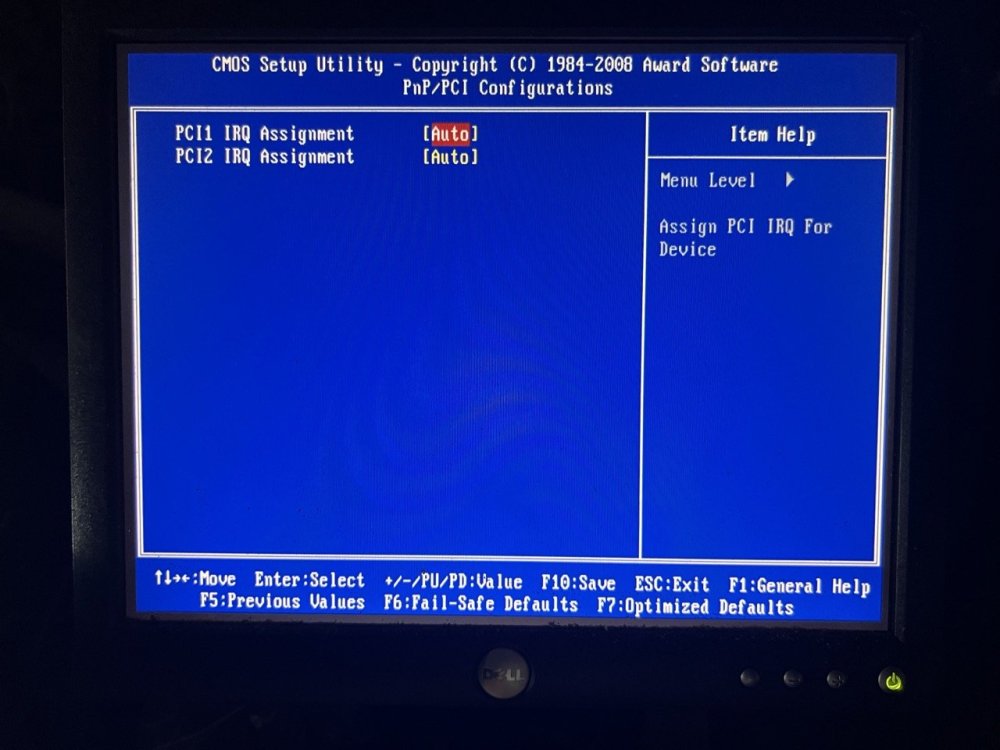
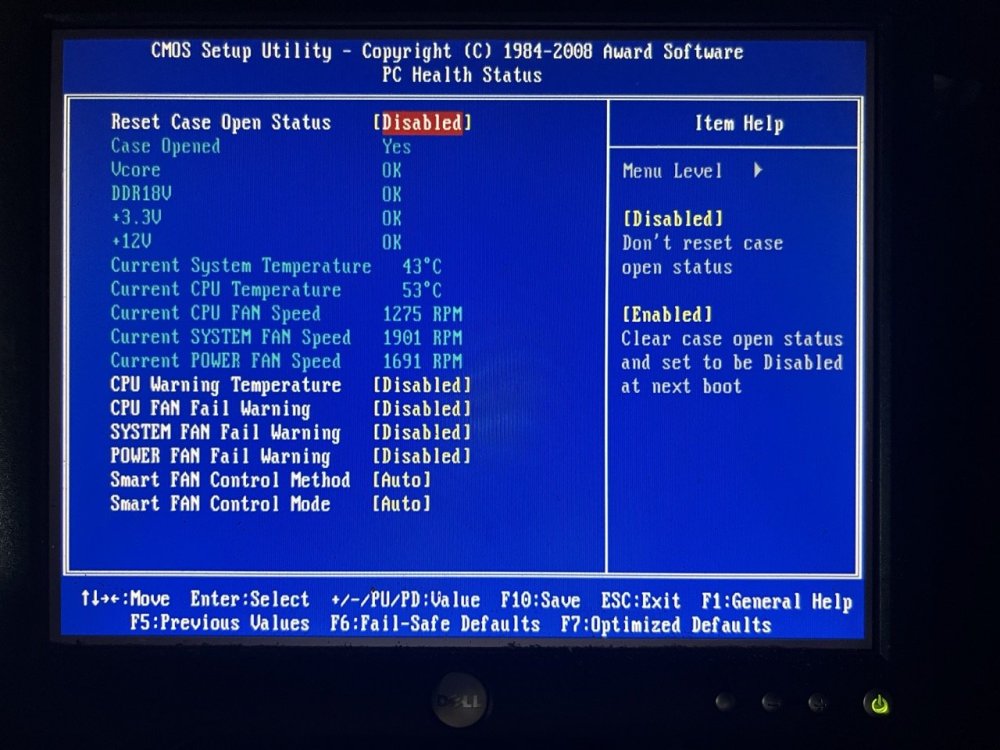
-
The compatibility point could be the one, as I know the version I installed on the flash was the latest (just selected the recommended/default option), and I was on 6.9.2. I will try this again tonight and report back.
-
Yes, that’s with a stock install. Nothing was copied over from the backup. I only ran make bootable mac
-
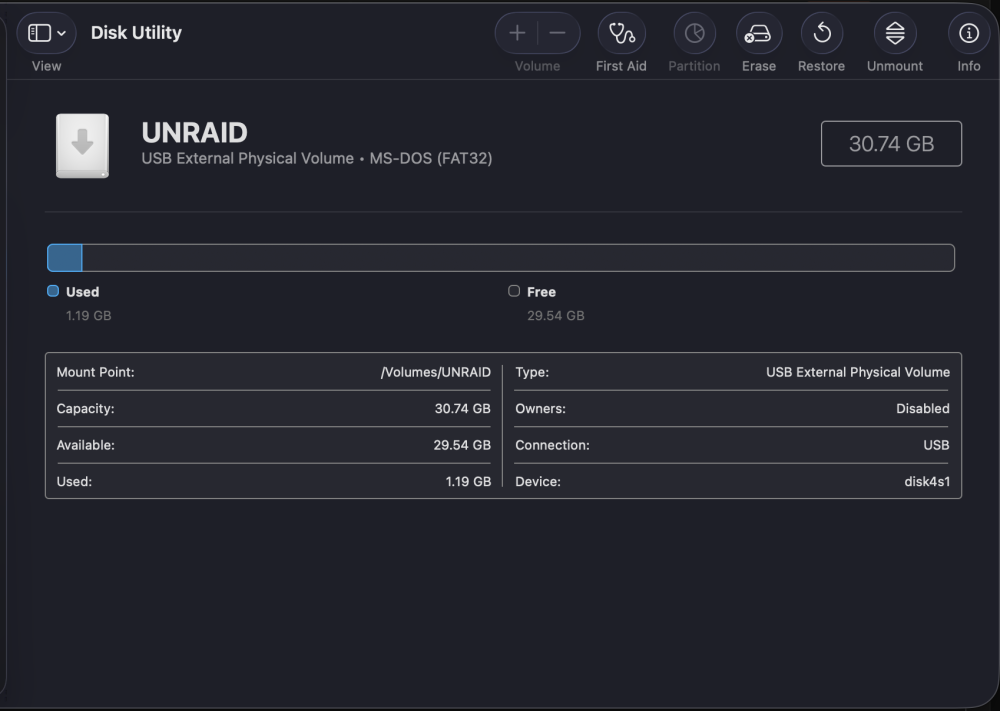
How might you expect that not to work, exactly? I made a backup of the usb, downloaded the USB tool and used it to recreate a bootable drive. I also ran make_bootable_mac because my motherboard is ancient. When I reinserted this in the server, and started it up, I only get as far as a PCI Devices list and it never actually boots. Attempts to hit F12 to enter the boot menu and select the USB HDD option do not work, it simply reverts to the same screen. Also entering the BIOS setup, and changing the first boot device to USB-HDD, saving and restarting also does not help, I never get further than the PCI Devices list screen. I don't see any reported issues with the usb in disk utility, it seems to just behave normally.
-
ok thanks, will do. do the logs indicate a potential issue with the flash drive itself? i.e. should i buy a replacement to rebuild? or is it safe to just attempt a rebuild on this existing flash drive
-
Presumably this all needs to be done with the server off. It is currently still trying to stop the array, am I able to/is it safe to power off the system while in this state? When I go to create a "Flash Backup" the screen turns white and nothing happens:

-
Searched the forums, and it suggested checking the cables to the drives, so I did that. Restarted the server and when it came back up, I then saw the drive in Unassigned Devices. Found instructions to bring that drive back into the array, with the first step being to stop the array. It's here where I got stuck on "Array Stopping•Retry unmounting disk share(s)..." I have tried following workarounds on a couple of threads from the forums, but these do not seem to have helped and I am still stuck with the array attempting to stop. https://forums.unraid.net/topic/145821-cant-unraid-stop-when-array-already-unmounted/ https://forums.unraid.net/topic/141479-6122-array-stop-stuck-on-retry-unmounting-disk-shares/ Also spotted cache disk doesn't appear to show in the UI anymore, and key file is missing. Diagnostics attached. Console output also included below in case it helps to see what's been tried: root@Nebula:~# umount /var/lib/docker umount: /var/lib/docker: target is busy. root@Nebula:~# lsof /mnt/cache lsof: status error on /mnt/cache: No such file or directory lsof 4.93.2 latest revision: https://github.com/lsof-org/lsof latest FAQ: https://github.com/lsof-org/lsof/blob/master/00FAQ latest (non-formatted) man page: https://github.com/lsof-org/lsof/blob/master/Lsof.8 usage: [-?abhKlnNoOPRtUvVX] [+|-c c] [+|-d s] [+D D] [+|-E] [+|-e s] [+|-f[gG]] [-F [f]] [-g [s]] [-i [i]] [+|-L [l]] [+m [m]] [+|-M] [-o [o]] [-p s] [+|-r [t]] [-s [p:s]] [-S [t]] [-T [t]] [-u s] [+|-w] [-x [fl]] [--] [names] Use the ``-h'' option to get more help information. root@Nebula:~# lsof /var/lib/docker COMMAND PID USER FD TYPE DEVICE SIZE/OFF NODE NAME dockerd 8180 root 13u REG 0,47 32768 293 /var/lib/docker/volumes/metadata.db dockerd 8180 root 19u REG 0,47 16384 5689 /var/lib/docker/buildkit/containerdmeta.db dockerd 8180 root 20u REG 0,47 16384 304 /var/lib/docker/buildkit/snapshots.db dockerd 8180 root 21u REG 0,47 16384 5690 /var/lib/docker/buildkit/metadata_v2.db dockerd 8180 root 22u REG 0,47 32768 309 /var/lib/docker/buildkit/cache.db dockerd 8180 root 28w REG 0,47 433199 1023963 /var/lib/docker/containers/7eab7a44d5f408d3a06712bfd9716239e245a76bb6cd60aa850fadf5c4e0dfed/7eab7a44d5f408d3a06712bfd9716239e245a76bb6cd60aa850fadf5c4e0dfed-json.log dockerd 8180 root 34w REG 0,47 31724307 1360831 /var/lib/docker/containers/63f3828ac3d799f8a4f894e49a33bfba7e0057bdfc722cac272f684289aaa11d/63f3828ac3d799f8a4f894e49a33bfba7e0057bdfc722cac272f684289aaa11d-json.log dockerd 8180 root 40w REG 0,47 32079446 1275318 /var/lib/docker/containers/bdd9b652e9b0032f28a64db857cfce965e27e302f794e65ee4d415b6417f1266/bdd9b652e9b0032f28a64db857cfce965e27e302f794e65ee4d415b6417f1266-json.log dockerd 8180 root 43w REG 0,47 25224 7963 /var/lib/docker/containers/e79ef2ed99dcf1aa372fc5c208fabe7462199a253a1009c8bf09925319999aa2/e79ef2ed99dcf1aa372fc5c208fabe7462199a253a1009c8bf09925319999aa2-json.log dockerd 8180 root 51w REG 0,47 19761177 1019027 /var/lib/docker/containers/6bd8577a078676c766e55153002bd82ea82a8c29d329fe3c76dac82ac99749a8/6bd8577a078676c766e55153002bd82ea82a8c29d329fe3c76dac82ac99749a8-json.log dockerd 8180 root 57w REG 0,47 47846993 1326681 /var/lib/docker/containers/04f5a25174258a0a9c0ab2179c881246204884e0dcaa758967e217d3873a434a/04f5a25174258a0a9c0ab2179c881246204884e0dcaa758967e217d3873a434a-json.log container 8195 root 4u REG 0,47 524288 272 /var/lib/docker/containerd/daemon/io.containerd.metadata.v1.bolt/meta.db root@Nebula:~# losetup NAME SIZELIMIT OFFSET AUTOCLEAR RO BACK-FILE DIO LOG-SEC /dev/loop1 0 0 1 1 /boot/bzfirmware 0 512 /dev/loop2 0 0 1 0 /mnt/disk1/system/docker/docker.img 1 512 /dev/loop0 0 0 1 1 /boot/bzmodules 0 512 root@Nebula:~# umount -l /dev/loop2 root@Nebula:~# lsof /var/lib/docker root@Nebula:~# losetup NAME SIZELIMIT OFFSET AUTOCLEAR RO BACK-FILE DIO LOG-SEC /dev/loop1 0 0 1 1 /boot/bzfirmware 0 512 /dev/loop2 0 0 1 0 /mnt/disk1/system/docker/docker.img 1 512 /dev/loop0 0 0 1 1 /boot/bzmodules 0 512 root@Nebula:~# lsof /mnt/disk1 root@Nebula:~# lsof /mnt/cache lsof: status error on /mnt/cache: No such file or directory lsof 4.93.2 latest revision: https://github.com/lsof-org/lsof latest FAQ: https://github.com/lsof-org/lsof/blob/master/00FAQ latest (non-formatted) man page: https://github.com/lsof-org/lsof/blob/master/Lsof.8 usage: [-?abhKlnNoOPRtUvVX] [+|-c c] [+|-d s] [+D D] [+|-E] [+|-e s] [+|-f[gG]] [-F [f]] [-g [s]] [-i [i]] [+|-L [l]] [+m [m]] [+|-M] [-o [o]] [-p s] [+|-r [t]] [-s [p:s]] [-S [t]] [-T [t]] [-u s] [+|-w] [-x [fl]] [--] [names] Use the ``-h'' option to get more help information. root@Nebula:~# ls root@Nebula:~# mkdir tmp root@Nebula:~# ls tmp/ root@Nebula:~# cd tmp root@Nebula:~/tmp# dd if=/dev/zero of=disk2 bs=1M count=310 310+0 records in 310+0 records out 325058560 bytes (325 MB, 310 MiB) copied, 0.291545 s, 1.1 GB/s root@Nebula:~/tmp# ls disk2 root@Nebula:~/tmp# mkfs -t xfs disk2 meta-data=disk2 isize=512 agcount=4, agsize=19840 blks = sectsz=512 attr=2, projid32bit=1 = crc=1 finobt=1, sparse=1, rmapbt=0 = reflink=1 data = bsize=4096 blocks=79360, imaxpct=25 = sunit=0 swidth=0 blks naming =version 2 bsize=4096 ascii-ci=0, ftype=1 log =internal log bsize=4096 blocks=1368, version=2 = sectsz=512 sunit=0 blks, lazy-count=1 realtime =none extsz=4096 blocks=0, rtextents=0 root@Nebula:~/tmp# ls disk2 root@Nebula:~/tmp# cd disk2 bash: cd: disk2: Not a directory root@Nebula:~/tmp# cd .. root@Nebula:~# ls tmp/ root@Nebula:~# cd .. root@Nebula:/# ls bin/ dev/ home/ init@ lib64/ opt/ root/ sbin/ tmp/ var/ boot/ etc/ hugetlbfs/ lib/ mnt/ proc/ run/ sys/ usr/ root@Nebula:/# cd mnt root@Nebula:/mnt# ls disk1/ user/ root@Nebula:/mnt# mkdir disk2 root@Nebula:/mnt# ls disk1/ disk2/ user/ root@Nebula:/mnt# cd .. root@Nebula:/# cd tmp root@Nebula:/tmp# ls ca.backup2/ community.applications/ emhttp/ notifications/ plugins/ root@Nebula:/tmp# cd root bash: cd: root: No such file or directory root@Nebula:/tmp# cd .. root@Nebula:/# ls bin/ dev/ home/ init@ lib64/ opt/ root/ sbin/ tmp/ var/ boot/ etc/ hugetlbfs/ lib/ mnt/ proc/ run/ sys/ usr/ root@Nebula:/# cd root root@Nebula:~# ls tmp/ root@Nebula:~# cd tmp root@Nebula:~/tmp# ls disk2 root@Nebula:~/tmp# mount disk2 /mnt/disk2 root@Nebula:~/tmp# nebula-diagnostics-20260717-0945.zip
-
Following this thread a parity check has been run, finding 130 errors. What steps do I need to take here? Thanks
-
Bloody gigabyte board! Took me forever to find this setting - because the first time I got into the BIOS it wasn't even visible! I had to go into "Dual BIOS/Q-Flash Utility", changed some settings in there, rebooted, and then the options available to me in the advanced bios screen changed and showed the "Backup BIOS Image to HDD" I wanted. You can see one screenshot of the advanced screen has fewer options, and then a later one more magically appear! Can't wait to build a new server and get rid of this hardware. Anyway, error is now gone and the array is started again. Just wanted to say thanks for your help, and I've attached the screenshots of the BIOS settings in case it's useful to others in future. IMG_7546.HEIC IMG_7554.HEIC IMG_7555.HEIC IMG_7557.HEIC IMG_7565.HEIC
-
Interesting, thanks for confirming. I definitely remember checking for this before and I'm sure I disabled it, but it's been years so it's hazy. I will re-check the BIOS.
-
I didn’t this time, partly because it involves first getting up in the loft to dig out the wired keyboard and spare monitor, then going down into the crawl space under the house to get to the server. But also because after reviewing those hdparm commands, I seem to remember I had this previously years ago and disabled the BIOS feature then. Is it possible for this to re-enable itself? If so I will make the time to get down to the server and explore the BIOS again.


