





italy333333
Members
-
Joined
-
Last visited
-
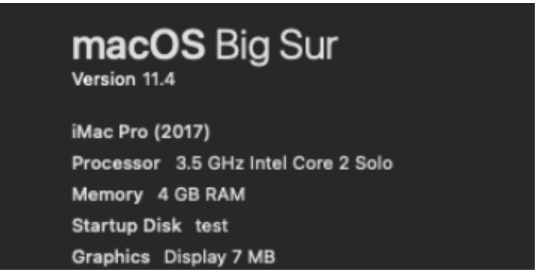
ghost82 - thanks for all your help with this, I am learning a lot. So it looks like the CPU emulation is working but MacOS sees it as a Core 2 solo and the patch is needed in my situation, is that correct? Is there any harm or reason not to include that patch in the config.plist for everyone?
-
So I nuked everything and started fresh, here are my findings and default settings. I run a Intel G4560 CPU <cpu mode='host-passthrough' check='none' migratable='on'> <topology sockets='1' dies='1' cores='1' threads='2'/> <cache mode='passthrough'/> </cpu> <qemu:commandline> <qemu:arg value='-usb'/> <qemu:arg value='-device'/> <qemu:arg value='usb-kbd,bus=usb-bus.0'/> <qemu:arg value='-device'/> <qemu:arg value='************************'/> <qemu:arg value='-smbios'/> <qemu:arg value='type=2'/> <qemu:arg value='-cpu'/> <qemu:arg value='Penryn,kvm=on,vendor=GenuineIntel,+invtsc,vmware-cpuid-freq=on,+pcid,+ssse3,+sse4.2,+popcnt,+avx,+aes,+xsave,+xsaveopt,check'/> </qemu:commandline> Ran macinabox from apps with all default settings except Big Sur as the image Ran 1_macinabox_helper script after the download finished Started the VM Clicked enter on the MacOS Base System disk The VM bootloops I then tried the file you posted and the VM bootlooped as well I then changed the config.plist file and added the PENRYN patch and the VM booted fine.
-
Got it to work! Thanks to Ghost82 and glennv. Here are the steps I used, I will try to keep it simple so everyone can try it out. -Install macinabox just as normal (default settings)-- Test to make sure it bootloops for you -Shutdown the macinabox VM -Connect to Unraid terminal -Mount the opencore image file modprobe nbd max_part=8 qemu-nbd --connect=/dev/nbd0 /mnt/user/isos/BigSur-opencore.img mkdir /mnt/user/isos/temp/ mount /dev/nbd0p1 /mnt/user/isos/temp/ -Edit the config.plist nano /mnt/user/isos/temp/EFI/OC/config.plist -Paste the patch after the PENRYN entry - glennv has a post on page 80 that explains it -Save you file -Dismount the image file umount /mnt/user/isos/temp/ rm -r /mnt/user/isos/temp/ qemu-nbd --disconnect /dev/nbd0 rmmod nbd -Rerun the user script - make sure you change the name in the settings of the script to match your VM name (I also set REMOVETOPOLOGY="yes" , not sure if that is needed) -Test it out! Macinabox PENRYN Patch 11_3.txt
-
That is a good point, maybe leaning towards opencore might be better. I did create a new image from BigSur 11.4 and that also had the same issue, the one thing the VMs shared is the opencore version. I think I am going to troubleshoot that route. The reason I am leaning towards hardware being an issue is that every person with Unraid 6.9.2 should be able to 100% replicate the boot loop, but it seems like some people do not have the issue. Maybe they are running an older version of the template or a different version of Unraid.....
-
Good to know, then what do you believe the issue is? I am running Unraid 6.9.2 and followed the guide so there should be no issues with configuration. It has to be a hardware issue as some people don't have this issue and some do. I also tried booting with the Penryn patch commented out but that did not help.
-
I am having the same issue. I have tried multiple different MacOS versions as well as both download methods. I am just stuck in a boot loop after clicking the MacOS Base System. I think it is an issue with some Intel CPUs as people with Ryzen don't seem to be affected.

