





kysdaddy
Members
-
Joined
-
Last visited
-
Jorge, I followed the instructions, which seems to have worked. Thank you sir!
-
Jorge, Thank you. This has been a bit of a ride; I apologize. I got tied up keeping systems running and didn't have time to get back to the forum. The semi-good news is that I think I muddled through. I ran two cache pools both redundant 1 one tb and 1 240 gb. As a complete idiot I had all of my appdata, system, isos etc on the small pool. That pool was overheating and failing. Today I moved all of the information off of that pool and onto the one tb pool. I have backed up app data, rebooted the system and everything worked as expected. That being said, I still have errors that I do not comprehend in the system log. these keep repeating. Jan 29 11:43:43 Tower kernel: BTRFS error (device loop2): bdev /dev/loop2 errs: wr 0, rd 0, flush 0, corrupt 2882, gen 0 Jan 29 11:43:43 Tower kernel: BTRFS warning (device loop2): csum failed root 5 ino 44193 off 159744 csum 0x48842079 expected csum 0x1726b2ec mirror 1 Jan 29 11:43:43 Tower kernel: BTRFS error (device loop2): bdev /dev/loop2 errs: wr 0, rd 0, flush 0, corrupt 2883, gen 0 I am attaching a diag that I ran right after reboot and I'll go ahead and run the scrub again and post those results as well UUID: cc3cc728-5d29-430f-9c0c-dcbf3ee13d23 Scrub started: Wed Jan 29 11:46:06 2025 Status: finished Duration: 0:00:00 Total to scrub: 304.00KiB Rate: 0.00B/s Error summary: no errors found I assume that I did something stupid, while moving the files or setting up the share. current setup: primary storage 1tb cache, secondary array, mover cache 1tb to Array, I feel like this is wrong. Chas tower-diagnostics-20250129-1136.zip.crdownload
-
Hey, did you ever get this figured out? I have the same issue: two different servers set precisely the same. One authorizes one won't. Chas
-
Hello all, Here I am again. I woke up this morning, and my server was running, although inaccessible from the web. I opened up a local connection and found that the docker failed to start. I assume after the backup last night. I did some searches, and I am running 6.12.1,4, so it isn't the 7.0 issue. (I think). Next, I tried to scrub my cache drive, and during the scrub, I noticed some temp issues (an ongoing problem with one of my cache pools; I am moving to a new build). The docker has never failed before. I placed a fan to assist in temp control and continued the scrub. (Set to repair corrupted blocks) I pulled a diagnostic while the scrub was running, and the cache drive reported that it was 55 degrees. @14% The scrub has corrected 64151 blocks ( I hope this is good.) I am going to attach three diagnostics, 20250112-1305, while the scrub is running. Diagnostic 20250112-1329 was immediately after the scrub was completed and Diagnostic 20250112-1415 is after reboot. I assume that I will need to recreate my docker image file and then reinstall the dockers, but I thought I'd get the opinion of those much smarter than I first. Thanks in advance. Chas tower-diagnostics-20250112-1305.zip tower-diagnostics-20250112-1329.zip tower-diagnostics-20250112-1415.zip
-
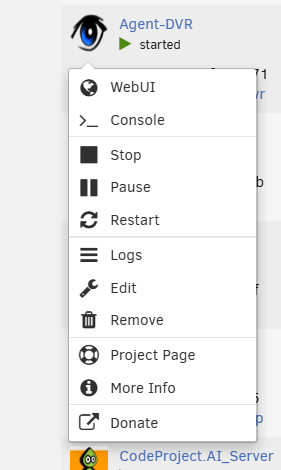
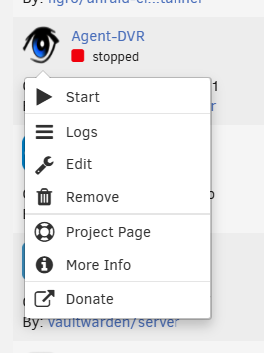
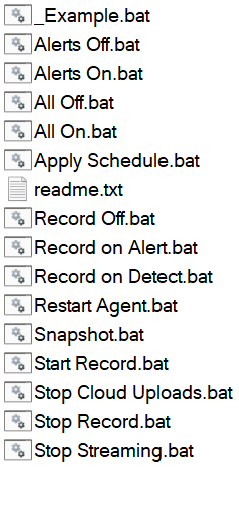
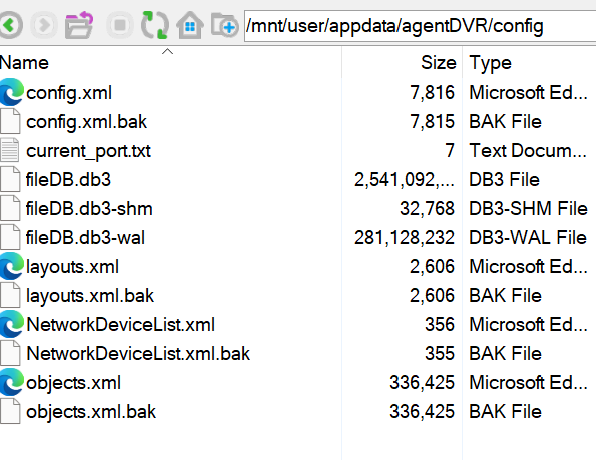
Thanks Frank, I thought the same thing; my issue is that there is a console in the docker when the docker is running, but stopping the docker as the directions states stops the console as well. I am trying to dig through the support docs, but unfortunately, the documentation I see does not match the information I see when I look into the data. If I open a normal terminal and CD to the agent DVR folder, there are two folders inside of it: a commands folder and a config folder. (First) the command folder (second) the Config. working with this information. https://www.ispyconnect.com/docs/agent/troubleshooting It says First, let's stop Agent DVR: Next, run the reset script. On Windows, it's agent-reset-local-login.bat. On Linux/macOS, use agent-reset-local-login.sh (don't forget to make it executable with chmod +x agent-reset-local-login.sh). When I open the terminal and cd to agentdvr and run either of those two commands, I get command not found, same in the config folder and the commands folder. I am trying to get support from ISPY but ....... Thanks for the help
-
Frank, thanks for the suggestion, I tried that long before I posted in the thread. Nothing helps. Perhaps there is something that you can share that will help me identify the correct answer.
-
Hello, I am running two different instances of agentdvr on two different Unraid servers. Both are set up identically and have worked great for a couple of years. I recently reduced my array on one of my servers and it seems that during the new config build something went awry with my AgentDVR docker. I no longer see that system listed in ISPYConnect. and I can not log into it locally. I do not see a users.json in the config folder and the config.xml shows the password 9IWE/21mLrEXRE/AoqZkHk== and that is not working. Is there a way to reset the local password on the agentdvr docker ?
-
Hello, Recently, I decided to try Emby, I like it, except it keeps causing OOM issues. If I start Emby in a few hours both CPU and Ram are at 100%, If I shut Emby down I go to 21% and 10%. This started happening about 3 weeks after I setup emby. I am attaching a diagnostic that I pulled before shutting emby down. Thanks in advance for the assistance tower-diagnostics-20241127-1318.zip
-
Well, I stepped away and once again 100% CPU and 100% ram. I just pulled another Diagnostic, maybe this will give better information than I do. Thanks again for any assistance Chas tower-diagnostics-20241127-1318.zip
-
I am moving emby to my larger cache pool, to see if this helps. I will also bu upgrading my system on Friday new MB, CPU and ram. I'll see if that helps. Thanks Chas
-
Thank you, I just updated emby, is there anything else that you might suggest other than removing the container?
-
Sorry, it dawned on me OOM = Out of Memory. I am unable to access the diagnostic that I uploaded in the other thread to move it here. I will have to wait ti the next partial freezeup
-
have a couple of systems running Unraid for quite a while. My home machine is quite large and works well most of the time. Lately, it has started freezing up due to CPU and memory overflow. I pulled a diagnostic today, and it showed CPU and RAM @ 100%. Attached. Tomorrow, I'll replace the MB and RAM while retaining the drives. I thought that I had a random webpage open to my server from one of my smart TVs, as the overload mostly happened at night, but today, it happened without anyone in my house. Please look at my diagnostic and let me know what I did wrong this time. I am 100% confident that the issue was caused by operator malfunction. Thank you again. Chas "JorgeB mentioned "You are also having OOM, in your case it was caused by dotnet, so see if you find can find the container that uses that." JorgeB I am not clear on the meaning of OOM?
-
Sorry about that!
-
Hello all, Let me start by saying thank you for any assistance received. I know that JorgeB has helped me, and I appreciate it. On to my failures. I have a couple of systems running Unraid for quite a while. My home machine is quite large and works well most of the time. Lately, it has started freezing up due to CPU and memory overflow. I pulled a diagnostic today, and it showed CPU and RAM @ 100%. Attached. Tomorrow, I'll replace the MB and RAM while retaining the drives. I thought that I had a random webpage open to my server from one of my smart TVs, as the overload mostly happened at night, but today, it happened without anyone in my house. Please look at my diagnostic and let me know what I did wrong this time. I am 100% confident that the issue was caused by operator malfunction. Thank you again. Chas tower-diagnostics-20241126-1332.zip.crdownload


