





.png.f05206070cab03b11f1f524ac19a74f0.png)
Coolmeesje
Members
-
Joined
-
Last visited
-
Thx so much! Ive found a loophole where i made it MBR with a Kubuntu iso using Rufus (the .zip for unraid won't work in rufus apperently). I then deleted all contents that was extracted from the iso. Extracted the unraid zip to the usb drive. Ran the cmd commandline and no more MBR rubbish!
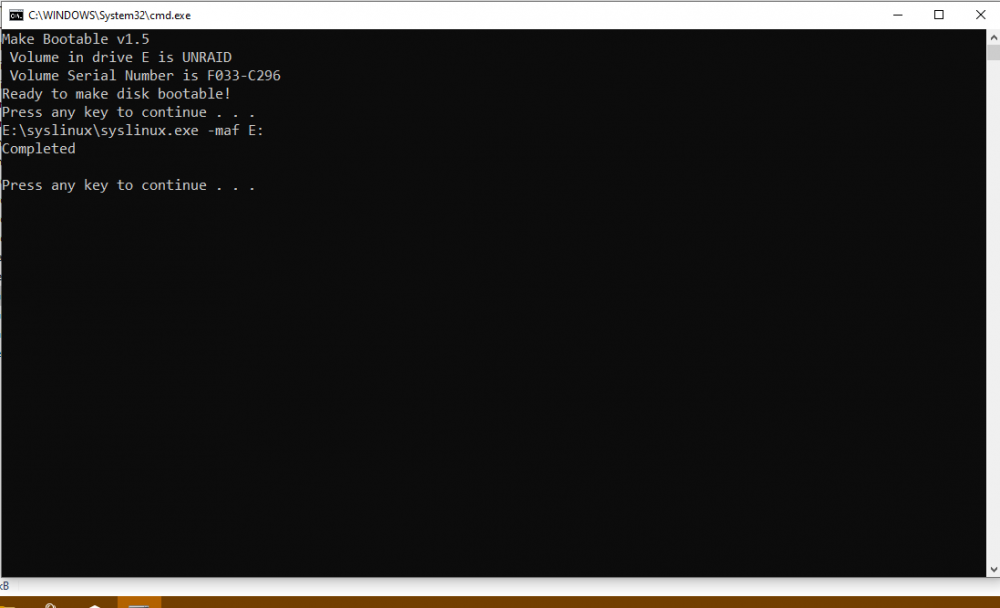
-
its 8gb
-
It does have a GUID. (I don't know how senitive it is so I did 'blur' some numbers)
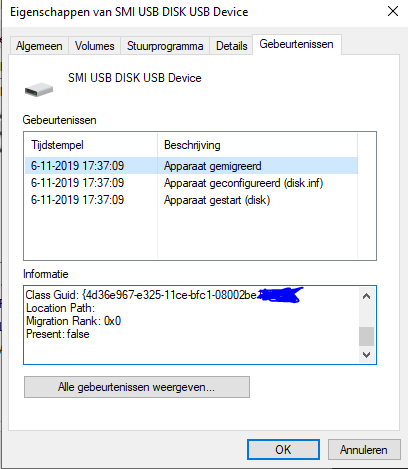
-
Idk what GUID is, but the brand of my stick is HEMA. (A local store's home brand from the Netherlands)
-
I did and it wasn't the solution sadly.
-
Coolmeesje changed their profile photo
-
It's a Usb 2.0 port and a usb 2.0 stick, and I'm sure it has just one partition
-
Thx, and I will. (I've also changed in in the post)
-
Coolmeesje joined the community
-
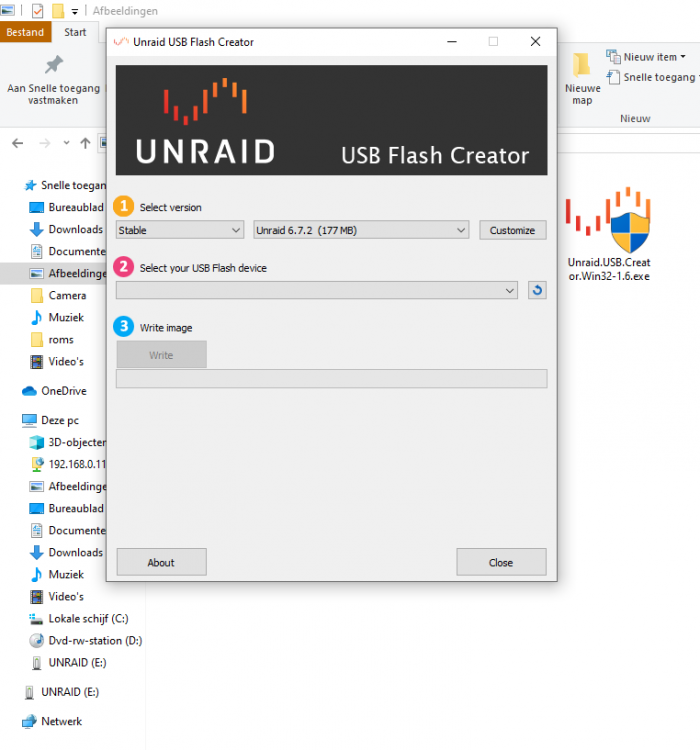
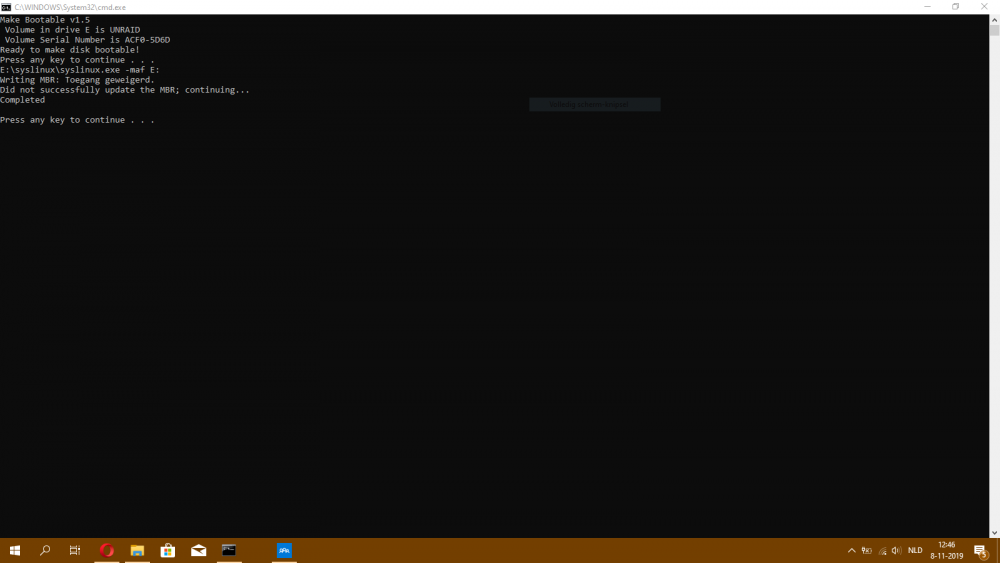
Hi Unraid Community, I'm currently trying to build my first Unraid server and I've come to the point where I want to install Unraid. During the setup of the Boot USB I've stumbled upon some inconveniences: Firstly the USB creation tool doesn't detect the (formatted to FAT32) USB Stick: So of course I tried doing it manually which gave me a "MBR DENIED" error: After some research I didn't find anything that could help me nor at all... Could someone please help me out? Yours sincerly, Coolmeesje PS: there is nothing wrong with my USB-Stick since I was able to make it a bootable disk countless times before (for Kubuntu/Win10).
.thumb.png.7c0d84a4fc8c7fec85aadf9fa2677784.png)


