





Erich
Members
-
Joined
-
Last visited
Everything posted by Erich
-
Here you go. Thanks...
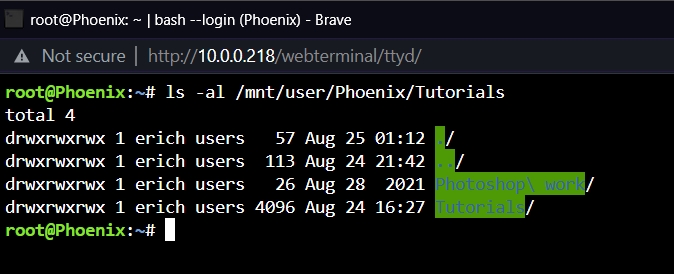
-
I can see it in Unraid, but not in Windows.
-
I noticed it disappeared just after a power failure and I think data was being uploaded to it at the time. Not sure if that had something to do with it.
-
No special characters, spaces or periods.
-
I have created a share in Unraid. This share has 6 folders. I can see and access 5 out of 6 of those folders in Windows 10 Pro. They all have the same permissions, etc. Why can I not see the 6th folder? I was able to see and access it for some time, but then it just disappeared. Also I can access it by typing in \\server\share\foldername in windows explorer. I just can't see the folder in the list of folders when I go to the share in Explorer. How do I fix this?
-
I found the solution in another thread: "Go to Credential Manager in Windows Control panel and delete any credentials to your Unraid server." After I did this, I was able to access my shares.
-
I just created my first Unraid server. I created some shares and added a user. I set the security to Private and gave read/write access for the user to the share. When I go to my Windows 10 Pro machine and try to access the new share, Windows asks me for the network credentials, which I then add, but then it says access is denied. I have provided the correct credentials (login). What is going on and how do I fix this?
