





robbrown99
Members
-
Joined
-
Last visited
-
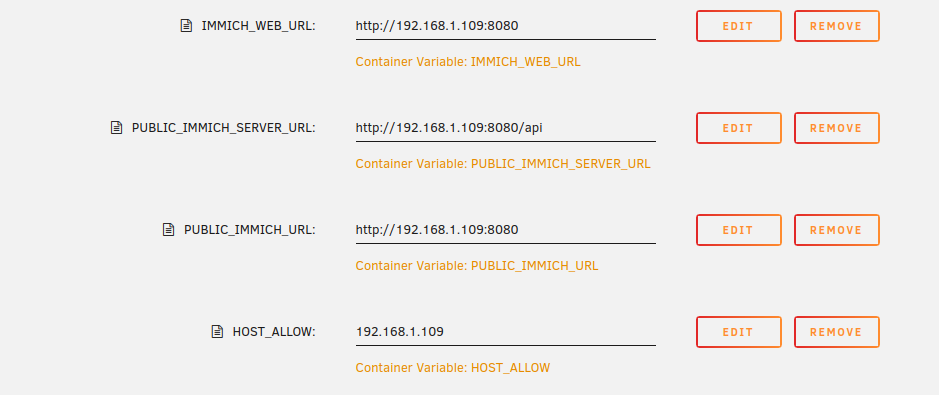
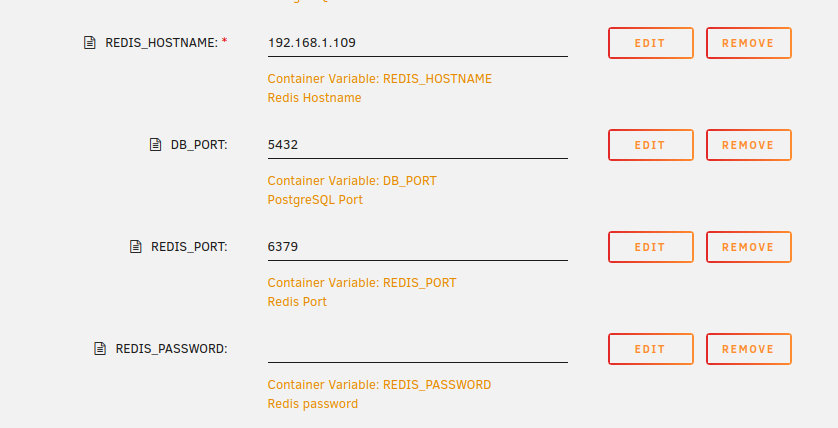
Fixed by adding: 1. A separate Redis container 2. The following container variables: Container Variable: IMMICH_WEB_URL: http://192.168.1.109:8080 Container Variable: PUBLIC_IMMICH_SERVER_URL: http://192.168.1.109:8080/api Container Variable: PUBLIC_IMMICH_URL: http://192.168.1.109:8080 Container Variable: HOST_ALLOW: 192.168.1.109 Immich can now use either the local network when tailscale is off, or when tailscale is on (when away from the network)
-
I added tailscale to the docker container using the built-in Unraid plugin. Now I cannot access the webUI from the local network when I am not connected to the tailnet Tailscale Off: try to access on http://192.168.1.109:8080/ , and I get timeout message (I am accessing from my LAN) Tailscale On: try to access on my tailscale URL, and I can access the webUI I filed this on the imagegenius GitHub, but they closed it and auggested I ask here. https://github.com/imagegenius/docker-immich/issues/530
-
Hi, I am trying to set up tailscale for freshrss in unraid. I get these errors after successfully authorizing the tailnet. I used the default tailscale settings for the container. I guess this is a port issue. When I tried changing the port and serve port in the container, I get the same message (same port failure). I haven't had this issue setting up tailscale for my other containers. nginx: [emerg] bind() to 0.0.0.0:443 failed (98: Address in use) nginx: [emerg] bind() to [::]:443 failed (98: Address in use) nginx: [emerg] bind() to 0.0.0.0:443 failed (98: Address in use) nginx: [emerg] bind() to [::]:443 failed (98: Address in use) nginx: [emerg] bind() to 0.0.0.0:443 failed (98: Address in use) nginx: [emerg] bind() to [::]:443 failed (98: Address in use) nginx: [emerg] bind() to 0.0.0.0:443 failed (98: Address in use) nginx: [emerg] bind() to [::]:443 failed (98: Address in use) nginx: [emerg] bind() to 0.0.0.0:443 failed (98: Address in use) nginx: [emerg] bind() to [::]:443 failed (98: Address in use) nginx: [emerg] still could not bind() nginx: [emerg] bind() to 0.0.0.0:443 failed (98: Address in use
-
So I solved the problem of removing that backup pool. That at least gets my backup out of the array during a big storm. My questions however still stand... 1. Is it possible to export a zpool in Unraid today, or have a means of a pool being offline (and disk not in the server)? 2. If this is not possible today, are there any other methods of allowing for a single disk to be attached temporarily to Unraid to allow a backup? It looks like btrfs arrays only support 3 disks for example. The unassigned devices plugin is 'pending', so that seems not an option either? 3. Or should I just connect my single disk to my computer, and backup from the unraid server to that disk via my computer. Seems suboptimal, but it would work I guess... I can simply import and export the pool via command line, then use a backup utility.
-
OK edit... I removed the pool... click on pool name, then click Remove Pool. I can now start the array without having this specific zpool attached.
-
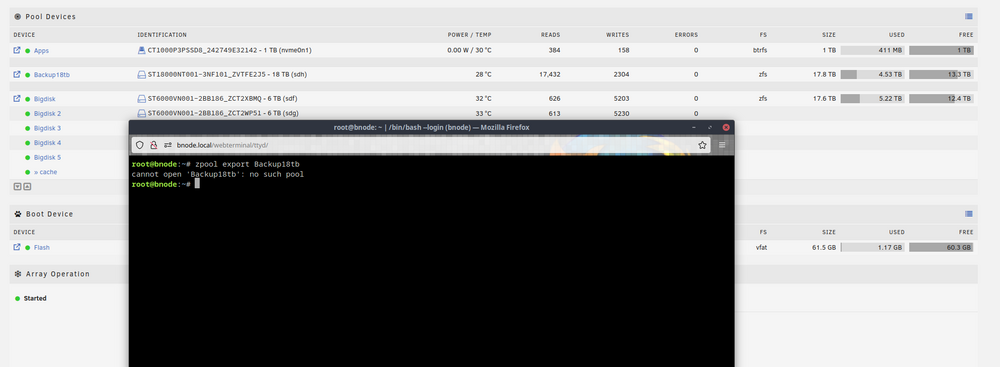
And exporting the pool doesn't work via command line in unraid, even though that pool is online. root@bnode:~# sudo zpool export Backup18tb cannot open 'Backup18tb': no such pool So It appears I am a little stuck... - I cannot start any array without having this disk inserted for the zpool. Nothing will start. Bug? - I cannot delete the pool (at least via the GUI). Seems to me like an oversight in the GUI implementation. Not a bug, just not implemented. - I cannot export the pool. Perhaps the zpool name is something different internally to unraid?
-
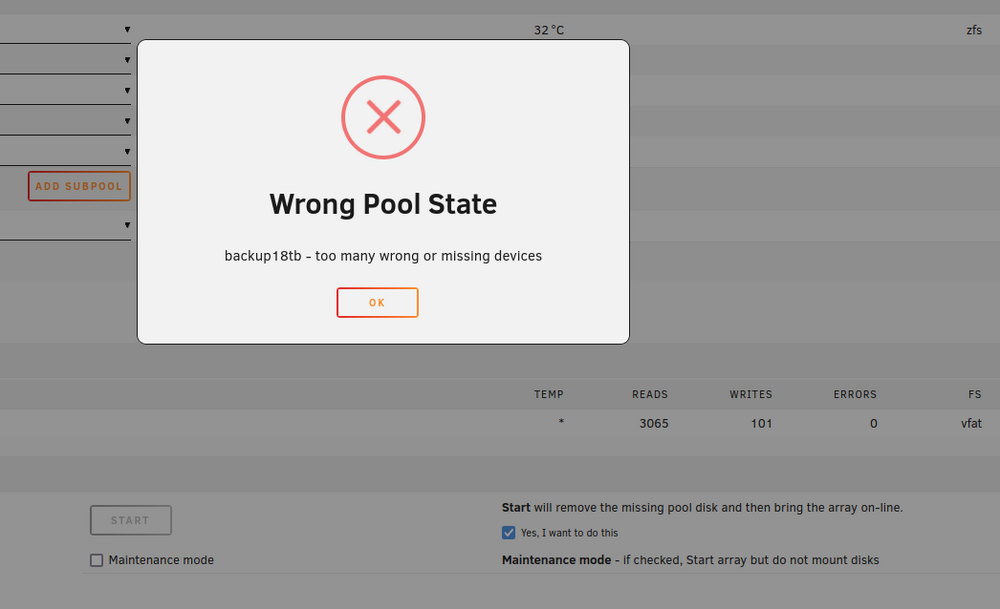
OK, so even clicking the option to 'remove the missing pool and then bring the array on-line' doesn't work. It seems I am forced into having this zpool permanently connected. Is there a way of blowing this zpool away?
-
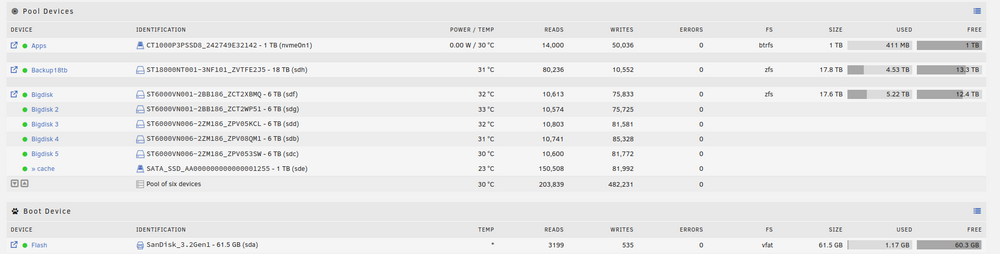
I have a use case to create a backup of my zpool. I have a large single disk that I want to backup my zpool to. I keep this disk off site. I am a home user and this is my personal data only. Currently I tried the approach of creating a zpool with a single disk for this backup disk. However, I ran into a problem where unraid doesn't yet support exporting (or importing) a zpool via the GUI. it assumes (I think) that zpools are permanently attached to the system. When i stop the array, I can unassign the device from the pool, but not sure what happens if I start the pool; there is a message next to the start button: "Start will remove the missing pool disk and then bring the array on-line". I assume this means the zpool gets blown away and not exported (and no way to import). Technically ZFS does support exporting and importing pools, and I don't want to get into a philosophical debate about whether this is correct or incorrect, or optimal or suboptimal (I already did that over in reddit). So my questions quite simply are these: 1. Is it possible to export a zpool in Unraid today, or have a means of a pool being offline (and disk not in the server)? 2. If this is not possible today, are there any other methods of allowing for a single disk to be attached temporarily to Unraid to allow a backup? It looks like btrfs arrays only support 3 disks for example. The unassigned devices plugin is 'pending', so that seems not an option either? 3. Or should I just connect my single disk to my computer, and backup from the unraid server to that disk via my computer. Seems suboptimal, but it would work I guess... I can simply import and export the pool via command line, then use a backup utility. Any tips appreciated. Thanks!
-
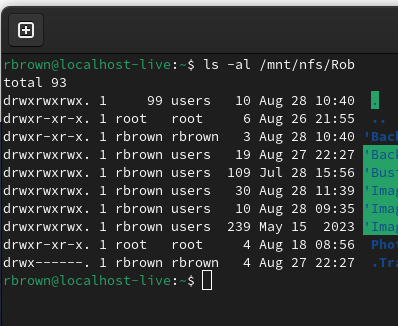
Thank you @Frank1940 I ran that command, and it looks like the appropriate folders do indeed have the permissions. Thank you for the tip there. I did notice an issue where my NAS wasn't on earlier, then when my client computer started the automount failed (but did not hang!). I need to write a script to manually mount it if it comes online out of sequence. Shouldn't be an issue in the future if NAS is always on but you never know. Right now I turn it off as I'm still building it and the fan is too loud (that's another project).
-
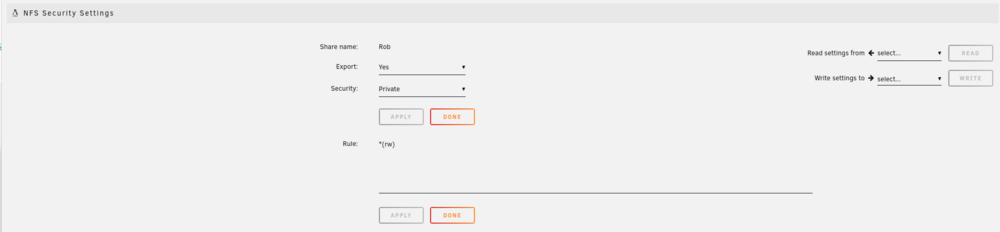
Thanks @Frank1940 I just managed to get it working while you were typing this response. It is more convoluted than I'd like, but it works. NFS is significantly faster for small file transfers (which for a photo library is what I need) than SMB. I tried both and NFS very obviously faster. Steps below. STEP 1. In the media server software (in this case Unraid), set up the share to support NFS in both a) the share itself: SHARES >> <SHARE NAME>add rule *(rw) , Export = Yes, Security = Private b) under SETTINGS >> NFS >> Enable NFS = Yes, Tunable (fuse_remember): 330 (default) STEP 2. On linux desktop client, a) Find the name of the NFS open terminal: type the following, where the IP address is that of your media server. showmount -e 192.168.1.109 This will then return a list of the NFS shares that have been exported, e.g. Export list for 192.168.1.109: /mnt/user/nextcloud * /mnt/user/Rob * b) Copy the name of the share you want to mount e.g. /mnt/user/Rob STEP 3. Set up the NFS share to automount: a) Open folder /etc/ , open 'fstab' in a text editor (you may have to use super user privileges to save it) b) Enter the following into fstab at the bottom of the file taking the share path and IP address from step 2. Note the format is as following: <yourserver IP address>:<path to the exported share you want to mount from step 2b> <path you want to mount the NFS share to e.g. /mnt/name> nfs <options> 0 0 More details on the options to set are here: [https://linuxopsys.com/linux-nfs-mount-entry-in-fstab-with-example](https://linuxopsys.com/linux-nfs-mount-entry-in-fstab-with-example) example: 192.168.1.109:/mnt/user/Rob /mnt/nfs/Rob nfs rw,hard,intr,nofail,timeo=14 0 0 mount /mnt/nfs/Rob Then save the file. c) In terminal run systemctl daemon-reload STEP 4: Reboot the system to ensure this mounts persistently. Your folder should mount automatically under the path from Step 2b e.g. /mnt/nfs/Rob Given this was a struggle, how can I go edit the Unraid user documentation to make this easier for people in the future?
-
I found some documentation on fedora I had my command wrong when passing the folder arguments This command helps find the folder: rbrown@localhost-live:~$ showmount -e 192.168.1.109 Export list for 192.168.1.109: /mnt/user/nextcloud * /mnt/user/Rob * I then mounted the folder. rbrown@localhost-live:~$ sudo mount 192.168.1.109:/mnt/user/Rob /mnt/nfs/Rob I cannot get it to be read write though. I tried this: rbrown@localhost-live:~$ sudo mount 192.168.1.109:/mnt/user/Rob /mnt/nfs/Rob -w --read-write I also tried adding *(rw) to the NFS share in UNRAID. That doesn't work either Any ideas on how I can mount as R+W?
-
OK, OK I found a helpful video on youtube. I created a folder under my local /mnt/ directory but I can't seem to mount, probably because I am not passing any password? The --help option isn't very helpful about how to add credentials rbrown@localhost-live:~$ sudo mount 192.168.1.109:/Rob /mnt/nfs/Rob mount.nfs: access denied by server while mounting 192.168.1.109:/Rob
-
I am new to NFS, but familiar with SMB. I set up an NFS (and SMB) share, and struggling to understand how to access it. The SMB share automatically shows up. The NFS does not... and looking at the interweb, there is a lot of convoluted setup to get it working via command line. Are there any GNOME or other utilities that make setup simpler? I'd like to set this up, have the share be auto-mounted, and be able to access this like any other system folder (most desktop apps give a file picker, and don't allow for manual address entry). I am on Fedora linux. Thanks
-
Attached. Interestingly it now works. If it happens again I will post here. Will mark as solved for now. bnode-diagnostics-20240825-2055.zip
-
I went to my router and found the IP address http://192.168.1.109/ ... this worked to allow me in. However the name of the server as the url still won't work (bnode.local)



