





hugenbdd
Community Developer
-
Joined
-
Last visited
Everything posted by hugenbdd
-
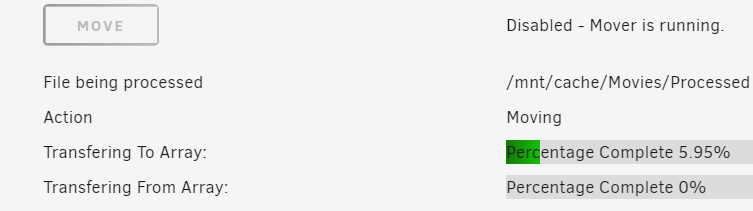
Looking for a few testers with the following. 1.) Basic understanding of bash/shell (To install the files and change their permissions. chown, chmod etc...) 2.) That have mover tuning plug-in installed. (Preferrable have been using it for a while) (Required as the GUI update file is created based off this plug-in). 2b.) Have unRAID 6.11.3 or above installed. 3.) That can test moving files off cache shares to the array. 4.) That can test moving files TO cache pool FROM the array. 5.) Bonus - if you have multiple pools to test with.
-
I think I'll be able to provide info that is needed for the GUI portion in an update to mover tuning to allow this. (Move based on a filelist instead of a "find") I still have a ways to go, but hopeful to have the base info needed in a few days. Implementing the GUI portion I will need help with though.
-
"Move All Cache Threshold: 5" Might be a bug somewhere so that the right value did not get saved in the config file. Try changing from 55% to 60% and hitting apply.
-
Yes, each rule is logged when it's triggered. If you have logging enabled, and run in test mode, you can then review the logs and change your rules accordingly. Also, if you set the "Move Now button follows Rules" then you can make lots of edits very quickly by hitting the move now button.
-
Would need to see some of the mover log entries. Mostly the individual find commands for each share.
-
Correct. Mover doesn't run until it's scheduled time. Once it is kicked off based on the schedule, the first thing it does it check the % used, if it reaches the threshold it will continue to move files, if the % used is less than the threshold, it will not move files.
-
You could setup a cron job to stop it with the command below. This should provide a "soft" stop of mover. mover stop
-
The closest way to that, is by setting the mover to hourly and having a large enough cache (1TB or more). Or if you want to you can dig into a custom script and put it in a cron job for every minute. I just don't think it's worth coding.
-
Everything is kicked off by the schedule. there is no "watcher" for the cache. "Set to "Yes" if you want to move all files from a Cache-Yes share to the array if the percentage below is exceeded. This is similar to the original mover and does not apply any filters from this plug-in to the find command sent to the mover binary."
-
It will only kick off on your daily schedule. Which looks to be at 3am.
-
Set the first % to a small number instead of 0. Like 5 or 10%. Also, turn on logging, so that I can see what it's trying to do. You should be able to see the entries in the syslog or by clicking the log icon (Upper right).
-
I do not. As my cache is large enough to hold another day (Or whatever the difference may be) by not adding that flag.
-
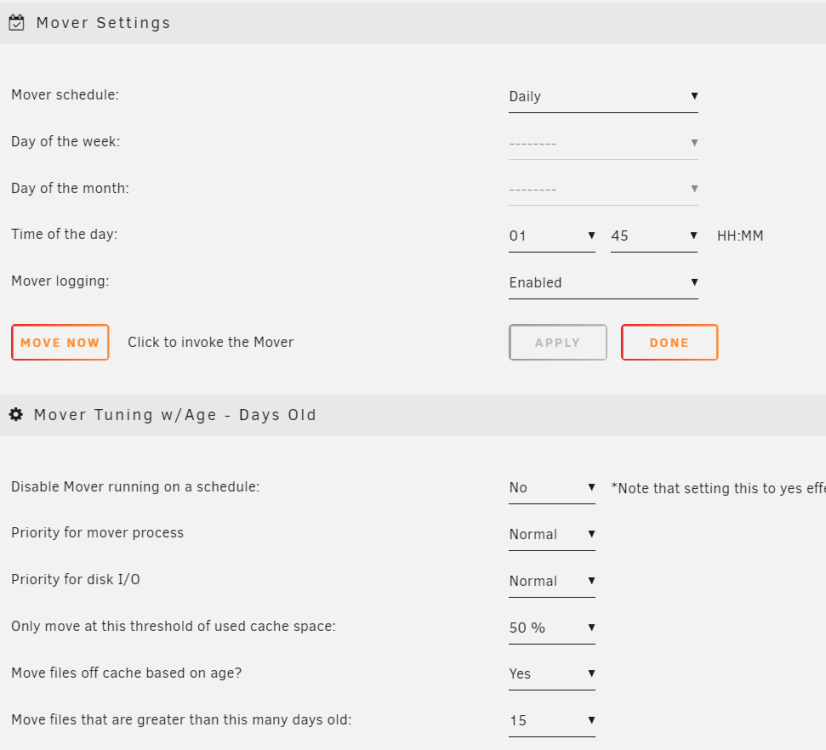
It's the reason I took over the plug-in. But I can't do it exactly that way. Mover only kicks in (moves files to the array) if the disk utilization target it met. Once it is met, then it starts working on the other filters. To accomplish this, I put a filter on, based on how old a file is. Below, Scheduler checks every morning (1:45am), then Mover only kicks in if disk is at 50%, and then it only moves files older than 15 days. You will have to find a balance to your system. It's not perfect, but it works pretty well.
-
Looks like you have mover tuning installed. what are your settings (not sure which of the files it may be in above.) Also, do you have logging enabled? I noticed that you had some "stopping" of mover in the syslog. You could also try going into the share config screen and moving individual shares. Also, most of your share config files have this. shareUseCache="no" shareCachePool="cache"
-
Bringing this back up as I'm looking at making a 2.0 version of the mover tuning plug-in for 6.11+ version. Can I get some direction on how to modify/add to the browse page? An example, maybe another plug-in I can reference, or pointed to documentation? Thanks
-
How to ignore a SINGLE file 1.) Find the path of the file you wish to ignore. ls -ltr /mnt/cache/Download/complete/test.txt root@Tower:/# ls -ltr /mnt/cache/Download/complete/test.txt -rwxrwxrwx 1 root root 14 Oct 27 11:32 /mnt/cache/Download/complete/test.txt* 2.) Copy the complete path used. /mnt/cache/Download/complete/test.txt 3.) Create a text file to hold the ignore list. vi /mnt/user/appdata/mover-ignore/mover_ignore.txt 4.) Add a file path to the mover_ignore.txt file While still in vi press the i button on your keyboard. Right click mouse. 5.) Exit and Save ESC key, then : key, then w key, then q key 6.) Verify file was saved cat /mnt/user/appdata/mover-ignore/mover_ignore.txt "This should print out 1 line you just entered into the mover_ignore.txt" 7.) Verify the find command results does not contain the ignored file find "/mnt/cache/Download" -depth | grep -vFf '/mnt/user/appdata/mover-ignore/mover_ignore.txt' /mnt/cache/Download is the share name on the cache. (Note, cache name could be different if you have multiple caches or changed the default name) How to ignore Muliple files. 1.) Find the paths of the files you wish to ignore ls -ltr /mnt/cache/Download/complete/test.txt ls -ltr /mnt/cache/Download/complete/Second_File.txt 2.) Copy the complete paths used to a separate notepad or text file. /mnt/cache/Download/complete/test.txt /mnt/cache/Download/complete/Second_File.txt 3.) Copy the paths in your notepad to the clip board. Select, the right click copy 4.) Create a text file to hold the ignore list. vi /mnt/user/appdata/mover-ignore/mover_ignore.txt 5.) Add the file paths to the mover_ignore.txt file While still in vi press the i button on your keyboard. Right click mouse. You should now have two file paths in the file. 6.) Exit and Save ESC key, then : key, then w key, then q key 7.) Verify file was saved cat /mnt/user/appdata/mover-ignore/mover_ignore.txt "This should print out 2 lines you just entered into the mover_ignore.txt" 8.) Verify the find command results does not contain the ignored files find "/mnt/cache/Download" -depth | grep -vFf '/mnt/user/appdata/mover-ignore/mover_ignore.txt' /mnt/cache/Download is the share name on the cache. (Note, cache name could be different if you have multiple caches or changed the default name) How to Ignore a directory instead of a file path, use a directory path. no * or / at the end. This may cause issues if you have other files or directories named the similar but with extra text. /mnt/cache/Download/complete *Note /mnt/cache/Download/complete will also ignore /mnt/cache/Download/complete-old *I use vi in this example instead of creating a file in windows, as windows can add ^m characters to the end of the line, causing issues in Linux. This would not be an issue if dos2unix was included in unRAID. **Basic vi commands https://www.cs.colostate.edu/helpdocs/vi.html
-
Would need to see the "Find" command that is being created to help more.
-
It defaults to cache if it can't find the cache directory. Can you confirm that /mnt/cache does not exists or maybe the name of your cache was changed?
-
I would suggest you start playing with this string in the console. find "/mnt/cache_data/data" -depth | grep -vFf '/mnt/user/appdata/mover-ignore/mover_ignore.txt' Few things that I have run into in the past. 1.) Special end or ^ character in the ignore file 2.) You have spaces in your test file, generally to test things, spaces can introduce issues. However, this should NOT be the case as the command is wrapped in quotes. 3.) try to get it working with a single file in the ignore text first, then try to get it working with a directory. Basically it's the grep -vFf that will remove the matched files from the original find.
-
It goes to /var/log/syslog If you couldn't see it, maybe it was not enabled in the scheduler setting? When I test, I open the window for logging (Upper right, next to the ? icon). Have my settings for logging enabled, "Move Now Button Follows plug-in filters" Yes, "Test Mode" Yes Then review the logs, what the "find" command ends up being, and what files it selects. Entries in the log look something like this. Oct 10 01:45:02 Tower root: mvlogger: *********************************MOVER START******************************* Oct 10 01:45:02 Tower root: mvlogger: Age supplied 25 Oct 10 01:45:02 Tower root: mvlogger: Size supplied Oct 10 01:45:02 Tower root: mvlogger: Sparness supplied Oct 10 01:45:02 Tower root: mvlogger: No Skipfiles Argument Supplied Oct 10 01:45:02 Tower root: mvlogger: No Skipfiles Argument Supplied Oct 10 01:45:02 Tower root: mvlogger: No Before Script Argument Supplied Oct 10 01:45:02 Tower root: mvlogger: No After Script Argument Supplied Oct 10 01:45:02 Tower root: mvlogger: CTIME Argument: no Oct 10 01:45:02 Tower root: mvlogger: No Original Mover Threshold Percent Supplied Oct 10 01:45:02 Tower root: mvlogger: No Test Mode Argument Supplied Oct 10 01:45:02 Tower root: mvlogger: No Ignore Hidden Files Argument Supplied Oct 10 01:45:02 Tower root: mover: started Oct 10 01:45:02 Tower root: mvlogger: No Script to Run. Oct 10 01:45:02 Tower root: mvlogger: CACHETHRESH is blank ... Oct 10 01:45:20 Tower root: mvlogger: Complete Mover Command: find "/mnt/cache/TV" -depth -mtime +24 | /usr/local/sbin/move -d 1 Oct 10 01:45:20 Tower move: file: /mnt/cache/TV/Processed TV/FILENAME1.mkv Oct 10 01:45:21 Tower move: file: /mnt/cache/TV/Processed TV/FILENAME2.mkv .........
-
Did you enable logging for the mover? There is also a test mode so you can review the find statement in the logs sent to the mover binary. Move Now button follows plug-in filters: Yes Test Mode: Yes By doing this you can review and tweak all of the settings very quickly.
-
Change Disabled to "No", the way you have it now, it will never run mover unless hit the button. Also, turn logging on, then we can look at the syslog and see where it might be having issues. Might also want to turn on the test mode until we get it figured out. That way no actual files will be moved, but logs will be created. Sometimes text files have a weird end of line character (a ^) if it was created on a windows machine.
-
No. The closest you can come with this plug-in is to play with your days old and % free to get close to the amount of space you want to keep filled up on the cache.
-
No plug-in that I know that does that. but.... You can get pretty close with this plug-in. Set mover to run every hour or so, and set your percentage. It checks percentage on each run and then determines if it's over, to move files.
-
Is this for the new 6.10 release or on 6.9.2 (Sorry a bit confused) ?



