





JustAdamHere
Members
-
Joined
-
Last visited
Everything posted by JustAdamHere
-
Thanks @bmartino1 for that advice, much appreciated! I think I'm going to abandon hope of making use of the iGPU. Going back to the issue I was seeing, I've figured out that the issue was to do with the Mover Tuning plugin writing out large .list files, which filled up /tmp. File logging is disabled so I'm not sure why this was happening, nor am I sure why I was getting disk full warning emails, but at least I know what was causing the large RAM usage now.
-
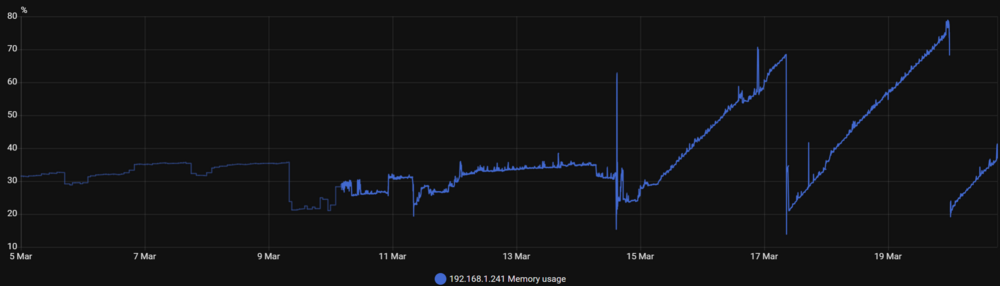
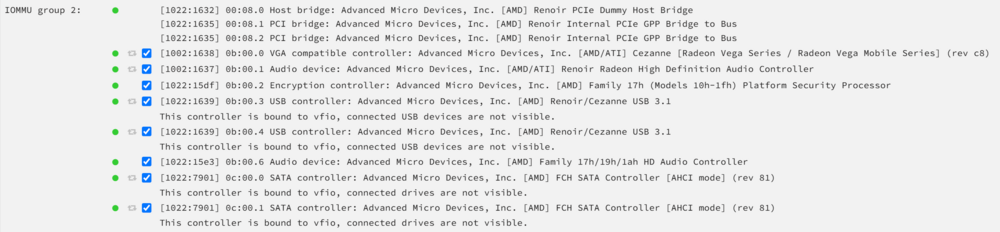
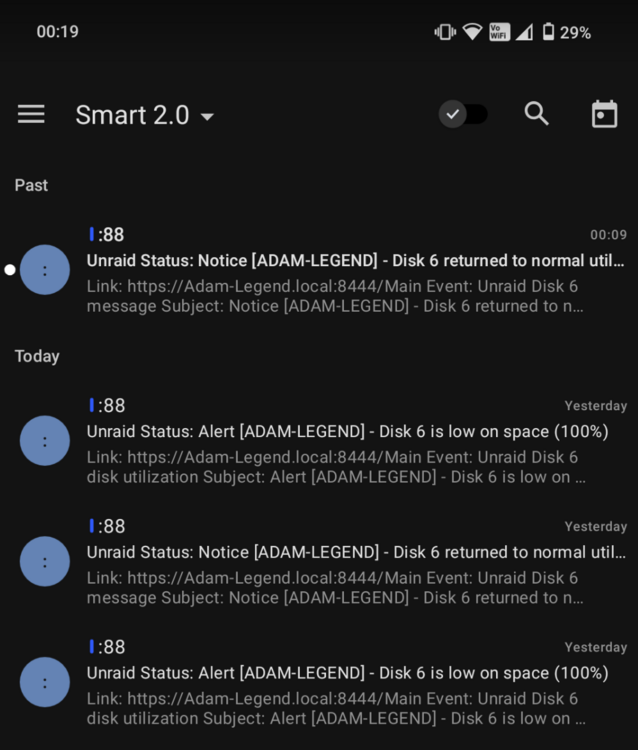
I've experienced a few issues in the past few days after binding my iGPU to VFIO and wanted to see if anyone has any insight on why this happened. The tl;dr: I bound my iGPU to VFIO, which caused RAM usage to unboundedly increase, a series of unexpected low disk space emails, and the web GUI became inaccessible. I'm running Unraid 7.0.0 and have a Ryzen 7 5700G CPU, where I was hoping to make use of the integrated graphics in a Windows virtual machine. Here's what my IOMMU grouping looks like, and convinced myself that this was safe enough to do and wouldn't affect, for example, array hard disks. On Friday 14th March, I bound this group to VFIO and did a reboot on the system. I didn't realise at the time, but after this point the memory usage started to increase (see the output from the Glances Docker container that is fed into a separate Home Assistant instance below). By coincidence, I ended up doing another reboot on 17th which, which is where you can see the sharp drop in RAM usage. There's 64GB of memory in my server so it's actually using quite a lot -- or at least much more than my system usually does. I never did manage to get the GPU pass-through to work, so there was no additional RAM usage on that new VM. Then, on Wednesday 19th, three weird things happened (at the peak of RAM usage in graph above): Had a flurry of emails over the course of 10-or-so minutes on a relatively newly-installed disk to say that disk6 was 100% full, despite it being more like 50% WebGUI went down, giving a 500 error on browsers where I was already logged in, and the normal login page with my server name missing on browsers -- the login button on that page would do nothing All Docker containers continued to work as normal (arguably not weird, but still a little bit weird, right?!) I panicked a little and pressed the power button on my server to initiate a shutdown, but in hindsight I should've tried to recover the logs via SSH first. Does anyone have any ideas on what may have happened here, and if there's something I have done wrong here? Thanks in advance for any help! 🙂
-
I think you need to pass through '/run/dbus' as a path rather than as a device. I got mine working after installing bluez through un-get and then using the following docker command: docker run -d --name='homeassistant' --net='host' -e TZ="Europe/London" -e HOST_OS="Unraid" -e HOST_HOSTNAME="my-server-name" -e HOST_CONTAINERNAME="homeassistant" -e 'TCP_PORT_8123'='8123' -e 'PUID'='99' -e 'PGID'='100' -e 'UMASK'='022' -l net.unraid.docker.managed=dockerman -l net.unraid.docker.webui='http://[IP]:[PORT:8123]' -l net.unraid.docker.icon='https://raw.githubusercontent.com/linuxserver/docker-templates/master/linuxserver.io/img/homeassistant-logo.png' -v '/run/dbus':'/run/dbus':'rw' -v '/mnt/user/appdata/homeassistant':'/config':'rw' --device='/dev/bus/usb/007/005' 'lscr.io/linuxserver/homeassistant'



