bayn
Members
-
Joined
-
Last visited
-
Hello, I did see that layout - I didn't "understand" that's what the chart was showing me, guess I was being slow when I reviewed it. I think I've run through all the options now - is there a way to see the unraid assignment (data disk/parity etc) in the information so I can export it and keep as a unraid "layout"? I can manually update the comments field if we can't export that information, I just can't seem to locate it with any of the current fields, maybe I'm missing that again. Thanks!
-
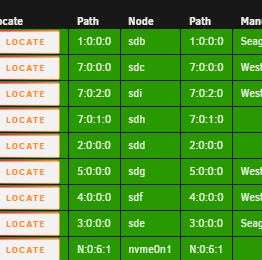
Hello, When I edit the shown fields <configuration/sorting fields> if I add "device" anywhere, when I view the results it now shows "path" instead. Picture below, but it happens in all the pages, I'm sure it's just mapped incorrectly in the db possibly. Just checking if it's a bug or if I'm doing something wrong (I was just trying to have the Unraid "device" name shown (disk1, 2, parity if its supported)) Thanks for the amazing plugin!!