





Airwolf99
Members
-
Joined
-
Last visited
Everything posted by Airwolf99
-
Did you end up finding a fix for this? I'm having the same issue and haven't been able to find one yet. It only happens when HW acceleration is enabled.
-
Okay thanks! If there's any logs I can give you or something that would help just let me know. Thanks!
-
HI, I currently have a APC brand UPS setup, but also use Cyberpower. It is plugged in via USB and uses the default UPS settings under the settings tab (screenshots attached). Being able to see the Line Voltage, Time left, etc.. would be great. Let me know if you need any other info, Thanks for the quick reply!
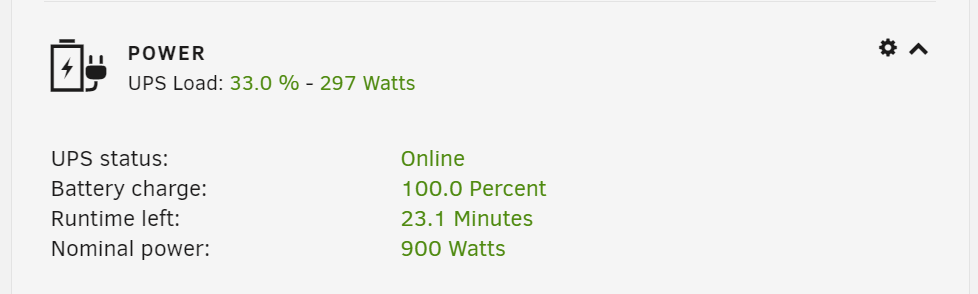

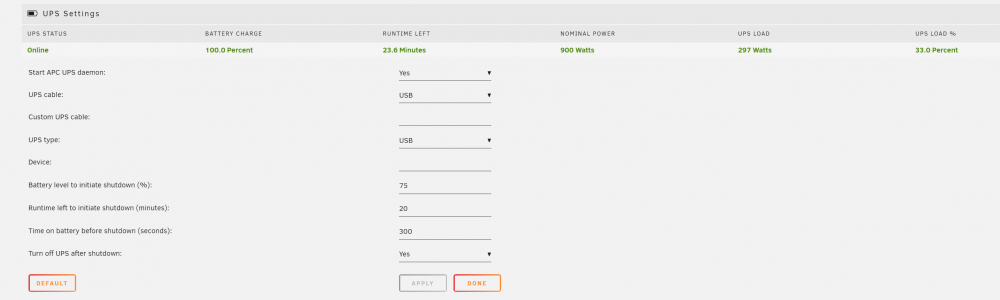
.thumb.jpg.f72f8967047af597a002399bd8d2ba0a.jpg)
-
Got this installed and going today, works great so far! Is there any way to add the connected UPS data to this so it can be seen in Grafana? Thanks!


.jpg.4e6b07d24e18e4281b0ed878305c6b81.jpg)