Slactivist
Members
-
Joined
-
Last visited
-
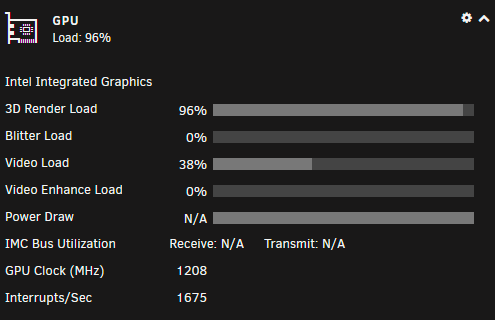
Wow that worked! I hadn't even thought about the possibility of it being something with Plex itself. Adding HardwareDevicePath="/dev/dri/renderD129" to the Preferences.xml file and restarting plex instantly resolved the issue. I had to have read almost every thread on this subject to date and it did not occur to me to check the plex forms at all, thank you a ton @david279!
-
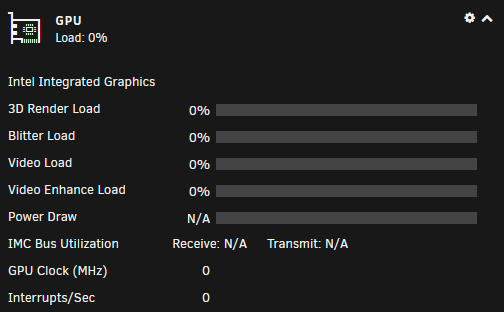
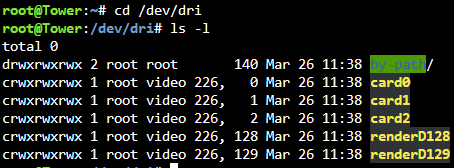
For some reason I can't seem to get this to work for me. Just added an i5-13600k to my server Installed Intel_gpu_top iGPU shows up fine in GPU statistics I've tried adding the extra parameter "--device=/dev/dri" in multiple different types of ways from every thread I could find with no luck. Only thing that I can think of is ls in /dev/dri populates card0, card1, card2, renderD128, and renderD129 I still have my Nvidia Quadro P400 installed in my system as I'd like to keep using that for Tdarr and just have Plex on the Intel iGPU Here's some of the examples I've tried: --device=/dev/dri/renderD129:/dev/dri/renderD128 --device=/dev/dri/card1:/dev/dri/card0 --device=/dev/dri/renderD129:/dev/dri/renderD128 --device=/dev/dri/card2:/dev/dri/card0 --device=/dev/dri/card2 --device=/dev/dri:/dev/dri Nothing seems to actually get the Plex docker container to use the iGPU but switching my extra parameter back to "--runtime=nvidia" and hardware transcoding works fine again. Not sure what I'm missing here but hopefully I'm just overlooking something.