OTTA
Members
-
Joined
-
Last visited
-
Application Name: FastKoko Github: https://github.com/remsky/Kokoro-FastAPI Dockerized FastAPI wrapper for Kokoro-82M TTS (text-to-speech) model w/CPU ONNX and NVIDIA GPU PyTorch support, handling, and auto-stitching.
-
How do I update it? I tried: update-initramfs it gives me: bash: update-initramfs: command not found I tried: /usr/sbin/update-initramfs it gives me: bash: /usr/sbin/update-initramfs: No such file or directory I'm on 6.12.0-rc6
-
Logs pop-ups window in docker close themselves when containers stopped/restarted
-
Holding the (CTRL) key and clicking on things don't open them on a new tap in the browser.
-
And all that time I thought it’s a feature XD First of all, thank you very much for the insight, that really helped. I have no internet access in my server, (when I need it only, I plug it). So that narrow it down. I went to DOCKER > ADD CONTAINER And then I selected the container. Then clicked on the [X] box. Then reboot the system. After the reboot, I removed the container & images. Rebuild it, and it now works as I want. Thank you again.
-
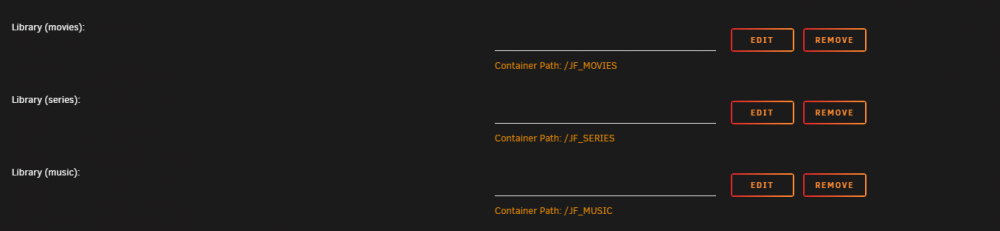
Hi! I have a question. Why, in Docker Containers GUI, every time I delete some default settings inside a container, they come back when I go and edit them. I mean, when I remove them, they get removed. However, when I go back and edit the container, they get created again. Is there an option that disable this? Thank you.