





blame
Members
-
Joined
-
Last visited
-
I tried several things, but i cant get it to work with my X570D4U Board Since it works for others here, I think it's because of the board.json file.
-
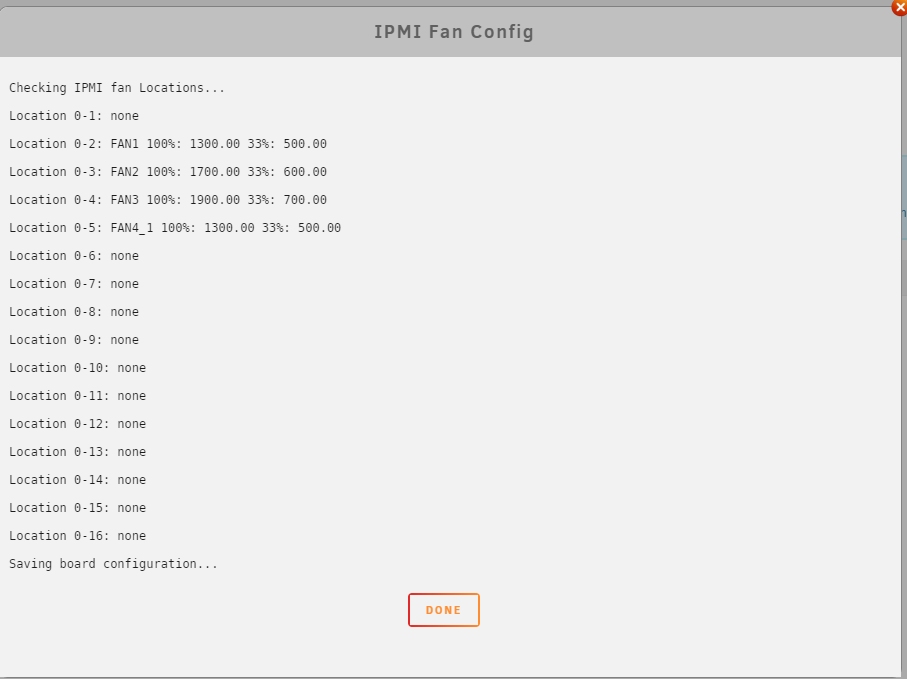
Hello, i have a X570D4U Board and the plugin does not change the RPM of the fans. (Fans are in manual mode) I installed the plugin and executed these two commands: curl -o '/usr/local/emhttp/plugins/ipmi/scripts/ipmi2json' -L 'https://raw.githubusercontent.com/lucasteligioridis/IPMI-unRAID/master/source/ipmi/usr/local/emhttp/plugins/ipmi/scripts/ipmi2json' && chmod 755 '/usr/local/emhttp/plugins/ipmi/scripts/ipmi2json' curl -o '/usr/local/emhttp/plugins/ipmi/scripts/ipmifan' -L 'https://raw.githubusercontent.com/lucasteligioridis/IPMI-unRAID/master/source/ipmi/usr/local/emhttp/plugins/ipmi/scripts/ipmifan' && chmod 755 '/usr/local/emhttp/plugins/ipmi/scripts/ipmifan' Then i run configure and configured the fans to a sensor and temperature. This is the configure result: board.json: { "ASRockRack": { "raw": "00 3a", "auto": "d8 00 00 00 00 00 00 00 00 00 00 00 00 00 00 00 00", "full": "d6 64 64 64 64 64 64 64 64 64 64 64 64 64 64 64 64", "fans": { "FAN_POS1": "01", "FAN1": "01", "FAN2": "01", "FAN3": "01", "FAN4_1": "01", "FAN_POS6": "01", "FAN_POS7": "01", "FAN_POS8": "01", "FAN_POS9": "01", "FAN_POS10": "01", "FAN_POS11": "01", "FAN_POS12": "01", "FAN_POS13": "01", "FAN_POS14": "01", "FAN_POS15": "01", "FAN_POS16": "01" } } } Does somebody has any idea?
