





ICULikeMac
Members
-
Joined
-
Last visited
-
Okay, will do. Thanks very much again! No drops since deleting the "._" files.
-
The way I got it to start was to change the port from 22 to 8022
-
Thanks so much for your response @Dyon (and for the container). Werid. There was never a . or _ in front of it that was visible in the GUI so I checked midnight commander and it seems there are always duplicate files. One with the one I rename and one with "._<filename>". Also confirming credentials.conf (along with melbourne.ovpn) is required in the openvpn folder? So just the two files? As I rename it, it seems to generate a copy with "._" Do you think I should just delete the copy ._ and see how I go? Thanks again!
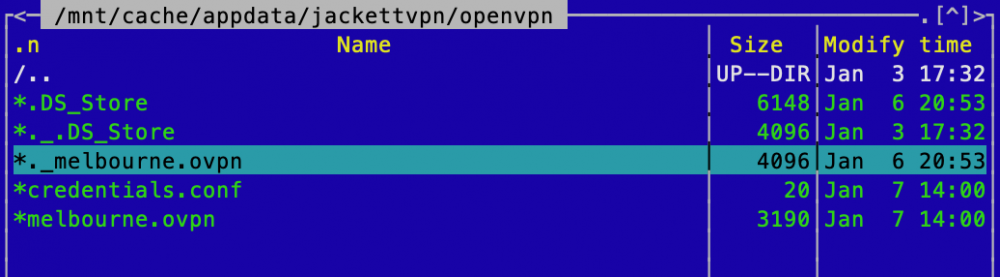
-
Hi all, I have to put a new OVPN file in every day otherwise the container stops working. I am very new to this but would love to learn! Any ideas on how to keep the VPN connected? The logs state: 2022-01-07 11:50:08.718184 [INFO] VPN_TYPE defined as 'openvpn' 2022-01-07 11:50:08.738427 [INFO] OpenVPN config file is found at /config/openvpn/._aus_melbourne-aes-128-cbc-udp-dns.ovpn 2022-01-07 11:51:09.190646 [INFO] VPN_ENABLED defined as 'yes' 2022-01-07 11:51:09.206156 [INFO] The container is currently running iptables v1.8.2 (nf_tables). 2022-01-07 11:51:09.221577 [INFO] LEGACY_IPTABLES is set to '' 2022-01-07 11:51:09.235988 [INFO] Not making any changes to iptables version Thank you
