





YopYorn
Members
-
Joined
-
Last visited
-
Looks like the furthest I can get is 6.11.1. Anything past that and I get the same boot loop issue. I tested this on a different flash drive using the manual upgrade method. This drive had no config on it.
-
It still loops even with the fresh install with a different usb. I guess I'll go up one release at a time until it happens again. Glad I took a backup before upgrading.
-
Upgrading from 6.9 to 6.11.5 and stuck in a boot loop now. I am able to boot into the GUI safe mode meaning it's most likely a plugin issue from what I've read, however, I have deleted all .plg files from /boot/config/plugins and am still unable to boot normally. Any suggestions would be appreciated. tower-diagnostics-20221123-1216.zip
-
Phew! that fixed it. I shall be naming my first born after you.
-
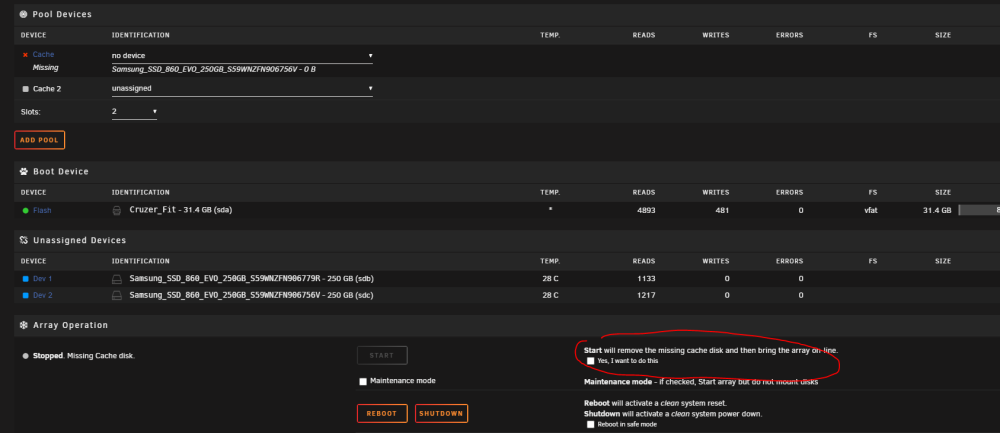
Thanks for the quick reply. after removing the drive do I need to select this checkbox? Just being super careful here.
-
Recently changed sata power cables on one of my cache drives. I'm getting the error "Unmountable: Too many missing/misplaced devices" for the cache pool and one of the devices is listed under "unassigned devices". I really don't want to format this drive (I do have an app data backup from a the app backup community application) is there anyway to get it added back to the pool? tower-diagnostics-20220909-1124.zip

