Tracenji
Members
-
Joined
-
Last visited
-
hey, i currently have 3 data drives and 1 Redundancy drive, size is 2TB i am planning to get 3 (maybe 4 and have 1 as cold spare) drives with above 6TB capacity, so one drive can fit all the data i already have, i think i will set 2 drives as redundancy and 1 as data so how does unraid handle removing drives in favor of less higher capacity drives? i am currently at my unraid drive license limit, i assume i should replace my current redundancy drive, then one of my data drives if i remove a drive, will unraid automatically just populate the data for the missing drive to the other drives in the array or is that i should do manually beforehand?
-
UPDATE: i managed to do it managed to do it using a user script (plugin available in community apps) user script runs at first array start with the command ip addr add 192.168.1.150/24 dev br0 and then i also created a docker network by running this command in the unraid web terminal docker network create --driver=bridge --opt com.docker.network.bridge.host_binding_ipv4=192.168.1.150 --opt com.docker.network.bridge.name=192.168.1.150 192.168.1.150 and now i have a custom network called "192.168.1.150" available in my docker configurations NOTE: the Bridge network that comes with unraid does not bind to a specific IP, that means if a port is used by another docker bridge network then it will fail as the port is already bound, to avoid this, repeat the steps above with the host ip or a different IP, e.g. 192.168.1.200 (i did not test with the hosts ip address but i do not see any reason it would not work) NOTE 2: you may want to reserve the IP addresses you add in your DHCP server (usually your router) so that other devices do not get assigned those IPs, just reserve them to some unused MAC address like 11:11:11:11:11:11
-
Unraid: 6.12.4 hello, i recently installed unraid on a pc there is a docker application i want to run but in order to access it like i want to i will have to run another docker so i cannot just run with direct access to physical LAN, but i would still like a different physical LAN adress one of the ports of the docker is also used by an existing docker but i do not wish to change any of the ports so how can i create another docker bridge with port mapping to a different physical LAN ip that is not the host ip? (if possible) so if host IP was 192.168.1.100 and the default mapping would be 172.17.0.2:1000 -> 192.168.1.100:1000 how could i make a docker bridge that would be something like 172.18.0.2:1000 -> 192.168.1.150:1000
-
Unraid 6.12.4 hello, just set up a new unraid server with a cache drive today, my cache device has 26GB used but my array only has 12MB so when does the data on the cache get copied to the array? i would assume a cache would work in the way that when writing to server it first gets written to cache and then basically immediately gets copied to the array drives while still remaining in cache and then when reading an uncached file i would assume it would copy it to the cache drive and still keep a copy on the array is there a way to have this behavior? ^^^ have it set it up wrong?

-
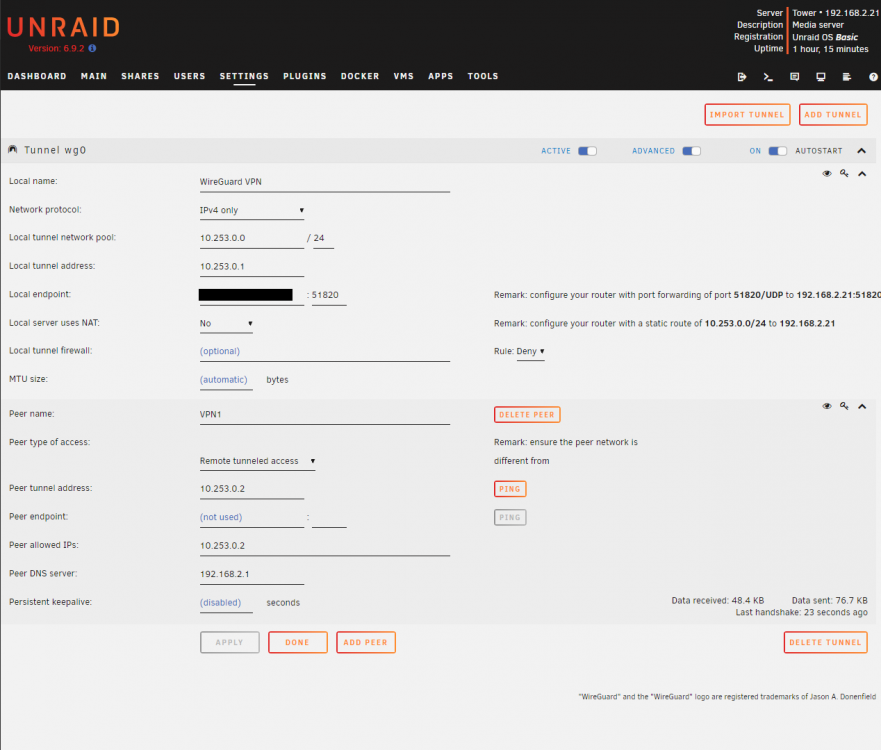
hello, i have set up a wireguard VPN on unraid 6.9.2 using Dynamix WireGuard plugin (installed via Community Applications plugin) when i connect to the VPN i am only able to access my UnRaid server but not the internet or LAN, i have forwarded the UDP port and the peer access type is set to Remote tunneled access i have attached my wireguard config screen what could be wrong and how could i fix it?