





barnowan
Members
-
Joined
-
Last visited
-
The two in the pool earlier were both 1 TB WD SN850. The single drive I'm using now is a 1 TB WD SN750. I think RAID 1. I just created a btrfs cache pool with the 2 drives, went into pool settings, and made sure they were set to mirror each other. I don't remember the exact settings.
-
@user2579 Not for all apps, just the troublesome ones. The issues I was experiencing ended up coming back though. Something with the RAID 1 NVMe cache pool was causing issues even though SMART status on both drives was fine, no errors were seen in the details, etc. Happened on 3 different motherboards, so I don't think it was a board issue either. I went to a single NVMe drive setup using a different drive for my appdata, and it's been rock solid ever since. I still don't know the true root cause though.
-
Did you find a solution to this? I'm experiencing the same issue.
-
One last follow-up. Everything still seems to be rock solid with everything running. Seems maybe the docker folder and appdata for certain dockers was bad/corrupt somehow. Thank you, @JorgeB, for helping guide me through this!
-
Just providing updates in case someone else comes across this in the future. Changing out the NVMe cache drives (RAID 1) for a separate, single NVMe drive didn't help. The system was stable enough to complete the parity rebuild with 2 of my normally active ~15 docker containers running. I really started noticing a trend that when certain dockers and their associated dockers were enabled, the server would freeze. I later noticed the omada-controller docker was having odd issues with it dropping APs, unable to adopt, etc. and other containers also seemed to have some odd errors in the logs. I deleted the appdata folders for the troublesome dockers and reconfigured them from scratch. This got those specific dockers working great again. The server seemed much more stable (been running all normal dockers for ~24 hours now which is unheard of lately) Some other docker containers were having issues with starting, even with the appdata deleted starting fresh along with re-installing them. I deleted the docker folder entirely (along with appdata for dockers I didn't notice earlier that were having issues), reinstalled all dockers, and everything is at least up and running now. Time will tell if this was the solution or not, but it's looking much better now than it has been in a long time.
-
I know it's been a while, but did you happen to find the solution to this? I'm running into the same issues with very similar error messages.
-
Did you find out the issue and solution to this? I'm seeing very similar error messages.
-
Did you ever find the root cause? I'm running into the same lockups with very similar error messages.
-
This latest session was able to stay up for a couple days to finish the parity sync with no VMs started and with very limited docker containers running. After the sync finished, I started up some more dockers (heimdall, overseer, sonarr, radarr, sabnzbd, prowlarr, possibly tautulli), and within 30 minutes, it totally froze again. I tried looking around to see if I can grab the logs from the individual docker containers, but it seems there's no way to view those from a previous session that I've found. I had to do a hard shutdown, and I have emulated disks again. However, the monitor hooked up to the machine had the below info this time. Does this help indicate what may be causing this? For now, I've switched to a new USB boot drive created from the unRAID USB tool using a recent backup (let me know if there's something I should do differently here), and I currently have the server up running another parity sync. I also noticed that one of the two 'systemcache' NVMe drives has the below warning while the other does not. They are the exact same model. Any idea why? I really appreciate your assistance. unraid-diagnostics-20231124-2215.zip
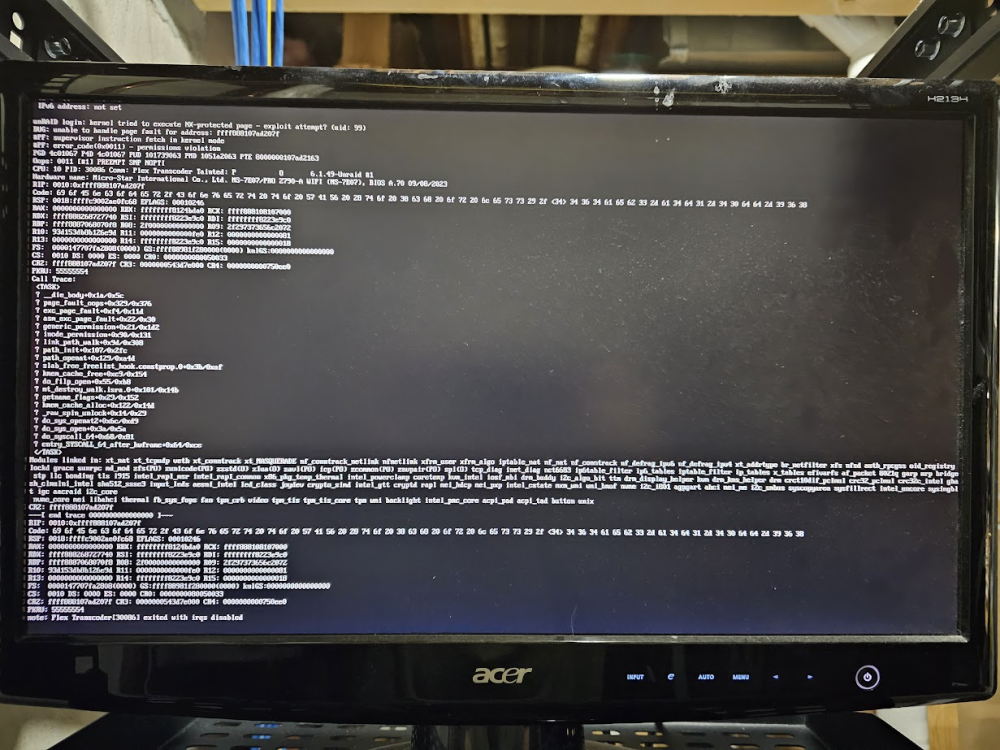
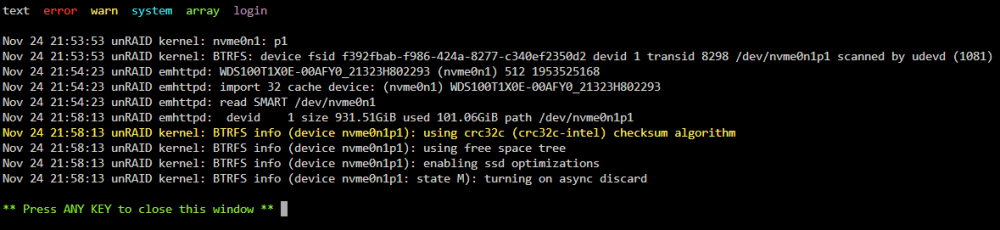
-
That may be during the short period where I tried going back to macvlan for a bit to see if there was any change in stability. At this point, what would you suggest? Are there any other logs I can gather? I'm willing to do whatever it takes to get this stable again.
-
That's odd because I had already changed that to ipvlan a while back and have had successful reboots since then. Is it possible there's an error where the UI is displaying ipvlan when macvlan is still actually in use? Do you know of a way to verify that?
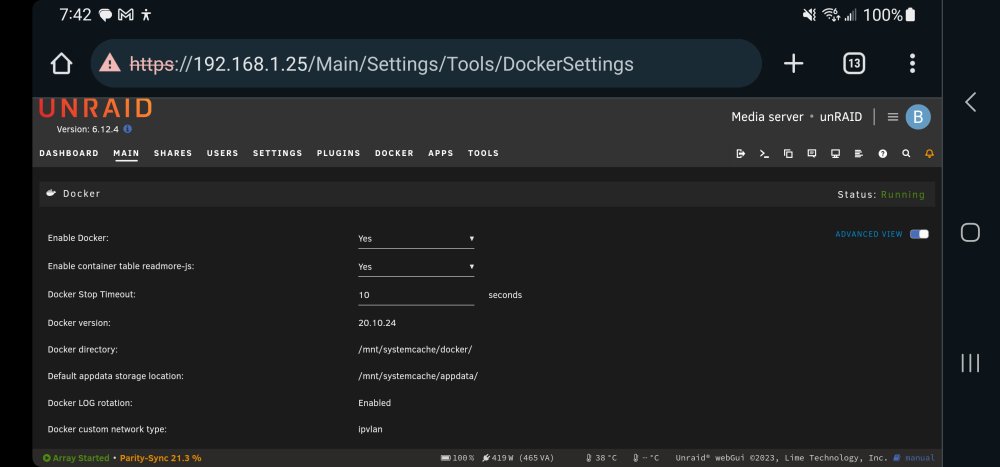
-
Thanks for the suggestion. It didn't seem to help much though. I'm still getting constant freezes, I have some disks that are now emulated, and I can't keep unRAID operational long enough to complete the parity check (up to 22TB disks) which is making me a bit nervous. I tried nuking my systemcache (docker, appdata, VMs, etc.) completely, formatting the NVMe drives, recreating the pool, and that didn't seem to help either. I also seem to be getting lots of call traces and possibly some CPU errors. Any help would be greatly appreciated. Updated diagnostics and syslog attached. syslog-192.168.1.25.log unraid-diagnostics-20231122-2017.zip
-
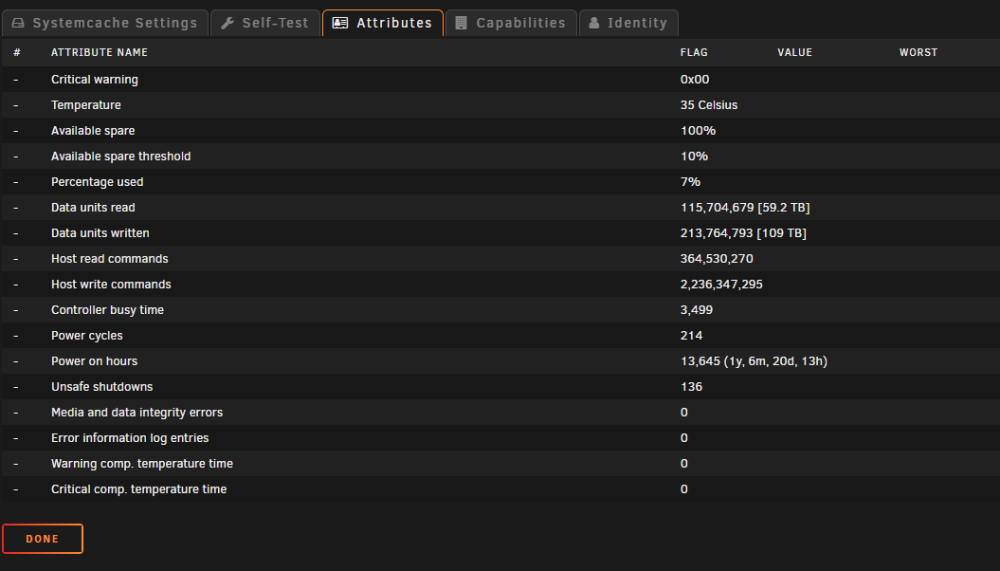
The server is acting up a different way this time. It's overall functional and responsive, but none of the dockers are working at the moment. New diagnostics attached. According to syslog, it's looking like nvme1n1p1 may be failing: "Nov 16 21:38:19 unRAID kernel: BTRFS critical (device nvme1n1p1): corrupt leaf: root=18446744073709551610 block=184367316992 slot=154 ino=50661511, invalid location key type, have 5, expect 132 or 1" unRAID doesn't do anything when I try to run a SMART test on it, but it says it's in a healthy state. The log for that disk is also repeating these messages over and over again: Nov 17 00:02:39 unRAID kernel: BTRFS error (device nvme1n1p1: state EAL): parent transid verify failed on logical 184360189952 mirror 1 wanted 2543847 found 2543846 Nov 17 00:02:39 unRAID kernel: BTRFS error (device nvme1n1p1: state EAL): parent transid verify failed on logical 184360189952 mirror 2 wanted 2543847 found 2543846 If I run a scrub, no errors are found. Is this NVMe drive definitely bad? If I replace it with another one, is there anything special I need to do afterwards? It's in a cache pool with another identical drive running in raid 1 mode. Thanks in advance for any help. unraid-diagnostics-20231117-0047.zip
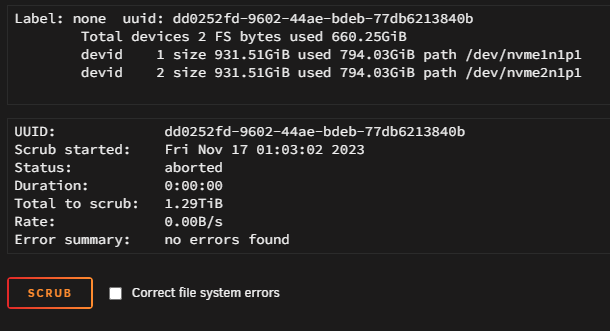
-
Unfortunately locked up again after about 2 hours with different PSUs installed.
-
Just ran 4 passes of memtest over 5+ hours, and it passed with zero errors with both sticks of memory in. I just swapped out the dual power supplies (Supermicro CSE-846 enclosure) with a couple I had in another chassis that weren't actively being used. We'll see if that makes any difference. Meanwhile, is there anything else you can think of that I can try if that fails?




