





harguna
Members
-
Joined
-
Last visited
Everything posted by harguna
-
Is it expected that when I plugged in my pikvm to the HDMI output of the GPU, there's no output because of the driver? Or is it just an Nvidia-Linux incompatibility thing? I was ablet to get an output out of a Radeon card
-
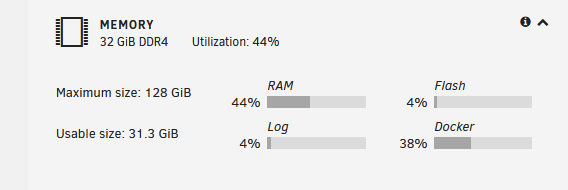
How do I go about fixing that?
-
Okay phew, would be a pain to wait for an RMA, thanks!
-
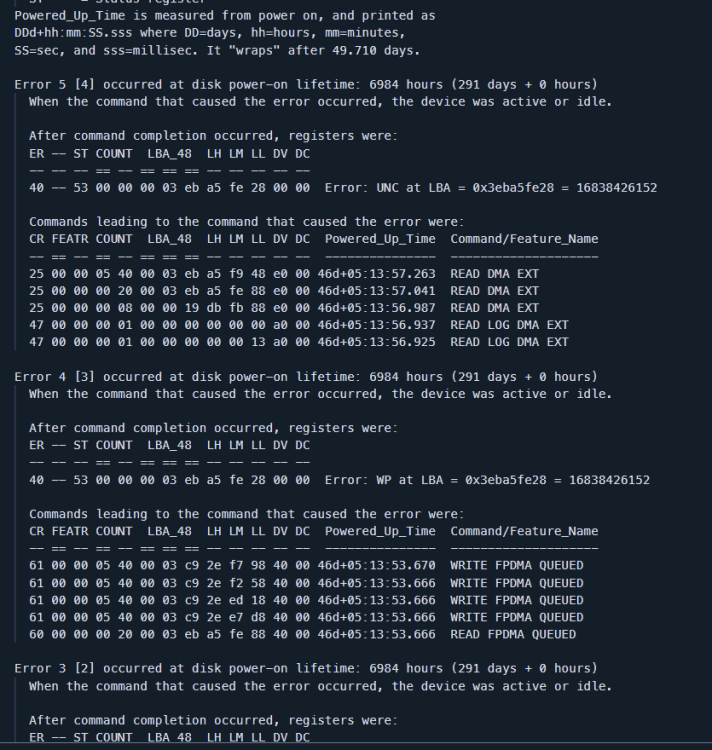
So I first saw errors here: Then I spinned things down so that I can check them but chose to spin them back up and checked them instead while the array is up. Those values are gone now. My appdata folder is empty actually. And I have mapped the docker data to their own volumes on the array, yeah it's slower but lower chance of losing data

-
servarr-diagnostics-20221223-0508.zip Attached diagnostics
-
Found the problem: I set it back to 330
-
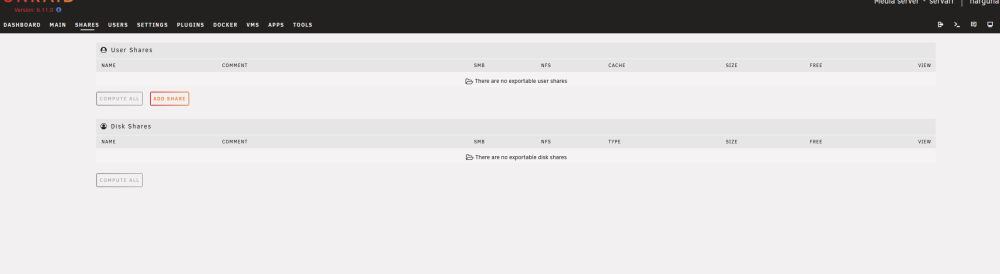
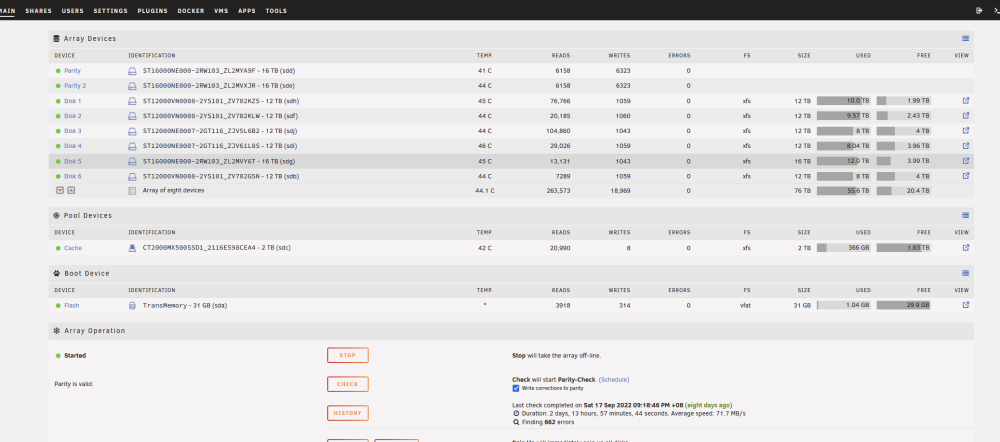
servarr-diagnostics-20220925-1047.zip Data still exists
-
I managed to get it to boot up by setting the disk config to not automatically start the array.
-
servarr-diagnostics-20220825-1306.zip
-
Okay this just happened today again, I'm not quite sure what's going on
-
As per the title, this works now by me flashing a new USB, the drives have all run through the extended SMART test, and this kinda happened twice in a row on two Sandisk USBs, is it a USB thing or is there more? So I couldn't or didn't know how to get the diagnostics file from that broken state, USB drive had no issue either. Attached is the new diagnostics servarr-diagnostics-20220825-0953.zip


