





Gazzo
Members
-
Joined
-
Last visited
-
Hello - I'm seeing an issue when mounting a root share on my second Unraid machine. I get "access denied", even though I think I have it set to public just for testing. I've made sure to set SMB share to Public in UD. Does it require a user for it to work? Here are the settings I have set in the extra SMB config: path = /mnt/user comment = browseable = yes public = yes valid users = write list = writeable = yes vfs objects =
-
Thanks, I'll post to the UD plugin support thread. itimpi - I've changed public to yes. Still the same. If I add a user to the valid users, I still get the same result as well. I have the user created on Machine 1 and 2 with the same credentials. I do notice that when mounting the root share on Machine 2, I'm not asked to enter any credentials. Not sure if there is a specific text config to add to Machine 2 where the root share is to be mounted.
-
So I've tried mounting the share to Machine 2 but I get a access denied. On Machine 1, I have it set to "Share" and the following settings for SMB config. What am I missing? path = /mnt/user comment = browseable = yes public = no valid users = write list = writeable = yes vfs objects =
-
Hey everyone, I have 2 Unraid computers, Machine 1 and Machine 2. I want to back up Machine 1 to Machine 2. I thought the easiest way is to set up a root share on Machine 1 and mount it on Machine 2 to back up the files that way. Is this possible? I've seen that you can set up root share access from a Windows PC but haven't seen it done successfully in Unraid. Any guidance is appreciated. Thanks.
-
Thank you guys for all your help. I was able to restore everything.
-
Should I just pull all the files out of the lost+found folder and leave them on the cache? I'm not sure where these go to be honest.. never had a layout of what was on the cache.
-
Sorry I already had closed it out and started the array. Looks like there are lost+found folders with random files in it. However I do not know where they belong. The cache drive is being read now but vm's and dockers are not found.
-
So I did xfs_repair -v /dev/mapper/sdb1 and received a short error. Then I ran xfs_repair -vL /dev/mapper/sdb1 and got some results that I don't understand. Should I post a new diagnostics? Not sure if this would be included.
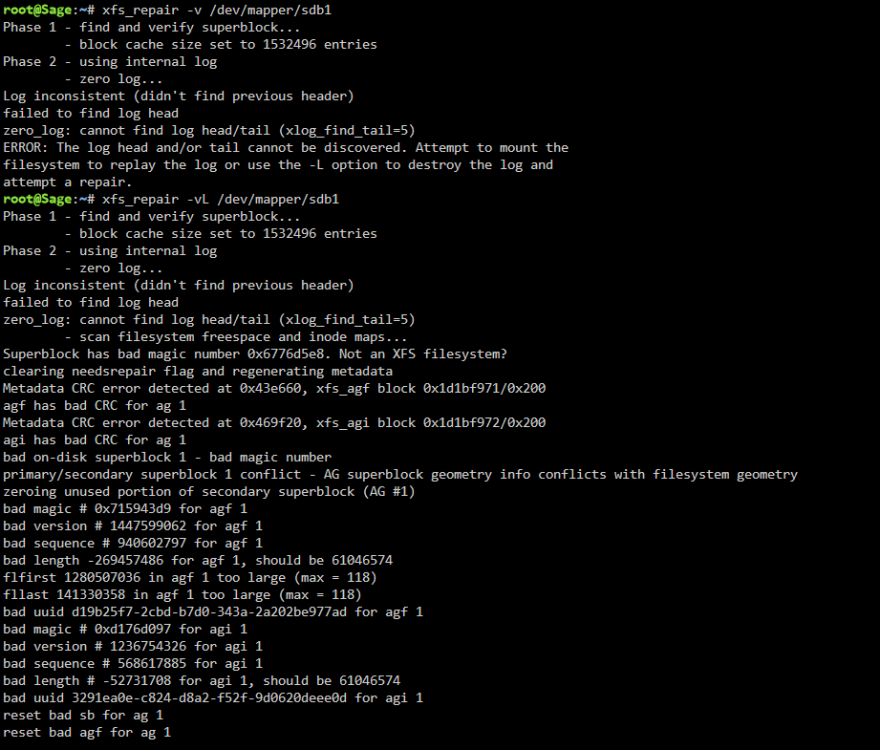
-
Here it is. sage-diagnostics-20231027-1201.zip
-
Unfortunately same results Rebooted in safe mode, started in maintenance mode and ran the command xfs_repair /dev/sdb1


-
I checked to make sure that the auto-start is off. I rebooted, started in maintenance mode and tried xfs_repair /dev/sdb1 again. Same message.

-
After running xfs_repair -n /dev/sdb1 it returns the text below and then continues to scan and returns sorry could not find secondary block. Phase 1 - find and verify superblock... bad primary superblock - bad magic number !!! attempting to find secondary superblock... I tried without -n and it said it couldn't run it because resource was busy. I did start the array in maintenance mode.
-
only other command im seeing is "reiserfsck --fix-fixable /dev/sdb1" should i run that one?
-
xfs_repair /dev/sdb and xfs_repair -n /dev/sdb, both yielded the same message
-
Received the following at the end of the scan. .................Sorry, could not find valid secondary superblock Exiting now.

