DrRockso
Members
-
Joined
-
Last visited
-
Thanks ich777 that did it! Just need to be the latest version of Unraid followed by a fresh installation Thanks again, really appreciate your time
-
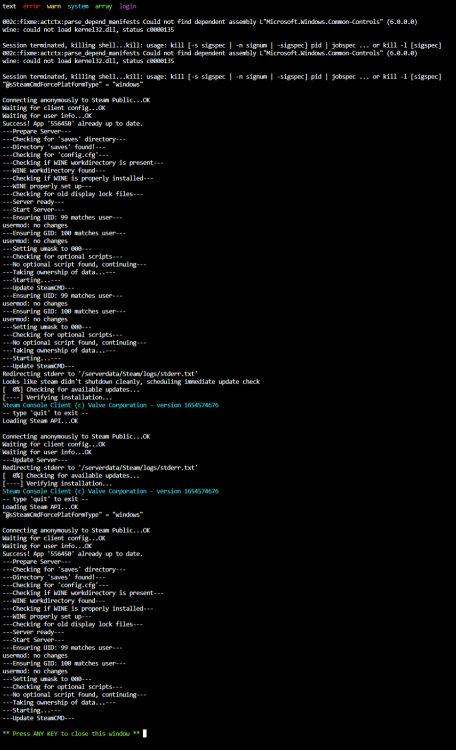
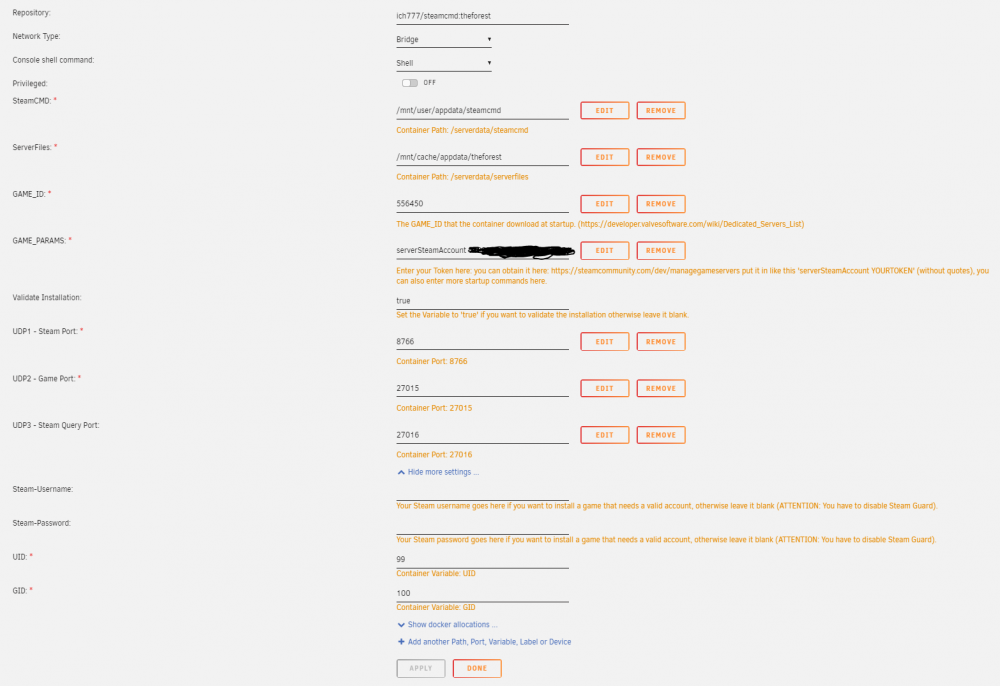
Thanks ich777, I've updated my Unraid version to 6.10.3 but unfortunately I still can't get the container to work Container logs are: After the cycle the logs page closes now It still references the "Could not find dependent assembly L"Microsoft.Windows.Common-Controls" (6.0.0.0) wine: could not load kernel32.dll, status c0000135" right at the top of the logs and seems to be the 'reset' point for the container Container config has not been changed Let me know if you need anything else Cheers
-
Should we update to the latest unraid version? (Only just realised I'm miles behind in terms of releases)
-
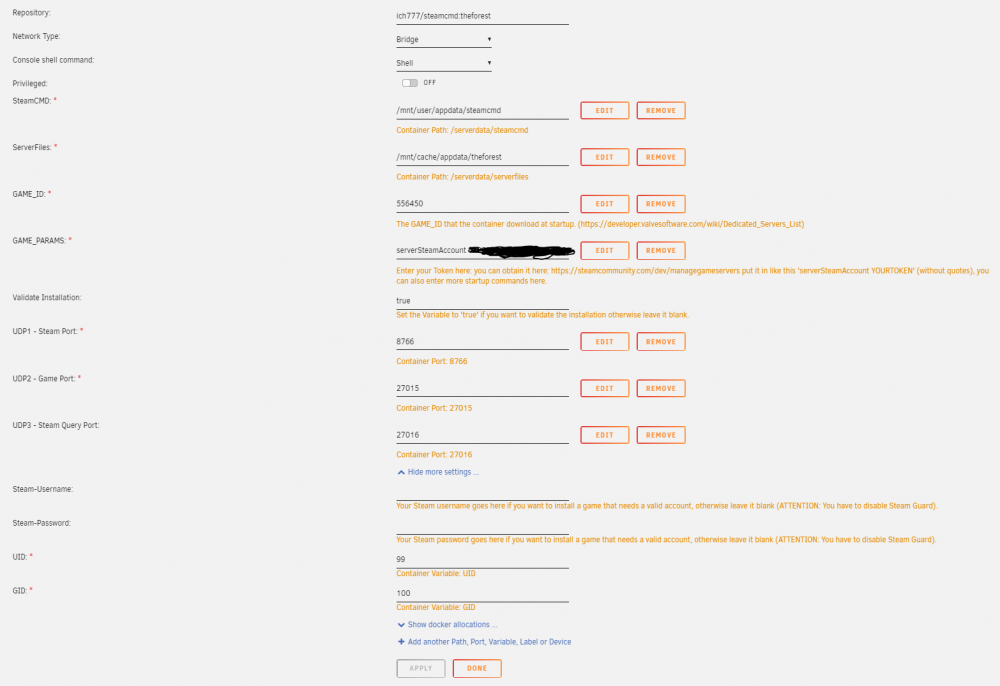
I'm using 6.9.2 I've deleted and re-added the container once (removed appdata folder from first installation so it should be "fresh"
-
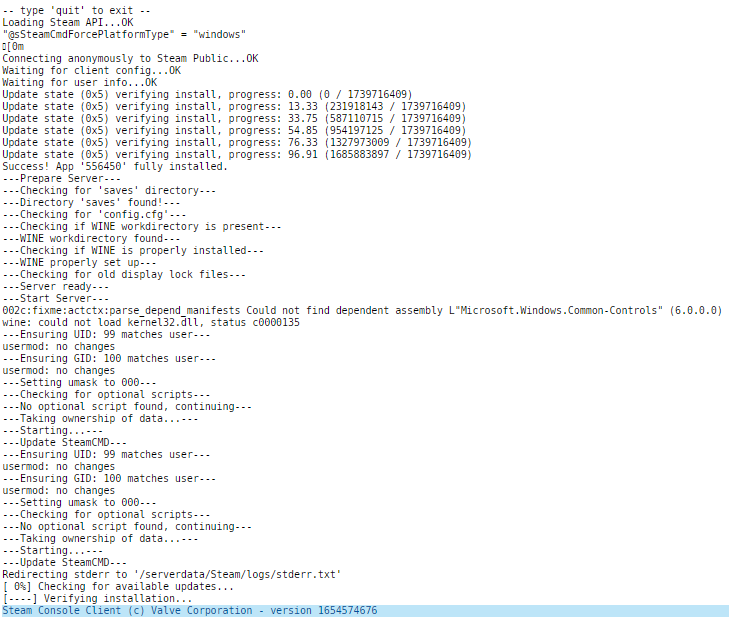
Hi ich777. Firstly thanks for all the containers! They've been a godsend and make it super easy to run game servers I'm currently running into an issue with the "The Forest" container though It seems to run into an error where it "Could not find dependent assembly L"Microsoft.Windows.Common-Controls" (6.0.0.0) wine: could not load kernel32.dll, status c0000135" It then resets the container in a never ending loop. Logs (one loop): Container Setup: Please let me know if you need anything else for this, appreciate any support you can provide Cheers, Dr Rockso