MartinNr5
Members
-
Joined
-
Last visited
-
Thanks, I suspected as much but wanted to check.
-
So stopping the data rebuild and shutting down the server would be ok at this point?
-
Yes. The power supply has enough power but not enough connectors.
-
Thanks, I forgot to include it. To add; the docker service isn't running - despite it running yesterday - and I can't access any content on the file system. nas-diagnostics-20260608-1703.zip
-
Hi all. I tried to search for this but I'm not even sure what keywords to use. I replaced one of my data disks and started a data rebuild. I have had to pause it a couple of times due to increased temperatures when all disks are running but it seemed to chug along as expected until it got done with rebuilding the data on the replaced disk sometime tonight. Currently it's mainly accessing the parity disk, at speeds I'm not sure is correct. It has also amassed 16+ billions of errors, and the number is increasing with ~400 000 per second. There are two other disks that have ~272 million and ~815 million errors respectively but they aren't showing any read or write activity. The disks that are showing read activity besides the parity disk have speeds of ~8,5 MB/s. If this is correct, what caused it and how can I fix it?

-
Thanks, the rebuild seems to have worked as expected (I didn't find a "lost+found" folder on the disk at least). Again, thanks for all the help. I'm not sure which reply to mark as the answer though so I'll mark the first one from trurl.
-
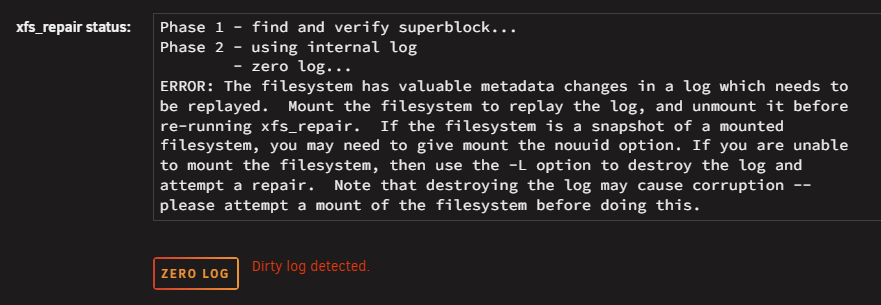
Then we're back to the problem with the dirty log on 1NFWTG. Is there any other way to try and fix the log since mounting the disk when starting the array in normal mode doesn't help?
-
And just to be sure that I don't screw myself over; should I start by replacing the emulated disk or should I start with fixing the file system on 1NFWTG?
-
Ok, let me clarify. ☺️ Since I'm using XFS for my array, I assumed that a disk in the array had to have a healthy XFS file system for the contents on that disk to be available. But if I understand JorgeB correctly, all my data is back despite the array having one emulated disk and one unmountable disk. I've always read that with 1 parity disk you can lose 1 data disk and be fine but if you lose 2 data disks, you're up the creek without a paddle.
-
I'm obviously completely misunderstanding how Unraid works under the hood. I was under the impression that all drives in the array (physical or emulated) had to have a functioning XFS file system for the contents to be accessible but that's clearly not the case. 🙂
-
So I can still add a new disk to the array to replace the emulated disk and rebuild as usual, without fixing 1NFWTG? What would the consequences be if I try and fix 1NFWTG and it fails?
-
As far as I can tell, the contents are restored. There's a lot of folders and files but everything looks ok at a glance. How does the unmountable disk 1NFWTG affect the contents? If I have one emulated disk and one unmountable with only 1 parity disk, it seems to me that I still need to repair 1NFWTG to get back all data.
-
No lost+found folder, at least not in the root of the disk. 🙂 Attached. nas-safemode-diagnostics-20260219-1938.zip
-
As far as I can tell the file system was fixed. I've included the output from xfs_repair if it might be of interest. xfs_repair status fixed emulated disk 8.txt
-
From the web UI.