GollyJer
Members
-
Joined
-
Last visited
-
Hey @Wildfirebill . Very cool! I'm in the middle of rebuilding my harness setup and will give this a shot sometime in the next couple weeks. Is there anything you are specifically looking to test? Or are you expecting it to fully work and need feedback if it is or not? I'll be doing the Unraid "method 1" install.
-
Fixed for me as well. 👍
-
Sounds good. Thanks. I have a question already posted in the LinuxServer.io discord. For anyone interested. https://discord.com/channels/354974912613449730/1436143144868642897
-
Thanks @Frank1940 I thought for sure this was the solution. I was able to change UMASK from 022 to 000. But it didn't help. (the others were already correct.) After some investigation in the container CLI and reviewing the logs, I discovered this is a GUI/desktop container running X11 display capture, PulseAudio, and window management. The container runs as root internally (which is necessary for the GUI/X11 functionality I think?), and while the environment variables are set correctly, the files created in mounted volumes still show as root:root ownership instead of the expected nobody:users (99:100). Do you know if there's a different approach for handling permissions with GUI containers like this? Thanks again for your help!
-
I have the Obsidian docker up and running. It works great. My primary reason for running it on Unraid is so I can use automations from other docker containers (like n8n) to write notes for me. I pay for Obsidian Sync so anything written to the hosted version syncs to my computers and phone. BUT, sync gets a permission errors. 2025-11-04 15:37 - EACCES: permission denied, open '/config/Obsidian Vault/Obsidian Vault/... To get it working I do the unrecommended thing... chmod -R 777 "/mnt/user/appdata/obsidian/Obsidian Vault/Obsidian Vault" But eventually, it seems, unraid or something resets this permission. What is the recommended way to allow app to write to it's own folder? What is the recommended way to allow other docker containers to write to the same folder? I found these instructions on Reddit but I'm not convinced appdata permissions are my exact problem yet. Thanks!
-
Do we have a sense if Unraid is working on this? I'm on 7.1.4 and having the same issue. To attempt a fix I turned every sharing security option to the most permissive on the Windows host itself. The share is set to Everyone > Full Control, and Windows Advanced Sharing Settings are set to everything on for Private Networks, with Public folder sharing ON and Password protected shaing OFF in the All Networks section. I even updated the registry with the following which had worked for some people. [HKEY_LOCAL_MACHINE\SYSTEM\CurrentControlSet\Services\LanmanWorkstation\Parameters] "AllowInsecureGuestAuth"=dword:00000001 "RequireSecuritySignature"=dword:00000000
-
I'd like to fire up some locally hosted MCP servers and MCP Gateway by Docker looks like a great solution. Is there a good approach to run this with unraid or do I need to do it on another server? Docker DocumentationMCP GatewayDocker's MCP Gateway provides secure, centralized, and scalable orchestration of AI tools through containerized MCP servers—empowering developers, operators, and security teams.
-
Thanks for taking a look @Braulio Dias Ribeiro As for using postgres directly... I realized after reading this https://github.com/supabase/postgres?tab=readme-ov-file#postgresql-15-extensions It basically is just postgres with a good set of default extensions I would be installing myself.
-
OK, that is crazy. I tried like 5 different tags the other day, including the one you just posted, and they didn't work. Tried again just now and worked perfectly. Thanks! Now I can troubleshoot actually getting this working. Will post back here if I have other questions. Cheers. 🍻
-
Thanks for the response @bmartino1but the problem is the very first step, and only for the `supabase/postgres:latest` (or any other tag). I can't even get to the process of adding ports or vars because of this. Does the iniital data download of this container work for you? 👇 Here's a dedicated thread.
-
After recreating the custom network I had to go into the setup of each container and set it again under `Network Type` and now everything is back in action. Thanks @JorgeB!
-
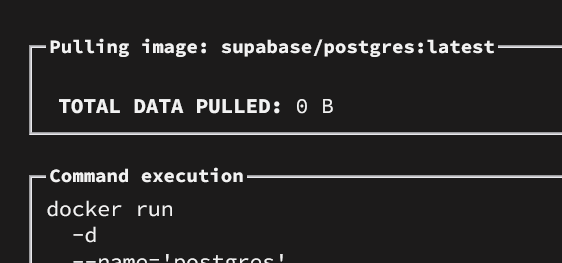
https://hub.docker.com/r/supabase/postgres/ Can someone explain how to install this? When I try using Add Container with `supabase/postgres:latest` it doesn't download. I've tried other tags besides `latest` and had the same problem. I've not had issues installing other Docker Hub containers. For example ngnix works as expected. This make it hard to understand how it might be a dns issue. What might be the problem? Can anyone try doing an initital install of this just to see if the download works for them? Thanks!
-
@Braulio Dias RibeiroThis is the only thread in the entire forum that mentions supabase/postgres. Did you ever get it installed in unraid? I can't figure it out. I can't even get it to download. It simply errors when trying. I've been able to install other Docker Hub images, so it isn't a dns or other network issue. Thanks for any advice! https://hub.docker.com/r/supabase/postgres/
-
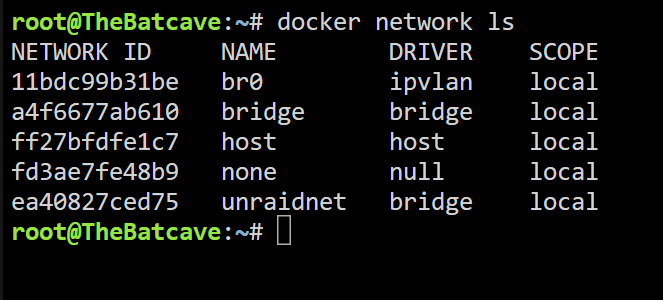
docker network ls 👇 System Diagnostics attached thebatcave-diagnostics-20250303-1742.zip
-
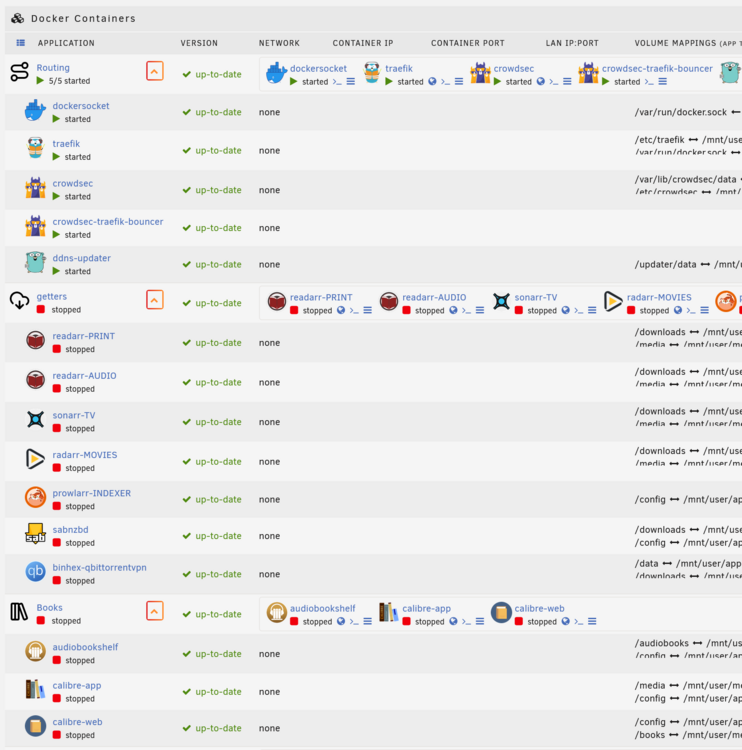
I updated docker, installed all containers from "Previous Apps" section, and now the network info is missing. I had a custom docker network called `unraidnet` that I added back after reinstalling all the containers. I thought maybe a reboot would fix everything but no luck. What do I do next? Thanks!