





Keimps
Members
-
Joined
-
Last visited
-
Thanks
-
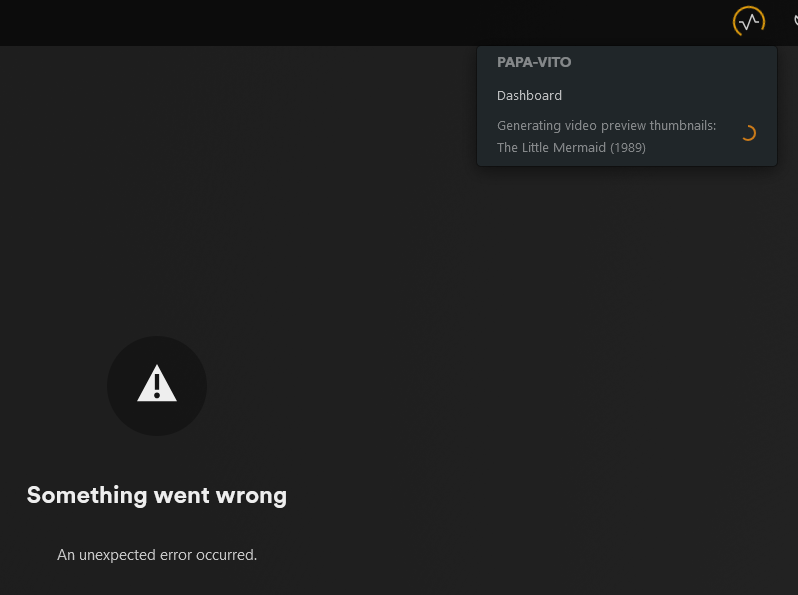
Hi, I'm running Plex on Unraid and I have been running into an issue with Plex. It runs fine and the devices on my network can find it and play any media from it. However, after some random time, sometimes 2 hours, sometimes 20 hours, Plex becomes unreachable. 'Something went wrong, An unexpected error occurred and does not load, or it just load normal (public) Plex things, non server related. In the Dock it's still running, and when I open it in the browser on my PC (docker > plex > open webui) it most of the times doens't load. When it's already opened it doesn't load any movies or content, though I still saw it was processing something top right. If I open a new webui it no longer loads. No error, just loading without showing anything. If I pause Plex and resume, the issue persists. If I restar the Plex app, the issue is resolved and my devices can connect again. I have rebooted the server > issue persists. I have updated the Plex app about 10-15 times since the issue has started > issue persists. I have updated updated the UNRAID server to the latest verion last week > issue persists. Ran Fix Common problems plugin > issue persists, not issues found apart from some issue about cache drive. Now running 6.12.13 diagnostics grabbed after it stopped responding. papa-vito-diagnostics-20241125-1749.zip
-
Yes, I have combed through all settings on the motherboard, but no additional settings apart from the Virtualization Technology. No VT-X or VT-D seperate settings. It is looking more and more towards the motherboard only supporting VT-X. The documentation from the mobo only states: Intel Virtualization Technology [Disabled] When set to [Enabled], a V�� can utilize the additional hardware capabilities provided by Vanderpool Technology. Configuration options: [Disabled] [�nabled] So no additional options for VT-D. After another long search, I managed to find this link https://ark.intel.com/content/www/us/en/ark/products/75013/intel-z87-chipset.html which clearly states VT-D is not supported for the z87 chipset (my mobo is z87a asus). So safe to say I need a new mobo.. Good excuse for a mobo and cpu and ram upgrade then Thx guys
-
Cool thanks for that. I will further investigate the motherboard then.
-
Thanks. I ended up just using mover, which worked. Apologies for the late reply
-
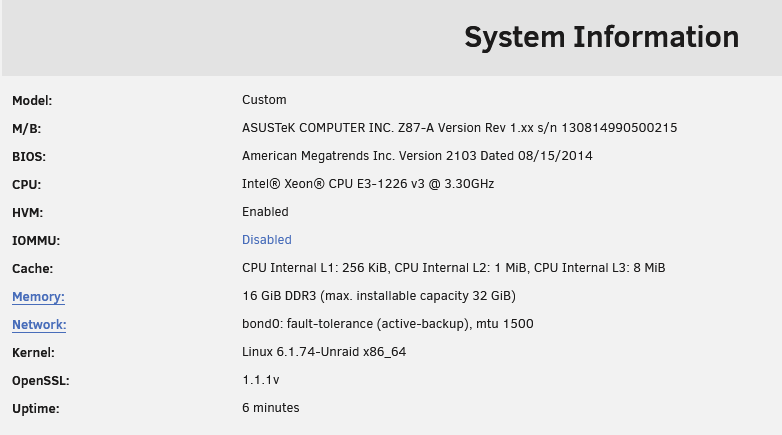
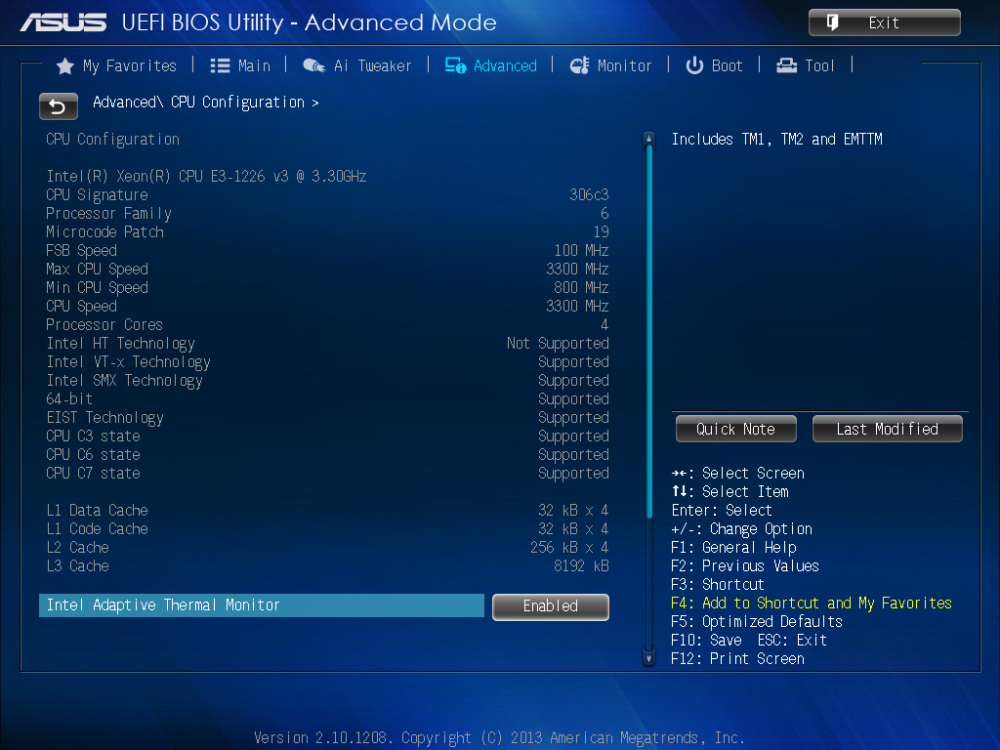
Hi, Can't seem to get IOMMU to enable. I have an Asus z87a motherboard. In bios I have enabled Virtualization Technology Enabled (enabled by default https://www.asus.com/us/support/faq/1043786/ There is no specific/additional settings for VT-D or VT-X here, just the one Virtualization Technology. I initially was running a 4570k which I found out does only support VT-X and not VT-D, which is why I bought a second hand Xeon e3-1226 v3 chip, which supports the VT-D also (according to https://ark.intel.com/content/www/us/en/ark/products/80917/intel-xeon-processor-e3-1226-v3-8m-cache-3-30-ghz.html) Yet UNRAID still states Disabled for IOMMU. What I did find in the BIOS, which made me think could be the potentially have something to do with it, is that under Advanced CPU configuration, it does not mention Intel VT-d to be (or not to be supported), bbut does so for HT Technology (not supported) and VT-X technology (supported). Any thoughts? Thanks
-
Unbalance if I remember correctly
-
Hi, So I had some issues with my chache drive (single ZFS cache pool) which resulted in having moved all items (specifically appdata and system) to the array, then erasing reformatting the cache drive to ZFS (it was in this format already). I then moved all the files (mainly appdata and system) back to the ZFS Cache drive. After installing the ZFS Master plugin, I cannot take snapshots of the appdata and system data, as it's stating these are not datasets. When running the user script from SpaceInvader the error also confirms this: Error: cache/appdata this location exists, but it's not a ZFS dataset. Please select a dataset not a folder as the source From doing as much research as possible, I believe this has happened because I used the unbalance app to move the data to the drive, which apparently doesn't create data sets. So I guess an option would be to move all the folders to the array, but using the CAMover and then back to the cache drive again? Would I need to erase it in between? Alternatively, I do get an option, (might be because I enabled destructrive mode for ZFS Master) when clicking on Actions for Appdata and System > Convert to Dataset. Would that work or should I try the CA Mover, or any other suggestions? Many thanks

