





MattWeiler
Members
-
Joined
-
Last visited
-
Ok, so there is at least a way Thank you. I'll have my cache pools perform a scrub each month. That makes sense. I have my main array setup to perform a parity check every 3 months. So far I haven't had any issues with the parity checks. Thank you for the info, that helps a lot.
-
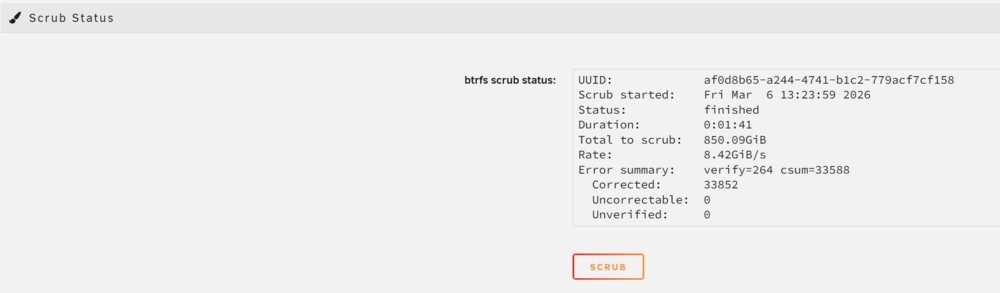
Thank you for your reply. I was under the impression that a RAID1 would mirror the data onto all drives in the pool; so that I could loose up-to 3 drives and still not loose any data. If not, is there a way to get a pool device to function in this way? Is scrub something that I should be running regularly on a schedule? Is there a way to and should I also be doing a scrub on my main Unraid array? I just ran a scrub on this pool and below are the results:
-
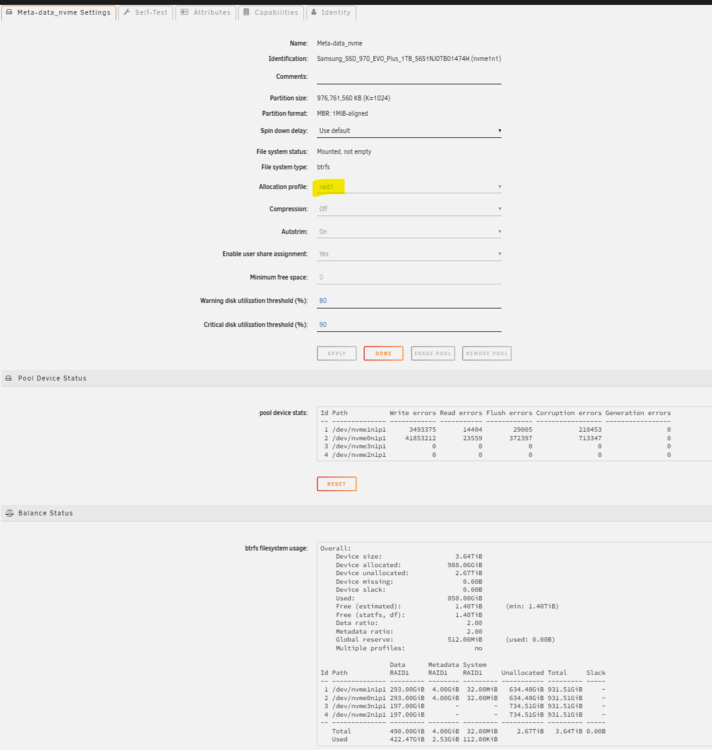
Just starting off by saying that I am very much an Unraid noob. I set it up 3 years ago and absolutely love Unraid, but I know that the experts are here on the forum. In my Unraid server, I had 2x 1TB NVMe SSDs which I have configured as a RAID1 pool device. This stores my appdata, backups, domains and system. I recently had an alert that 1 of these NVMe drives had failed and then my Docker images and VMs were not responsive. I rebooted my server and everything was ok. Then about 1 month later, the other NVMe drive had the same report of failures and I had the same issues. And again, rebooting resolved the issue. The odd thing is that neither drive is showing SMART errors, but in the Pool Device Status section, for this pool device, these 2 drives show errors: This screenshot was taken after I added 2 new NVMe SSDs, but it's the top 2 that were the originals. My ServerUnraid Version 7.2.0 Processor Intel 13700k RAM 64GB DDR5 NVMe SSDs 2x 1TB Samsung 970 Evo Plus (these are the problem drives) 1x 1TB Samsung 9100 Pro 1x 1TB Corsair MP700 Pro What I Need Help WithI would like to do 2 things: Get this pool device to actually act as a RAID1 and only have 1TB of redundant storage across all 4 NVMe drives. Know if my original 2 NVMe SSDs are failing and need to be replaced as they are still under warranty. I Know I'm Nuts!!! I know that a lot of people would say that I'm nuts for having 4 NVMe SSDs in RAID1, but I really don't want my Docker images or VMs going down. I do back them up every once and a while to an external drive, but I don't want an NVMe failure to cause my server to essentially go down. I get alerts from my Unraid server whenever there are any issues, but I really want to minimize downtime. My Overkill to Safeguarding My DataI overdid things and bought 2 more 1TB NVMe SSDs a few months ago; luckily I bought them before the massive price increases. Last night I installed those 2 new NVMe SSDS into my system and added them to my RAID1 pool device. But the odd thing is that this pool device is now showing a size of 2TB rather than the expected 1TB: This was showing 2TB when I just had the 2 NVMe SSDs in the pool as well. In the settings for that pool device, I see that the allocation profile is set to raid1: I backed-up the important contents (appdata & VM images) from this pool device to my main PC and then under the Balance Status section, I selected Convert to raid1 mode from the drop-down and clicked the BALANCE button. This completed immediately and didn't have any effect.


-
Thank you, that is perfect.
-
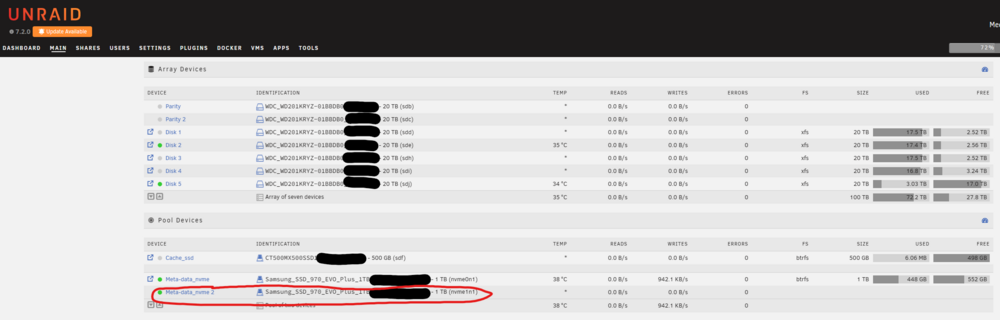
Just to be transparent, I am no Unraid expert. I love Unraid, but I mostly just check it a few times a week to keep it up-to-date and otherwise I forget about it. So my knowledge is definitely lacking. It's been 3 years since I built my server, so I don't really remember everything that I did back then I have 2 NVMe 1TB drives that I have configured in Unraid in a RAID 1 pool array using the BTRFS file system. This pool is used to store the docker appdata directory, a directory that stores my Home Assistant VM image and a backup directory that is primarily used to store backups created by Home Assistant. 1 of these 2 NVMe drives failed today, but since they are setup as a RAID 1 array, everything is working fine. I've contacted Samsung and they will be sending me a new NVMe to replace the failed one. I just want to be sure that I follow the correct steps when replacing the failed drive when it arrives. Stop the Unraid Array. Shutdown the server. Physically replace the dead NVMe drive. Startup the server. ??? Start the Unraid Array. It's that bit after starting the server back up, that I'm not 100% sure what I'll have to do. I know that I'd have to add the new NVMe drive into the existing pool, but is that going to be as simple as just adding it and starting the Unraid Array again? This is what my Unraid drive allocations look like: The failed NVMe is circled in red.
-
That sucks, but thanks for the warning, I guess I'll wait a few days 😜
-
I just checked and there was an update for the "Disk Location" plugin, after updating it, the issue went away.
-
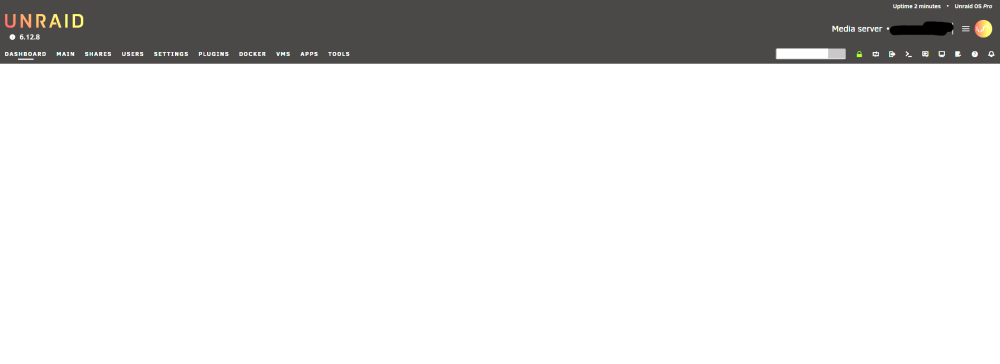
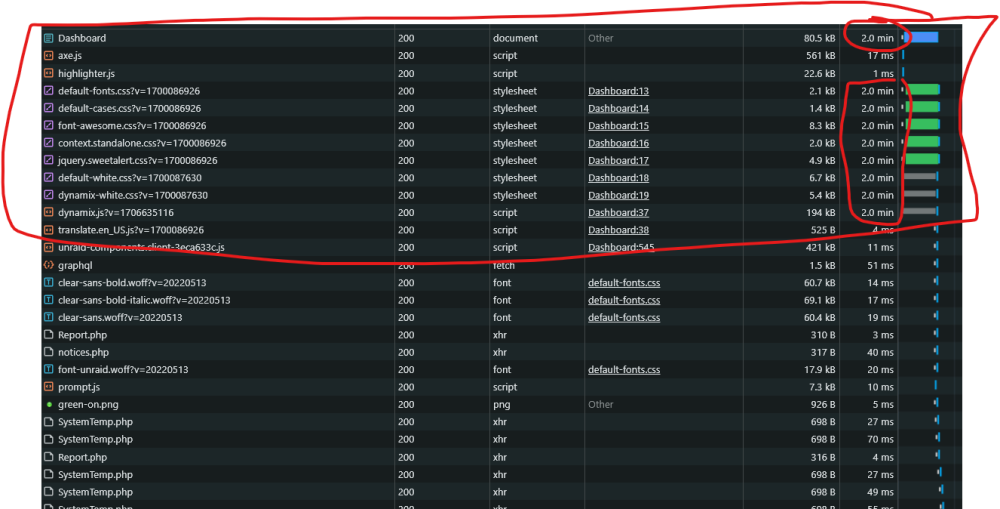
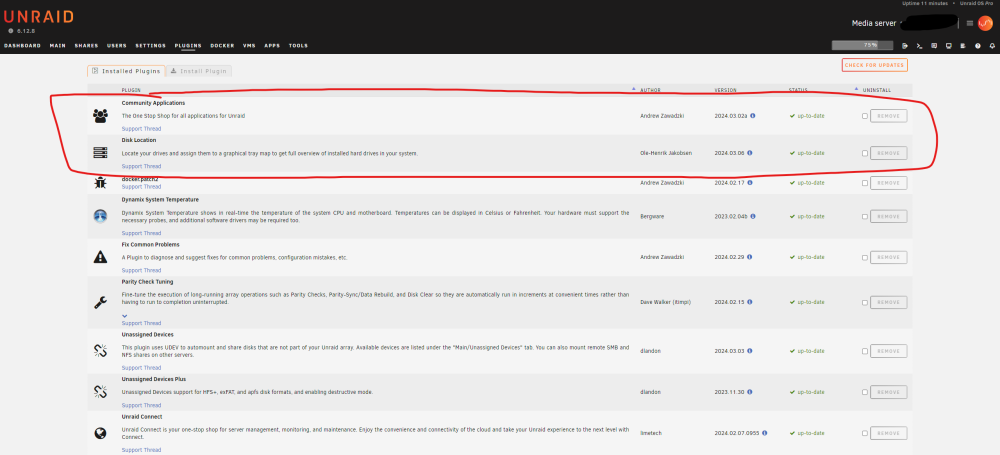
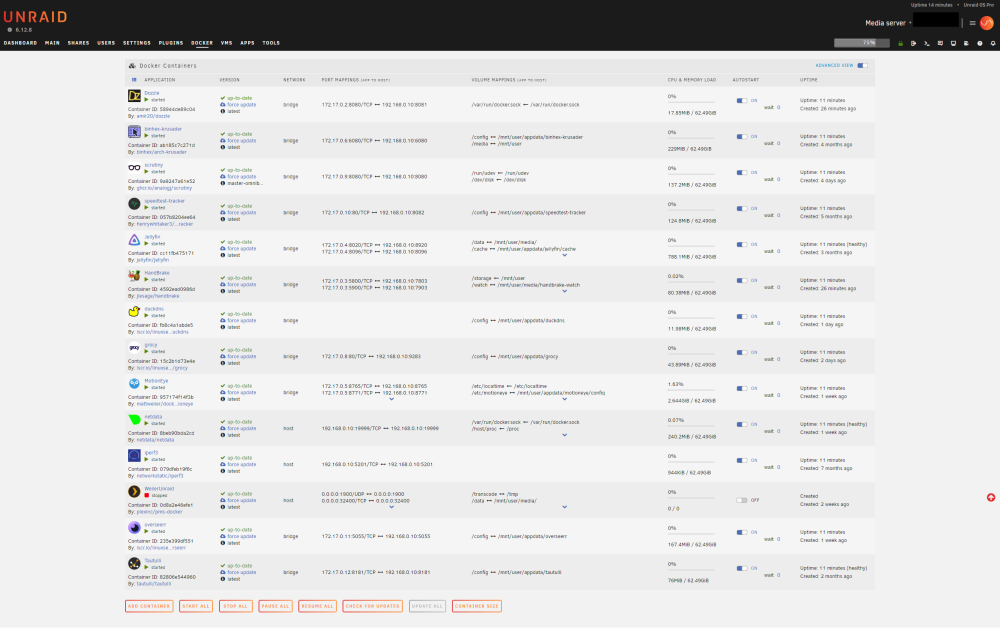
I just updated a few plugins and docker applications this morning and then shortly afterwards, I noticed that my Unraid Dashboard page won't load properly. If I recall correctly, the only plugins that I updated were: Community Applications version 2024.03.02a Disk Location version 2024.03.06 I also updated the following Docker applications: Dozzle HandBrake I rebooted my server by launching the terminal and entering the command: reboot My Unraid server did reboot, but I'm still experiencing the same behavior ☹️ This is what the Dashboard page looks like: The other pages, accessible via the header tabs, are rendering ok. I checked the browsers developer tools, and some resources are taking 2 minutes to resolve: These are my installed plugins: These are my installed Docker applications:
-
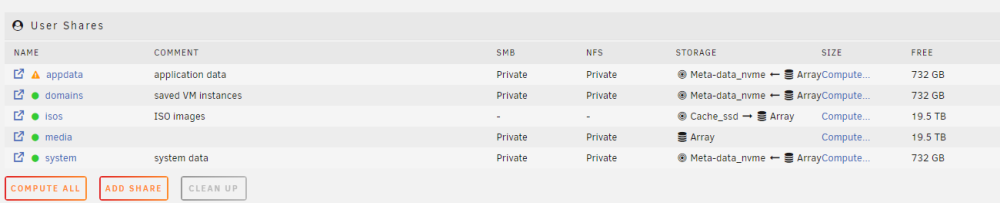
It seems that the "/appdata" directory was created at some point on my 500 GB SSD, but by just deleting the directory, the above warning went away. The "/appdata" directory on my NVMe SSD array is still present and contains all of my actual application data. So I guess the solution was to just delete that empty "/appdata" directory.
-
I just installed the "Fix common problems" plugin after upgrading my Unraid server to v6.12.8. I was able to fix all of the warnings with the exception of the one below. I'm just not sure what it's telling me to do 😕 Share appdata set to use pool meta-data_nvme, but files / folders exist on the cache_ssd pool I have 6 x 20TB HDDs which make up my array. I have 2 x 1 TB NVMe SSDs, which I have setup as RAID 1 for redundancy, and this just contains my "/appdata", "/domains" and "/system" directories. I have 1 x 500 GB SSD that currently isn't being used for anything... just had it lying around and I haven't gotten around to deciding what to do with it. I see that on my 500 GB SSD, there is an "/appdata" directory, it's empty but I'm not sure how it got there. I've only been using Unraid for about 11 months now, and I'm definitely no expert 😜
-
I had this same issue and disabling fast boot in my MSI bios fixed the reboot issue. If the below doesn't work for you, try searching for a YouTube video for your specific motherboard; maybe someone else had the same issue. 1. Enable Advanced Mode The first thing that you have to do is enable advanced mode in the bios. Once in the MSI bios, you should just be able to press the F7 key on your keyboard to toggle between advanced mode and EZ mode. If that doesn't work, at least on my MSI Z790-P, the button to enable advanced mode was near the top-center of the bios screen. 2. Disable Fast Boot Once advanced mode is enabled, you can click big button "Motherboard settings". Then click on the list item "Boot". Then the list should change in which you should find Fast boot; disable it. 3. Save Changes Then navigate back in the menu by pressing the backspace key on your keyboard and select the "Save & Exit" list item. Then select the option to "Exit saving changes" (or something similar).



