nemo868
Members
-
Joined
-
Last visited
Everything posted by nemo868
-
I erased the Tailscale plugin configuration and reconnected with a new Tailscale IP. I also logged out and in on the clients but nothing has changed. I can connect to the Unraid server (and Linux and Windows VM's it hosts) from all my tailnet devices on the LAN but remotely I cannot connect to the Unraid server or any of its VM's. All the other tailnet devices ( 3 windows PC's and and an Iphone) have no issues connecting to each other either locally or remotely.
-
I’m running Unraid 6.12.10 with the Tailscale plugin and I have never been able to access the Unraid GUI remotely. I can’t even ping the Tailscale IP of the Unraid box from any of my other tailnet devices remotely, though the server shows up as connected on the Tailscale admin page. I have attached the diagnostics file in case anyone can help me figure this out. Tower-tailscale-diag-20240531-170248.zip
-
I set up Unraid for the first time about 3 days ago, primarily to run a Plex Media Server, however, it always freezes at some point during the parity check. I end up having to do a forced shutdown and restart then the parity check begins again. Yesterday I was copying files from an unassigned drive to the array and it froze. Last night I think the parity check had just completed when it froze. Today as soon as I plugged a USB drive into the server it froze again. I enabled syslog to the flash drive this morning and I have attached the log. syslog
-
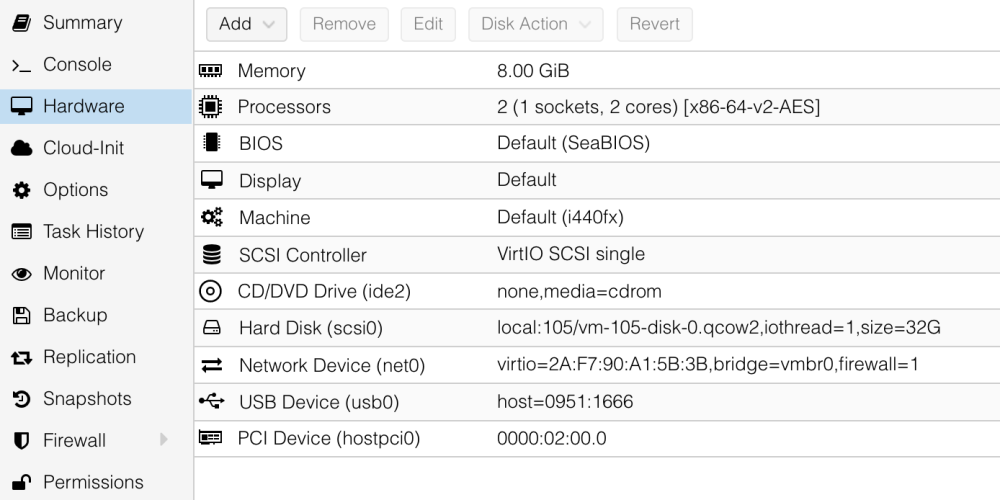
Well I haven't even gotten to the stage of trying to passthrough disks and/or controllers. I'm still trying to get the thing to boot. So far I have done the following: 1. Updated both the firmware and BIOS on my motherboard to the latest 2. Flashed 6 different USB drives with the UEFI option turned on and off and attempted to boot in both legacy and UEFI mode 3. Tried booting on bare metal 4. Tried booting in a Proxmox VM 5. Tried booting on an entirely different machine All I get is the looping countdown from 5 to 1 then back to 5 again. Troubleshooting continues.
-
Thanks for your response. I will try your suggestions.
-
No one has any suggestions? It's been 3 days so far and I can't figure out how to get a USB drive to boot this thing correctly on my PC. This is incredible. I'm all out of ideas. Looks like I have to grudgingly go back to TrueNAS until I get another machine in the future.
-
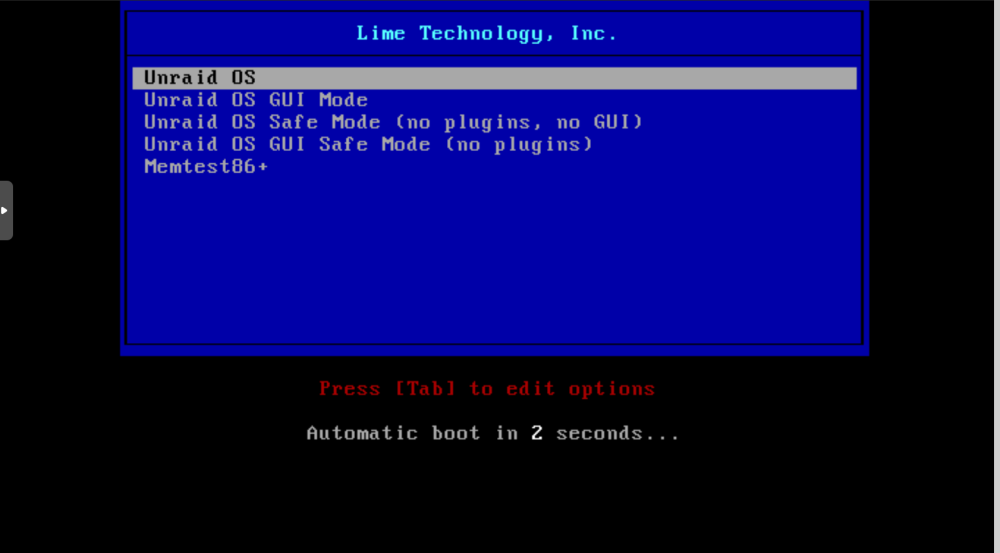
I am trying to install Unraid for the first time so I downloaded the USB Creator software and created the bootable USB flash drive. However, when I insert the drive in the target PC and attempt to boot, the blue Lime Technology, Inc. screen appears with an automatic boot timer that counts down from 5 to 1 then starts at 5 again in a continuous loop. If I hit enter on any menu option nothing happens. When I hit tab the /bizimage initrd=/bzroot prompt appears. I created a second bootable USB drive (same drive) but the same problem exists. I created a third bootable USB drive (different brand) and unselected the UEFI option but the same problem exists. I also attempted to create an Unraid VM in Proxmox and yet again experienced the same problem. I cannot believe that I spent an entire day trying to troubleshoot this issue. I am frustrated to say the least so I decided to join this forum. Can someone please suggest to me what I might be doing wrong. Supermicro X10SL7-F motherboard Intel Xeon E3-1245 v3 CPU 32 GB Crucial ECC memory 8x2TB HDD's