draconastar
Members
-
Joined
-
Last visited
-
Apologies for the very long hiatus on this topic. I finally got back into trying to troubleshoot this problem, and while I don't fully understand why or how, I believe that replacing the key on the new flash drive, then installing the license correctly on the server fixed all of these issues. Up until that point, nothing I did worked. I tried copying files one at a time from the old backup, but copying basically any functional part of my old config to the new drive would result in the same problem, GUI being unavailable, and several other things not working either (no Docker containers visible, no VM's, no shares...) All fixed as soon as I went through the key replacement process for the new drive and blacklisted the old. After restarting the server, I'm golden - GUI available at the old URL, domain address is working, and VM's, Docker containers and shares are visible and configurable again. I really appreciate everyone's help trying to sort this out. No idea how to best note this for folks that come to this thread with similar problems, but replacing the key on the new drive to register it to my account is what did the trick. This also means that the USB tool probably did work, and I just needed to go through replacing the key before troubleshooting the issues I ran into. Would have saved me months of pain.
-
This did not work either. I copied the entire /config folder from the original still-working drive to the new one, making sure to delete the entire folder on the new one first to ensure there are no file replacement issues. I have the exact same result - the server boots up and I can see it is handed the correct IP address on its startup report, but I'm unable to access it. As soon as I plug the original drive back in, it works again. I'm really struggling to understand what's going on here, especially given that it seemingly has the right IP address. It's still giving me these NS_ERROR_CONNECTION_REFUSED messages in browser console.
-
I have not. My understanding is that the USB creation tool is the recommended way to replace a flash drive using the zip backup of the original, but that's just what I've gotten from documentation. I'll hock the entire /config folder onto the new one and see if that changes anything.
-
Apologies for the delay on this... I had some unrelated home network issues that I had to solve before I could jump back into this one. I acquired a fresh flash drive, installed stock Unraid on it and tested it on my server. It works exactly as I expect - I could navigate to tower.local just fine, I was presented with the account setup screen, etc. That points to /config, I suppose, or something about how the USB Creation Tool sets up a new flash drive from a backup. Clearly something about it is different, as I'm still getting the same "Unable to load the web page" errors when trying to navigate to any of its interfaces. Again, I can see that it is being assigned the correct IP address, and I can ping the machine. It just won't load any web pages. So my current state is: Original flash drive: works, but is dying New flash drive with stock install: works. can navigate to tower.local and the GUI loads New flash drive with backup: does not work. navigating to tower.local or any other interface gives me NS_ERROR_CONNECTION_REFUSED I suppose this is where I would start taking your suggestion to restore the bare minimum to the new drive (the *old* new drive...). Can I trouble you for some pointers on how I should go about doing this? What files should I start with, and which ones should I copy over next as I'm testing? Am I stopping the server, plugging drive into a different machine, copying files, then plugging it back in and restarting for each file I try?
-
Well, it seems I am even further up the creek without a paddle now. The old flash drive that I am trying to replace seems to have finally failed enough that it's no longer usable. BIOS doesn't see it as a bootable device, even though it still has all of the files on it, and the bootable script won't work because the drive is seemingly permanently write-protected and so it fails to create the files that it wants to. That has rendered my server unusable - old flash won't boot, new flash will boot but I can't access anything other than plugging into the machine directly. Scratch that, seems like that was a temporary issue. Got the drive booting again, but this makes me nervous it's going to fail very soon. I did manage to copy all of the files directly off of the drive just in case that would be useful, before I used the USB creation tool. Are you suggesting that I manually copy files from the old to the new to see if that fixes things?
-
This didn't work. I set USE_SSL to "no", rebooted the server and tried accessing the GUI again. Same result - http doesn't work, https doesn't work, doesn't matter if it's DNS name or IP address. But that kind of makes sense, right? When everything is functional, I'd expect to have http work when use SSL is no, and to have https work when it's yes (assuming I've got the cert set up, which again, it was working before).
-
I recently started getting Alerts in Unraid that my flash drive was no longer in read-write mode. After following documentation and trying to repair it (to no avail, all utilities claimed it was in read-only mode and wouldn't fix it), I eventually gave up and decided to replace it with a better flash drive. I went through all of the documented steps to swap drives: make a zip backup, download and run the USB creation tool, select my zip as the backup and write to the new disk, then power down the server, plug my new flash in and turn it on. That seems to work fine, but my server is no longer accessible over the network after I do that. I know it's alive and kicking, because I can plug a monitor and keyboard in and have access to the Unraid command line as soon as I do. No boot issues that I can see, I got into the operating system just fine. It has an IP address assigned to it, and I can ping it from a command line on a separate machine in my network. But any time I try to browse to the web GUI, I'm presented with "Unable to connect", and developer tools show me "NS_ERROR_CONNECTION_REFUSED" for the request's transfer state. This is regardless of whether I include https or not, or if I navigate directly to the IP address. All variants result in a refused connection. Oddly enough, when I swap back to the old flash, everything works fine. GUI boots up with no issue, via direct IP or my local DNS address. This makes it seem like it's some issue with the configuration that was copied over, or perhaps not copied over? Basic steps that I can follow to reproduce: - Create new flash drive using documented steps - Shut down server, plug in new flash drive, restart server - Plug in monitor and keyboard directly, see that Unraid command line login is waiting for me. Able to log in and run commands. - Navigate to http://atlas.local (my server's name). Connection refused. - Navigate to http://{myServerIp}. Connection refused. - Navigate to https variants of both of the above, https://atlas.local and https://{myServerIp}. Connection refused. - Navigate to registered external address for my server (i.e. https://myserver.com). CloudFlare page showing that host is down. - Shut down the server, swap back to the old flash drive, restart server - Plugged in monitor and keyboard still show Unraid command line login, as before. - Navigate to http://atlas.local. Web GUI works. - Navigate to http://{myServerIp}. See my NPM entry page. - Navigate to https variants of both. Both the Web GUI and NPM page still load. - Navigate to registered external address. Authelia login loads correctly (I have this guarding external network traffic) What am I missing here? The fact that the old flash gets everything working again makes me feel like it's a configuration issue, I just have no idea what that could be, or why the USB tool would complete its write operation without having copied everything. I've attached the diagnostic zip that I can pull from my server with the old flash loaded, so not sure how useful that is in this scenario, but I'm including it just in case. atlas-diagnostics-20240620-1732.zip
-
Appreciate this information. I followed the instructions for 6.12.4 that you pasted, which is how I was able to install the plugin at all. It fails if you try and pull it from the apps section (incompatible kernel). Your mention of the module loading properly had me check to make sure that is the case. A few other odd things I encountered: The plugin is not listed in lsmod as far as I can tell. The plugin's setting page is still visible and usable from the Settings tab, and syslogs has plenty of logs showing that 'i915-sriov' was installed. Running lsmod | grep -i 'i915-sriov' returns no results. I know that the sriov_numvfs file exists, because I can navigate to it and open it with nano, yet I still get the "No such file or directory" error when I try to write to it. I'm starting to think this may be a big part of the issue. When I open it with nano, change the 0 to a 2 (or any other value), exit and try to save, saving produces the same error, "No such file or directory". This obviously makes no sense. ls -l shows that my user (root) has both read and write permission, so I'm not sure what's going on there. Perhaps being blocked at the kernel or driver level? I'm going to try completely removing the plugin and following the installation steps you pasted again, just in case I've missed something or configured something incorrectly.
-
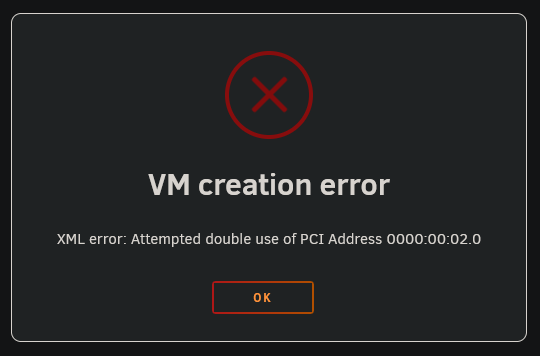
Running the first command you provided gives me a "No such file or directory" error. Also, oddly enough, even without having any VF's set up, I can't set up any VM's to use the iGPU as their graphics card because of an address conflict: I'm guessing this is because of the SR-IOV registration showing the same VGA adapter address, but that's a total guess. Either way, it's preventing me from using my iGPU at all on my VM's. I don't have any of them set to use it (obviously, since this error happens when I try). I'll take my issues with the plugin to the Github link you shared. Thank you for doing that! I've included diagnostics this time, sorry for missing that initially! atlas-diagnostics-20231012-1233.zip
-
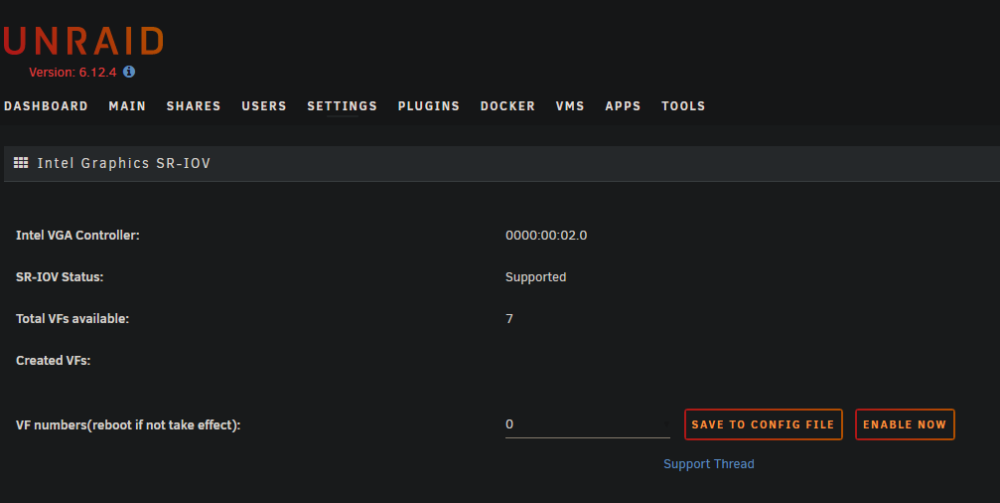
First of all, huge thank you to @zhtengw for the plugin and to @ich777 for all of the assistance in this thread. I'm brand new to Unraid and trying to set up SR-IOV to use for a combined VM / transcoding setup. This thread has been incredibly helpful in understanding what's going on and troubleshooting through each of the obstacles I've encountered. Thank you both! The issue I'm running into is simply that the plugin doesn't seem to accept my configuration changes or actually setup any virtual functions. With all of the instructions up to this point, I've been able to install it (running Unraid 6.12.4) and have it recognize that my CPU supports SR-IOV. But when I set the VF number, nothing seems to happen regardless of which button I hit, both "Save to Config File" and "Enable Now". I've tried rebooting after making the configuration changes, but once the system is back up, the settings page for the plugin is back to default values: 7 available, none created, number of VF's set to 0: I've tried only clicking one button (trying with both), and clicking them both in different orders. Nothing seems to help. Is there something else that I'm missing?