





badaboomxx
Members
-
Joined
-
Last visited
-
Thanks for the help trurl Being able to copy the appdata folder from the failed drive, and the link made fix the issues with the dockers and saved all the info in them. I think I just lost a little bit of data on the files that didn't move after changing the location from the cache, but that is nothing that I cannot find again. Thank you for your time and help.
-
I think I understand the issue more now. When I changed the cache drive, the appdata was contained in the failing one, the move command didn't move the appdata outside the failing cache drive, since I scheduled for almost 2 weeks ago to move everything every night from the cache, that is why I changed the option to run the appdata from cache -> array temporally to save as much data as possible from the failing drive. It appears that since the new cache drive didn't have any of the files contained in the failing drive, all that info is still in the failing drive since the move setting didn't move everything out of the cache. But now that I see that I can copy the appdata folder alongside all the other data contained in the failing cache drive, I think I can restore the docker options with those 2 and now retry the link you send me. Thanks, I will try it, because it appears to take some time to copy the contents of the drive, and let you know if it worked.
-
It is quite strange, all data is fine, but all my 4 installed dockers disappeared, when I tried to restore them, all the data and configuration is lost. And I didn't have the apps loaded in the cache. The cache is still there, and the drive is not letting me mount it unless I want to format it. So I put a new bigger drive, and mounted it with a usb enclosure. I can see the files that are still in the cache drive. So I am trying to copy them to the same location where they disappeared to see if I can re install them and restore the information.
-
I was able to mount the drive with an old USB adapter. So, what is the next step? I think the share on my computer show more folders in it.
-
Yes, I was just going to try to use a program to see if the drive was working and/or if it had an issue. When I get out of work I will try to mount the original drive on my nas to see if it can be seen.
-
I tried on my computer, but it didn't read it. Let me see if it works as an usb on unraid, because my tower sata adapters are already full.
-
This is the zip of the diagnostics. Thanks for the help. tower-diagnostics-20260311-1124.zip
-
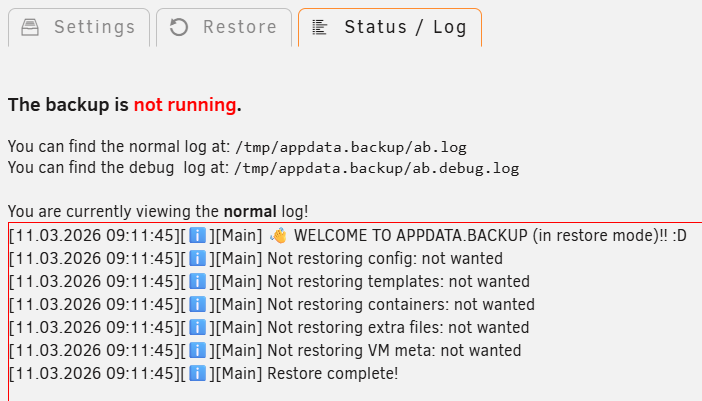
Have some issues with my cache drive, so I read in a forum that sometimes you just need to check another drive. So before anything I did a backup with Appdata Backup, move anything from the cache to the array, and thought it was enough to restore the options and dockers. So I replaced the drive to test it and it formatted it, but when I tried to run the appdata backup plugin, it didn't restore anything and gave me this error, no matter which backup file I choose. After that I thought that using the original cache drive I would get everything back. But it didn't. I didn't lose any configuration nor data on the drives, just the dockers (the configuration is still there if I try to re install any of it), so my question is that if there is a way to restore my original cache drive? or should I just give up and re install everything? Thanks for the help.
-
Thanks for the reply, I have a config with more folders but still, it is not starting copyparty at all if I put the config.conf file in that location. I also tried with a config as basic as that, but to no avail. I will try to check the internet for more information, and if I find something I will update here. Thanks EDIT: apparently if you follow the examples of the copyparty page, you get an example for the # create volumes: with either . or / In this case the solution was to put the [/w] as the first volume, then you can add the other folders. Right now I have another issue, but it is for the unraid server not allowing to access the server, I don't think is the copyparty app. Will update if I found a solution, with also the explanation of the problem.
-
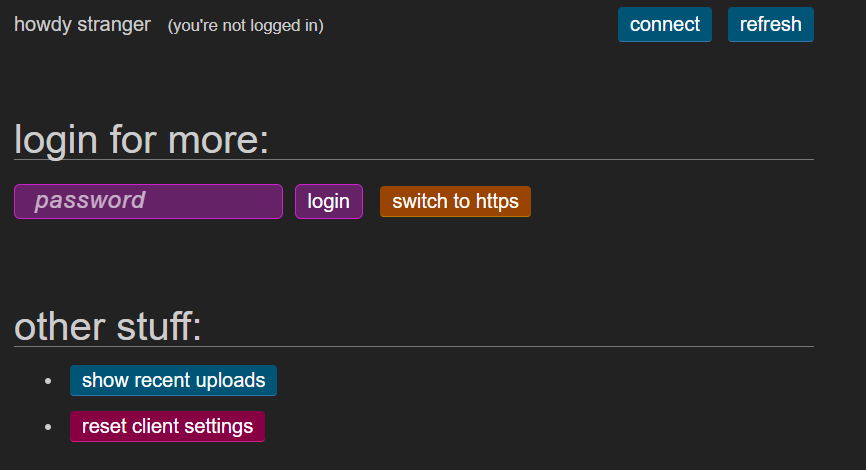
I am having issues with the config file with the docker, basically is not reading a config file that I made. My main question is that do you need a specific name for the config file? or you need to update it with a command like "copyparty-sfx.py -c XXX.conf"? but I kind of think that the command is to install the python. So, is there a way to confirm the config file or it can have any name as long as is in the share folder? Thanks for the help.
-
Hello, I am new to unraid and I just got binhex-qbittorrentvpn running, I have vpn unlimited and put the config file from the instructions in this thread regarding exporting them from the vpn unlimited site, renaming it as vg0.conf and putting the file in the wireguard folder . But for some reason I cannot get to connect and the torrent keeps saying STALLED. This is my config file [Interface] PostUp = '/root/wireguardup.sh' PostDown = '/root/wireguarddown.sh' PrivateKey = MYKEY FROM VPN UNLIMITED Address = 10.103.231.254/32 DNS = 10.100.0.1 PreDown = powershell -command "$wgInterface = Get-NetAdapter -Name %WIREGUARD\_TUNNEL\_NAME%; route delete 0.0.0.0 mask 0.0.0.0 0.0.0.0 if $wgInterface.ifIndex metric 95" Table = off [Peer] PublicKey = GENERATED BY WIREGUARD PresharedKey = GENERATED BY WIREGUARD AllowedIPs = 0.0.0.0/0 Endpoint = 184.75.208.34:259 PersistentKeepalive = 25 I appreciate any pointers here. Thanks.
