dimsum
Members
-
Joined
-
Last visited
Everything posted by dimsum
-
but why is docker.img saved in cache? i thought it will be in hdd? so in the end it was the settings that got mixed up and saved in cache? i've done extended smart test on all 4 hdd and 1 nvme. all came back "completed with no error". why did it corrupt in the first place....?
-
i've rebuilt it. and now all docker is gone. and its docker.img is corrupted. now i have to reinstall and reconfigure all docker again. ❌ parent transid verify failed ❌ failed to load root csum ❌ open_ctree failed ❌ btrfs check --readonly could not even open the filesystem
-
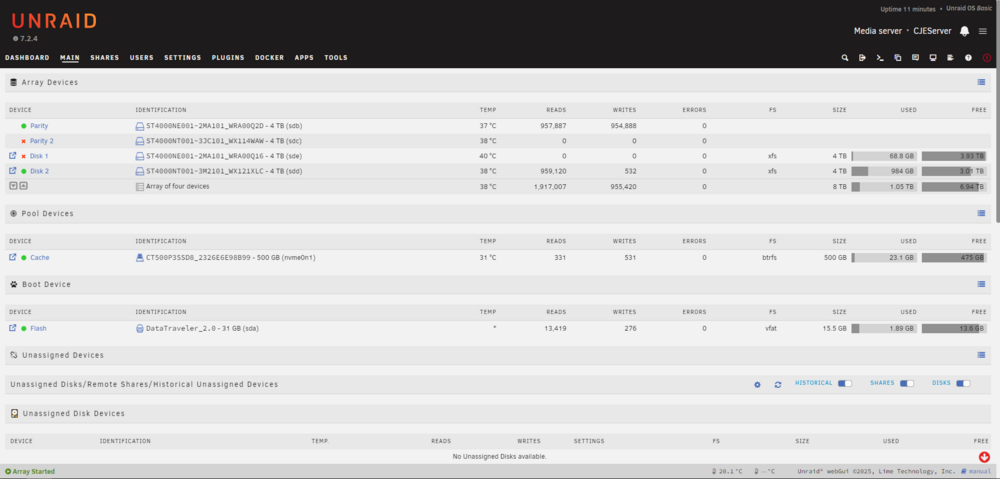
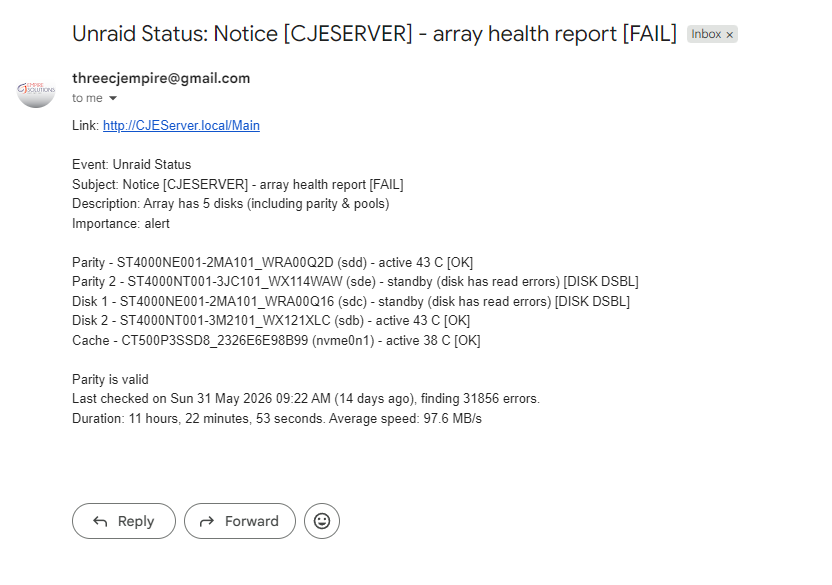
i have swapped to new sata cables and divided the power cables to be 2 drives sharing 1 powere cable. disk1 is accessible now with all my data and files. its just that it is now on X and not the green dot
-
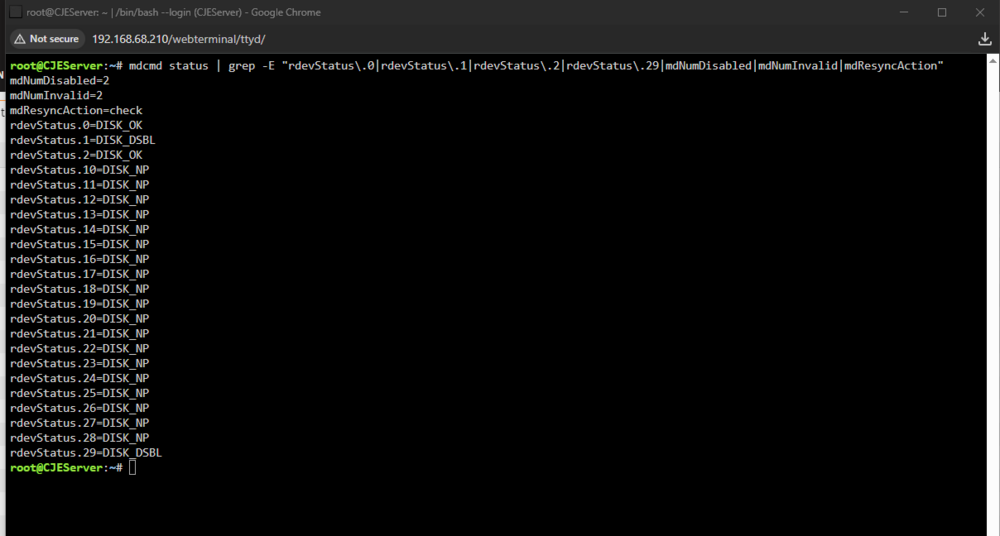
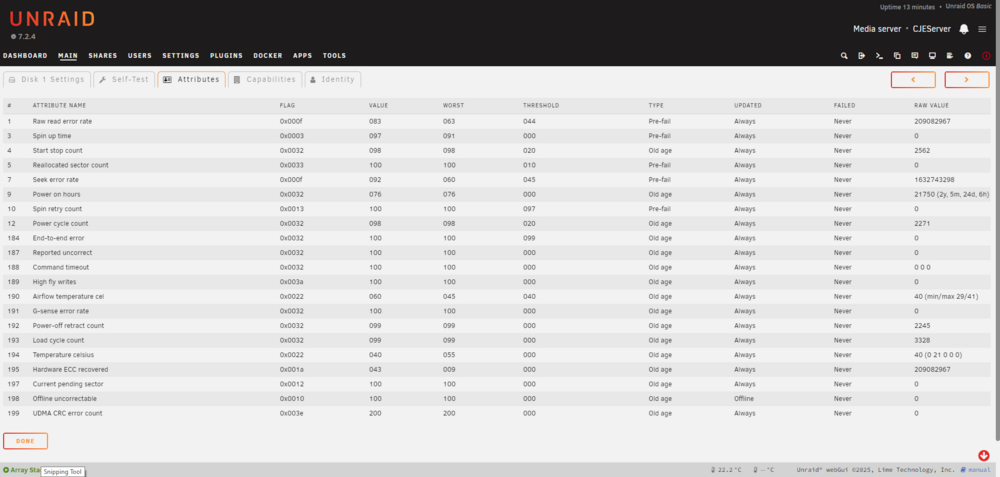
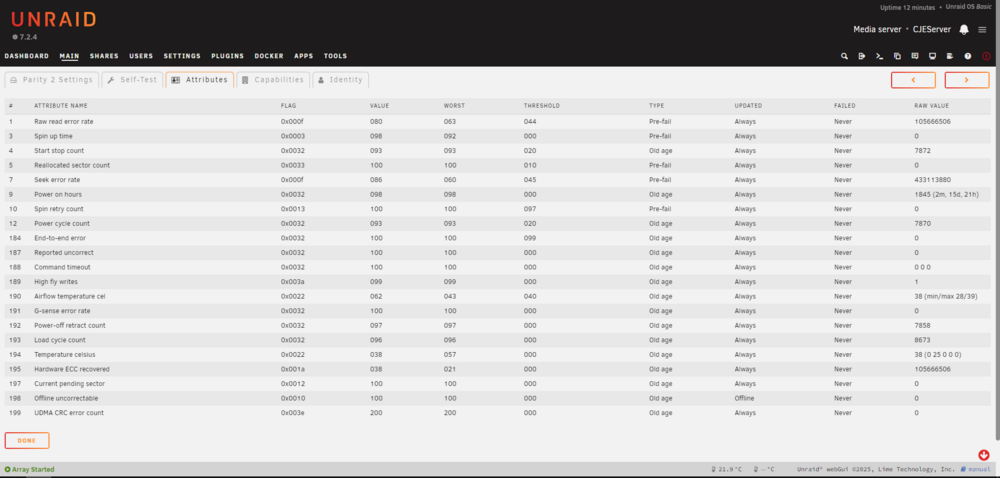
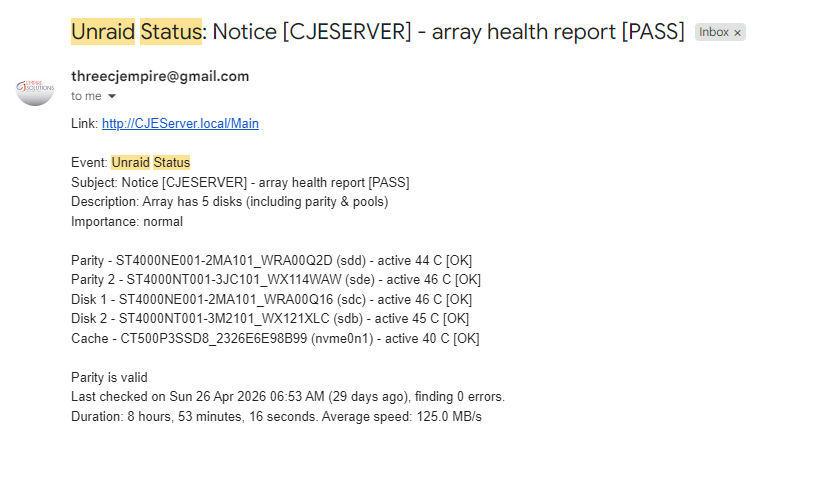
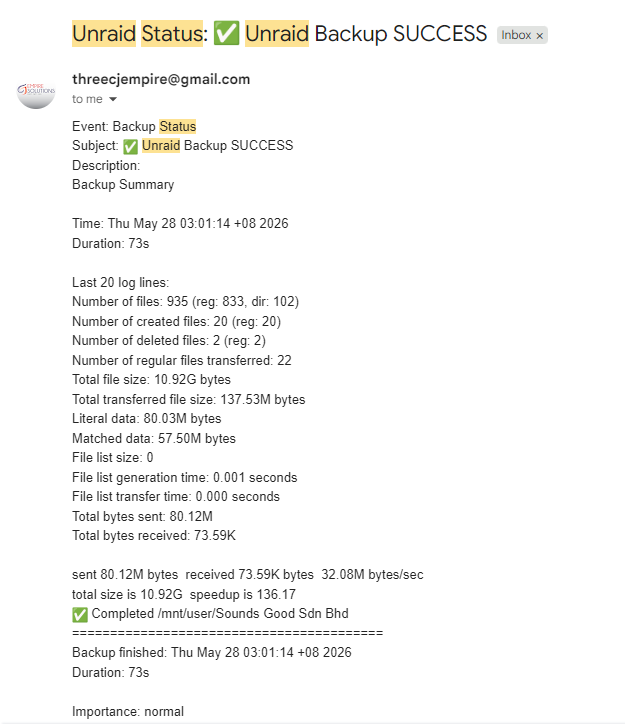
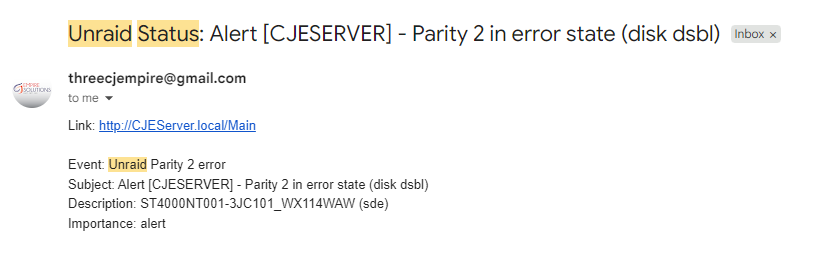
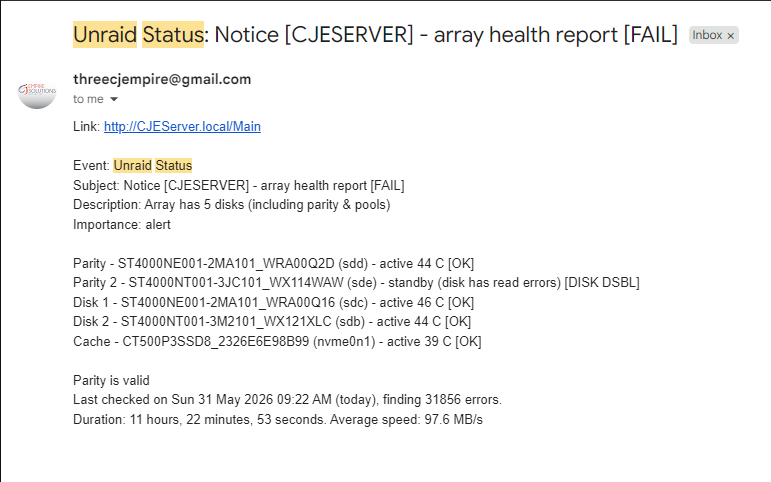
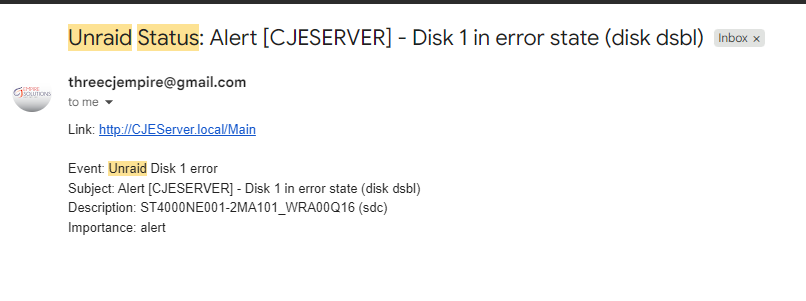
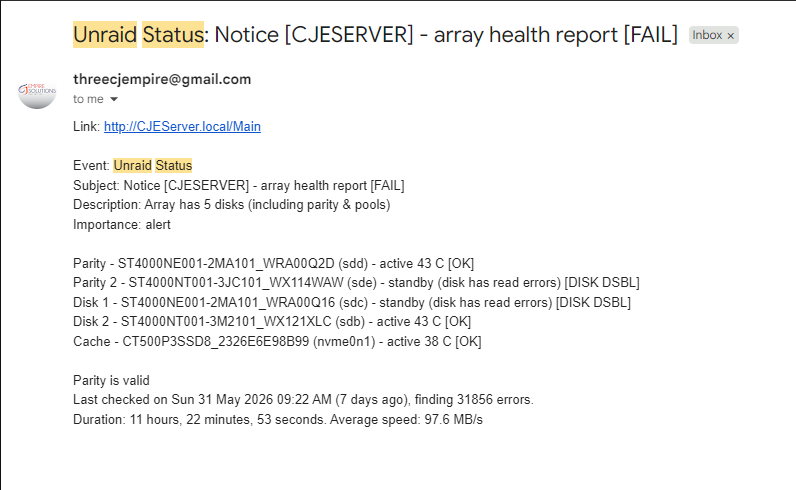
hi. my unraid system suddenly has errors on my drives. can anyone help me on what to do next? i have done xfs repair on disk1, the status said done. and now my files have returned and can be accessed from unraid and from windows explorer. what should i do to return parity2 and disk1 to the green dot state? hovering mouse over both X's says Parity - "Parity device is disabled. Click to spindown." and Disk1 - "Device is disabled. Contents emulated. Click to spindown". i have attached the diagnostic zip and photos that i think are relevent to the case. cjeserver-diagnostics-20260615-1413.zip