0.o_Vince_o.0
Members
-
Joined
-
Last visited
-
Was able to make it work Web ui: http://[IP]:[PORT:18790]/ Control UI Port: 18790 Gateway Port: 18689 <keep original> Been able to run two like this. Thanks for all the work
-
Hi there, been able to run and have fun with first instance, but now I want to create a second one and I can't understand how the port mapping works. 18789 is already taken so I try to use 18790 and different arrangements in the 3 fields that let me put a port. Any help welcome. Thanks :)
-
Same here, I have a bunch of your images running and Deluge + PIA autoconfiguring ports is just so cool. Should I make this docker go though the delugevpn docker. It will not automagically use the port of the vpn docker isn't it? Thanks a lot for your work BinHex ♥️
-
Thank you JorgeB ❤️
-
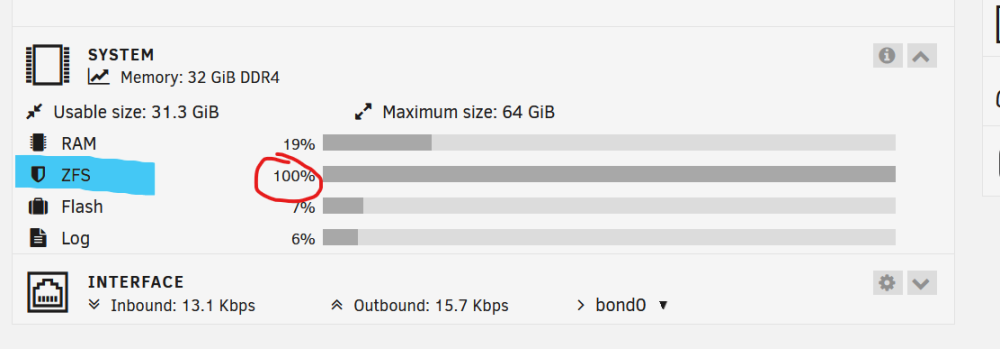
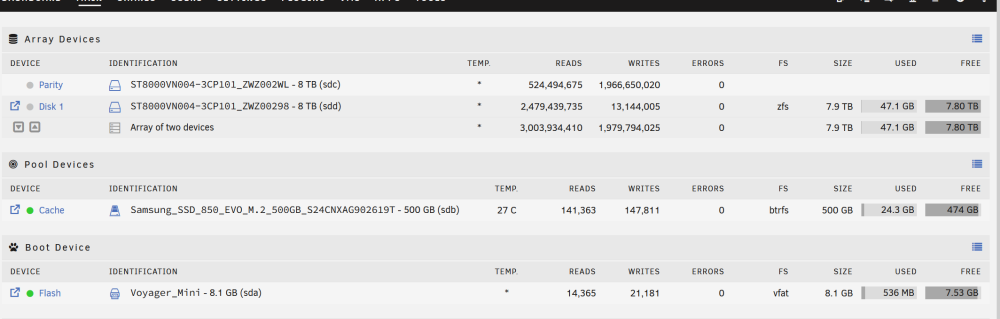
Hi there, New server here, formatted in ZFS to be able to have snapshots as I will have all my documents in there, with media files too. For now I don't have much in there and most of it is into the cache for now. In the Dashboard I have this ZFS 100% and as I don't like having something at 100% I'm wondering what does it means. I've not found what does it means.