





moey86
Members
-
Joined
-
Last visited
-
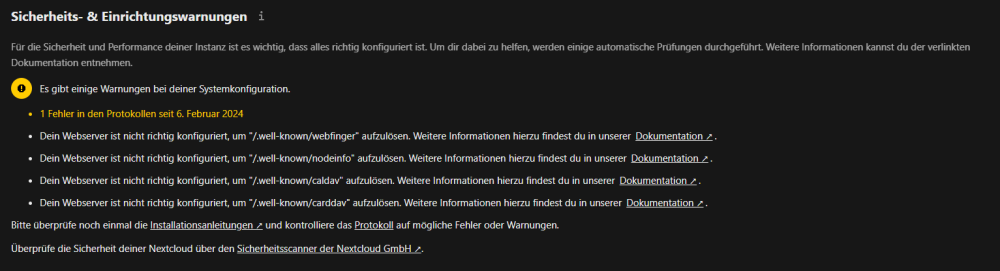
Ich habe es endlich hinbekommen, indem ich unter Advanced im NPM foglendes geändert habe: location /.well-known/carddav { return 301 $scheme://SUBDOMAIN.DOMAIN:PORT/remote.php/dav; } location /.well-known/caldav { return 301 $scheme://SUBDOMAIN.DOMAIN:PORT/remote.php/dav; } location = /.well-known/webfinger { return 301 $scheme://SUBDOMAIN.DOMAIN:PORT/index.php/.well-known/webfinger; } location = /.well-known/nodeinfo { return 301 $scheme://SUBDOMAIN.DOMAIN:PORT/index.php/.well-known/nodeinfo; } Entsprechend SUBDOMAIN, DOMAIN und PORT eintragen (Bspw.: abc.duckdns.de:12345). Es hat wohl immer daran gelegen, dass er $host, $server, $port etc... nicht korrekt ersetzt hat. Endlich fehlerfrei. Grüße
-
Hallo zusammen, ich bin seit einigen Wochen auch Besitzer eines Unraidserver und beiße mir aktuell die Zähne an dem letzten Fehler in der Nextcloud aus. Der '/.well-known/-Fehler' wurde hier schon zweil Mal diskutiert, aber ich komme zu keiner Lösung. Ich hatte zunächst alles mit SWAG laufen und habe nun NPM ausprobiert. Mit beiden das Gleiche. Daher meine Frage: Kann der Fehler auch an der Nextcloud selbst liegen bzw. gibt es dort Einstellung die ich kontrollieren kann? In SWAG habe ich den hier im Forum vorgeschlagenen Code in dessen Config eingefügt und im NPM habe ich es unter Advanced eingefügt. Eigentlich so, wie hier beschrieben, aber es will nicht. Vielen Dank
